The Vault guide · 6 min read
The OScar Vault: secrets only you can open
How the Vault in OScar keeps passwords, codes and files end-to-end encrypted behind a master passphrase only you know, and everything you can do once it is unlocked.
Every life has a drawer of secrets: the router password, the bank's customer number, the alarm code, a scan of your passport. The Vault in OScar is where mine live now. It is an encrypted password vault with one simple promise: everything in it is locked on your own device with a master passphrase that only you know, before it is ever stored. Nobody else can read it. Not a curious stranger, not a server, not me. Here is how it works, and everything you can do with it.
One passphrase, and no way around it
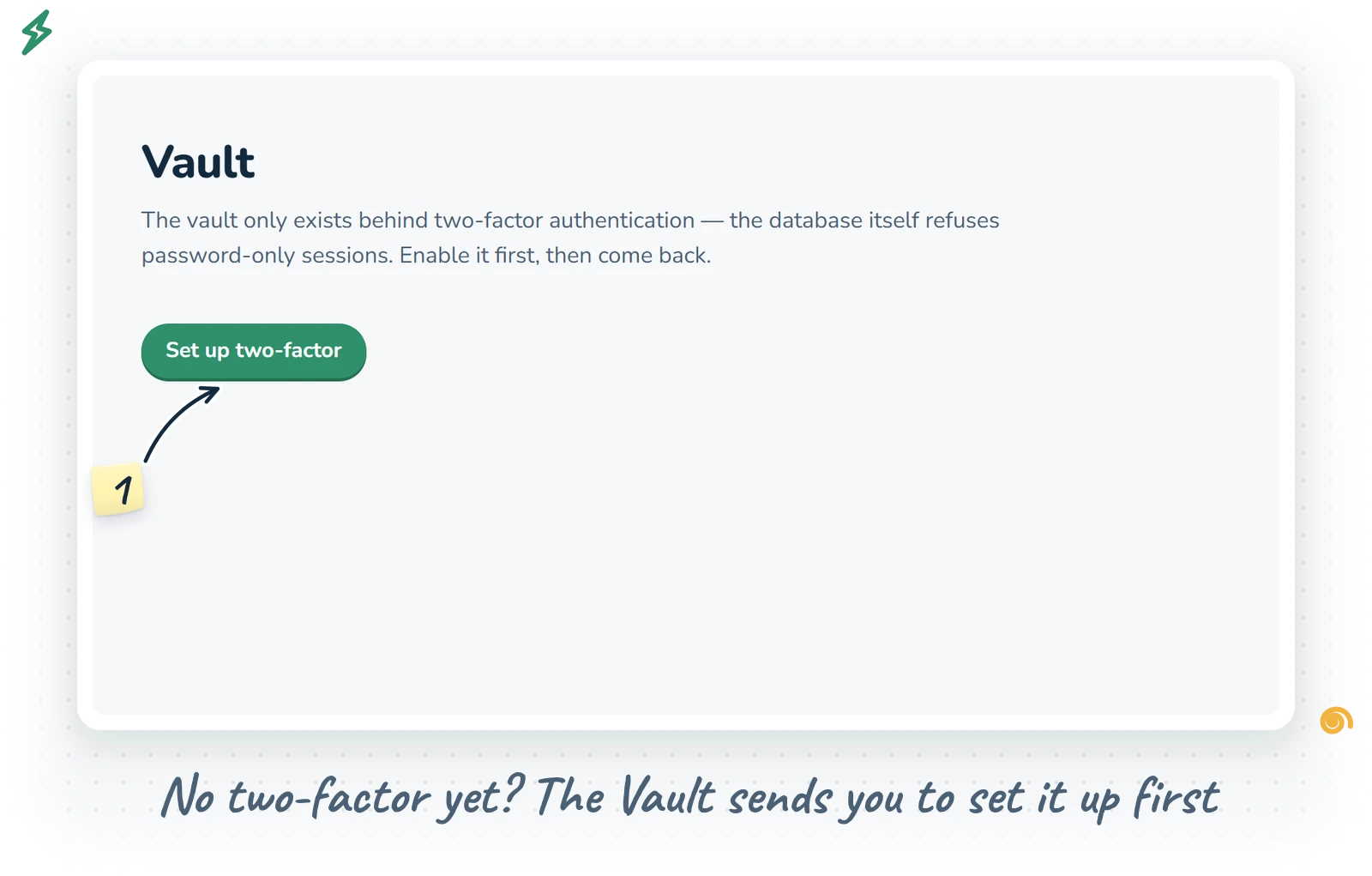
One thing comes before the passphrase: the Vault only opens for an account with two-factor sign-in switched on. If yours does not have it yet, the Vault says so and sends you to Security to set it up, which takes a minute with an authenticator app.
The first time you open the Vault, it asks you to create a master passphrase and type it twice. It needs at least twelve characters, and the Vault's own tip is a good one: a few random words work well. "lantern pickle orbit tuesday" is easier to remember than "Xq7!f" and far harder to guess.
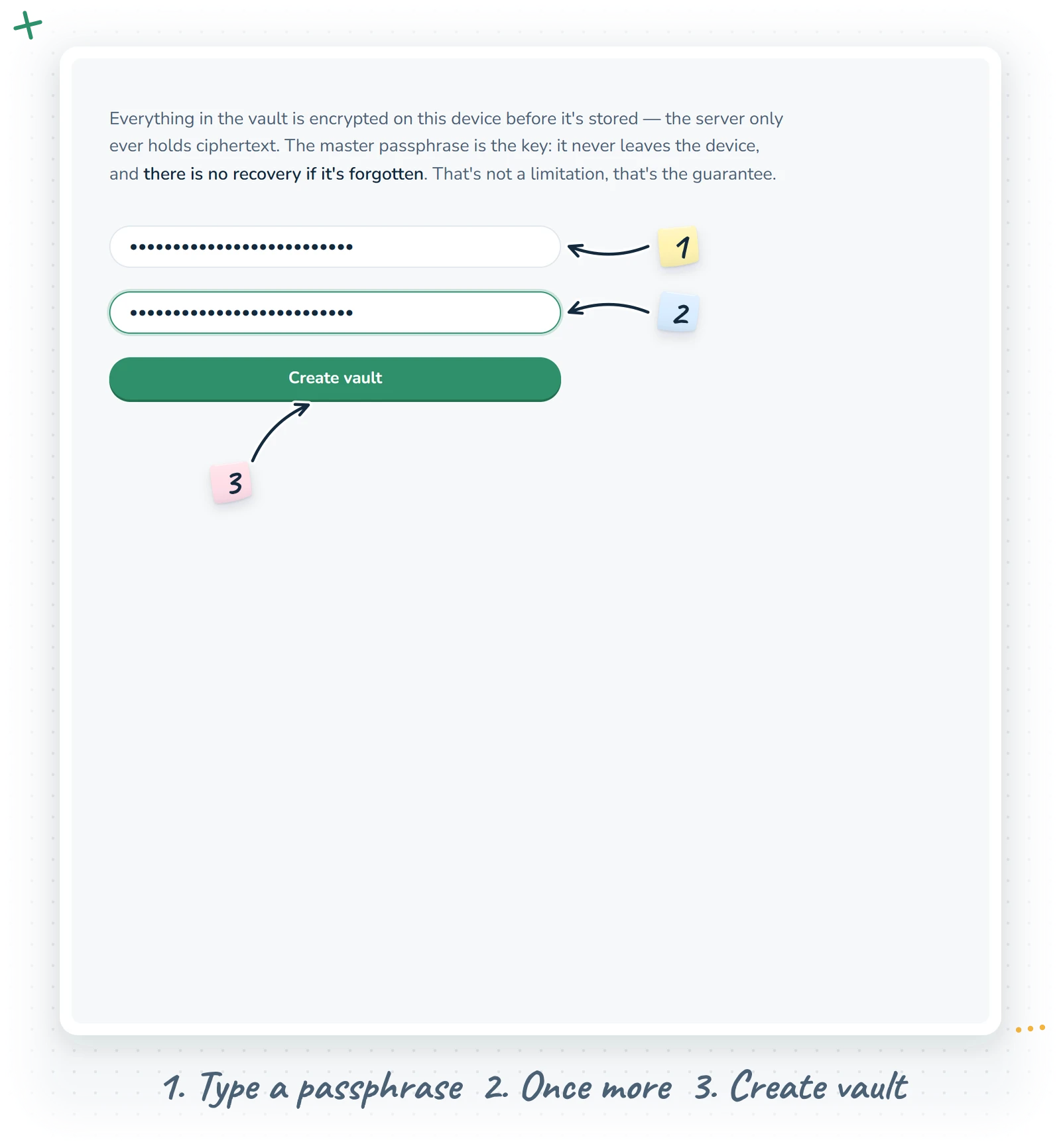
Now the important part, said kindly: there is no recovery if you forget it. No reset email, no support ticket, no back door. The passphrase never leaves your device, so there is nothing anyone could send back to you. That is not a missing feature. That is the guarantee. Write it down somewhere safe and offline, on paper in a drawer you trust, and the Vault will be the most reliable thing you own.
Locking and unlocking
When you come back, the Vault shows a single field: type your passphrase and press Unlock. Everything is decrypted right there in your browser.
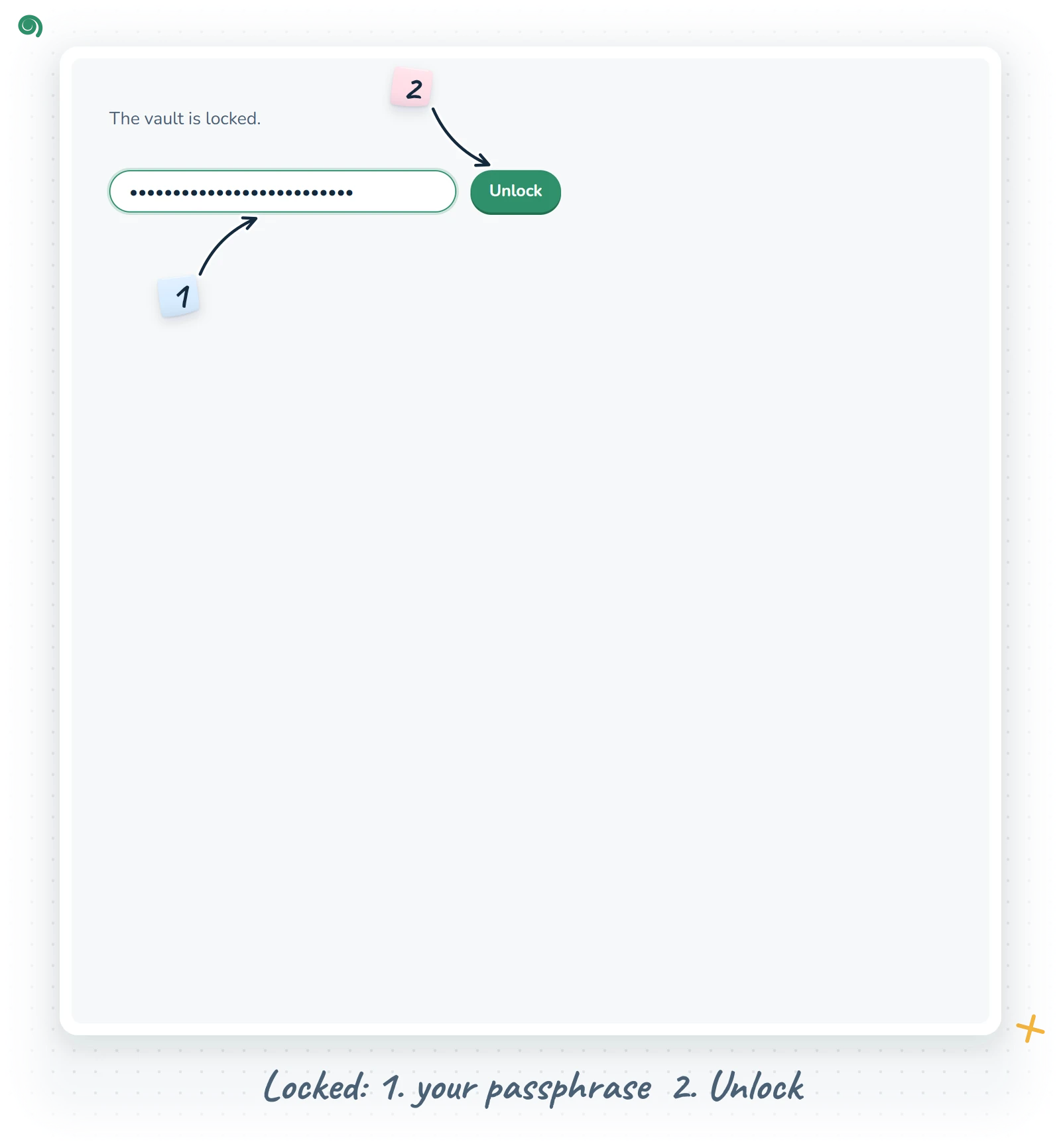
It stays unlocked while you use it, and while you hop to other tools and come back. After five minutes without activity it locks itself, and that includes time spent on other pages or with your phone in your pocket. Reloading the page or closing the app locks it too, because the unlocked key lives only in memory and is never saved anywhere. Want to lock it right now? Press the padlock at the end of the small floating toolbar at the top of the page.
What an item holds
The toolbar is four icons: New item (the green plus), Search, New folder and Lock. Press New item to add something. An item is flexible on purpose, so it works for logins, codes, account numbers or plain secret notes:
- Name, the only required field. "Bank", "Router", "Passport".
- Username / number, for a login, a customer number or a card number.
- Secret, hidden by default. Show and Hide reveal it, and Generate fills in a fresh random twenty-character password and shows it to you.
- URL, the address where the login belongs.
- Notes, for recovery codes, PINs, answers to those silly security questions.
- Files, which deserve their own section.
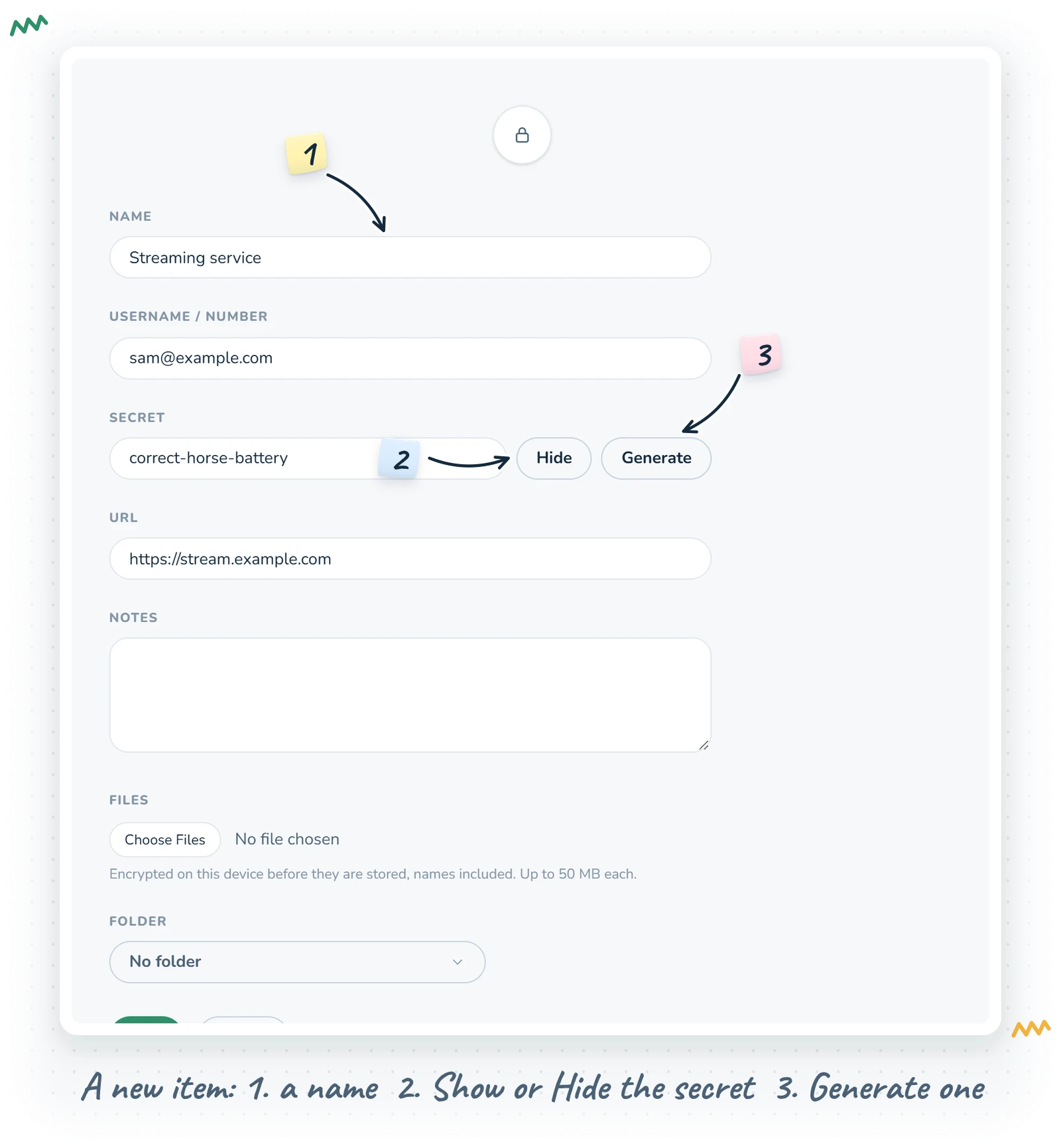
Save puts it in the Vault; Cancel goes back; Delete (on an existing item) asks first and is permanent.
Files inside items
An item can carry files: a scan of your passport inside the "Passport" item, the insurance policy inside "Home insurance". Use the file picker in the editor to choose one or several. They queue up in the list marked "goes up on Save", and when you press Save, each one is encrypted on your device, names included, before it is uploaded. Files can be up to 50 MB each.
To open one, press Download. The file is fetched still encrypted, decrypted in your browser and handed to you with its real name. Remove takes a file off the item. In the list, an item with files says so, for example "2 files".
The list: copy without looking
Each item is a row with its name and, in grey beside it, its username, URL and file count. On the right are small copy buttons: User copies the username and Secret copies the secret, without ever showing it on screen. The button flashes "Copied", and thirty seconds later the Vault clears your clipboard, so your password does not hang around waiting to be pasted somewhere silly.
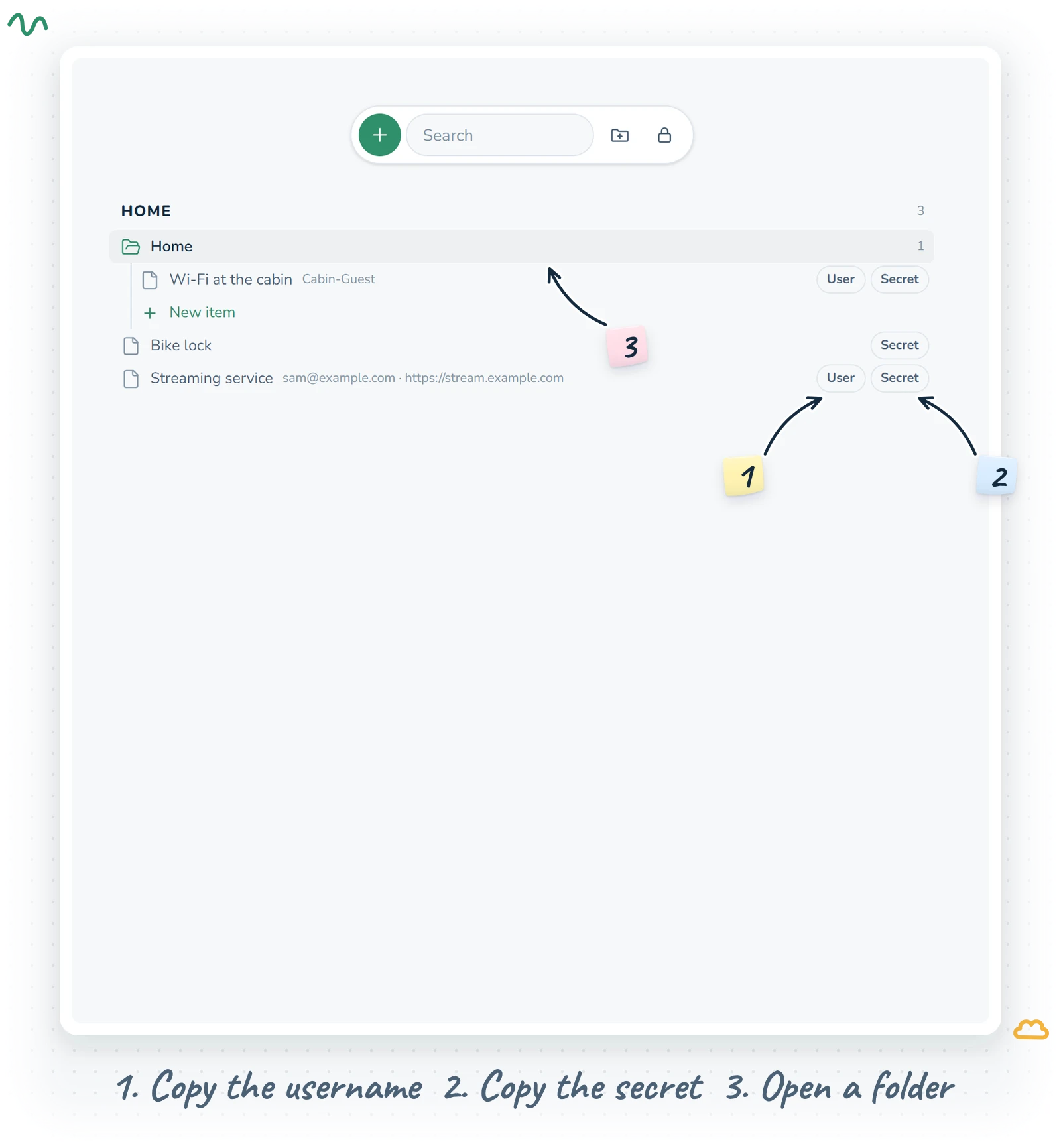
Click the row itself to open the item. Rows are real links, so you can also open an item in a new tab; it will open locked there, as it should.
The Search field in the toolbar looks through names, usernames and URLs as you type, and folders open themselves to show any match inside them.
Folders
New folder creates a folder. Give it a name ("Bank", "Work", "Home") and, if you like, put it Inside another folder; folders can nest as deep as you need. Folder names are encrypted just like everything else.
- The page is a folder tree, the same one the other tools keep in their sidebar: each project is a heading, its folders sit under it, and what a folder holds appears one step in under a thin guide line, subfolders first, then items, with New item last.
- Click a folder to open or close it; its little icon turns from grey and closed to green and open. The Vault remembers which folders you left open.
- Next to each name is a count of everything inside, subfolders included, so a parent folder never looks empty when it is not.
- Drag a folder among its neighbours to reorder them, or onto another folder to put it inside. Drag an item onto a folder to file it there.
- Right-click a folder for New subfolder, New item, Rename, Edit (the form that moves it into another folder) and Delete folder. Deleting a folder never deletes your items: they and any subfolders move up to the top level of the project.
Items do not need a folder at all. Items without one sit straight in their project, after its folders, with no extra heading in the way.
Several projects on one board
OScar organises your life into projects (Private, a side business, a club you run), and each project has its own corner of the Vault. The Vault board can show several of them at once. Open the Vault from your home page and you see every project, each under its own heading in its colour. Open it from inside a project and you see just that one.
In the sidebar, a Projects list with checkboxes lets you choose which projects are on the board. One project is marked "New items land here", and when several are showing, the new-item and new-folder forms let you pick the project.
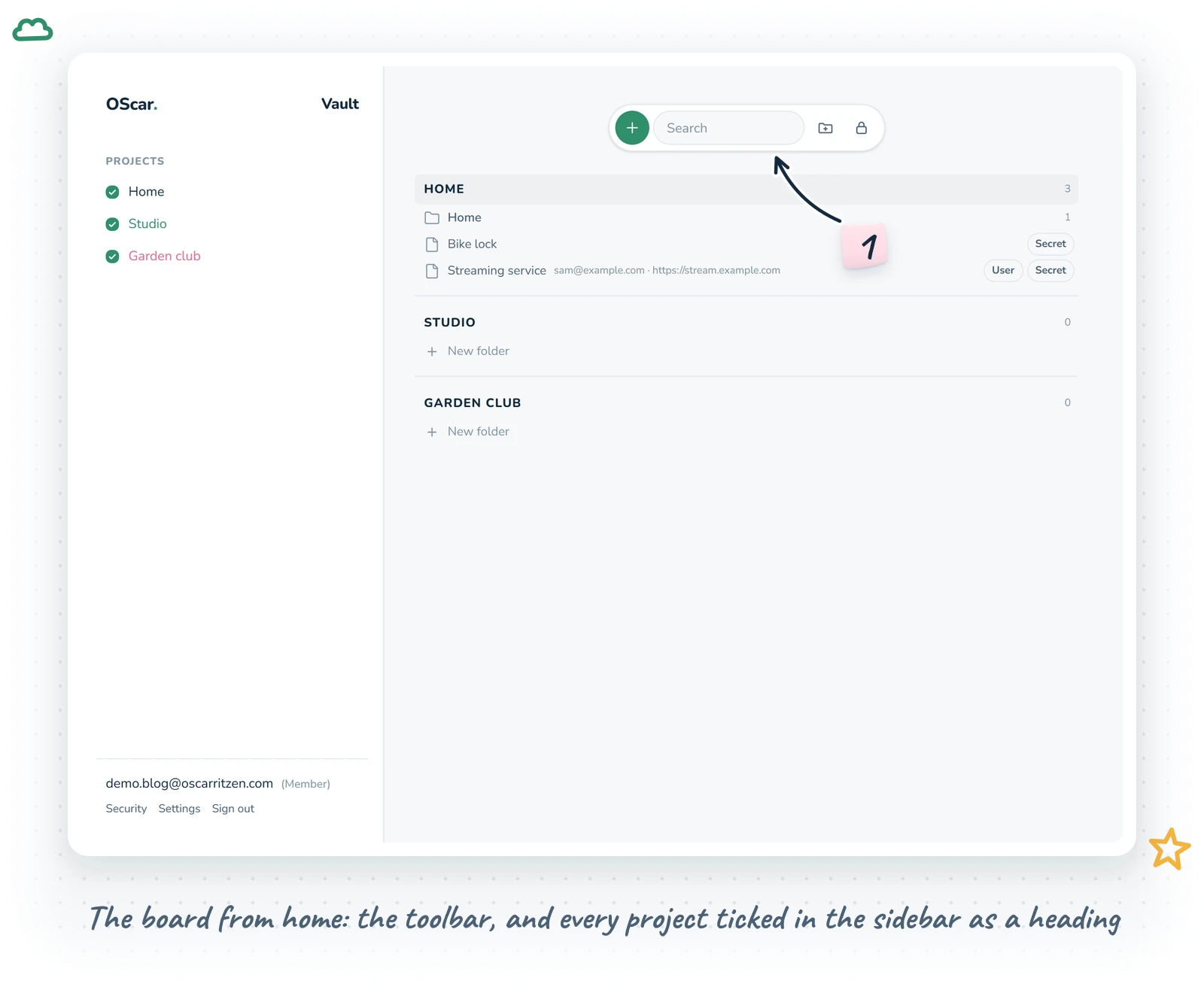
You use the same passphrase for all of them. Unlock once and every project's vault opens together.
Moving an item to another project
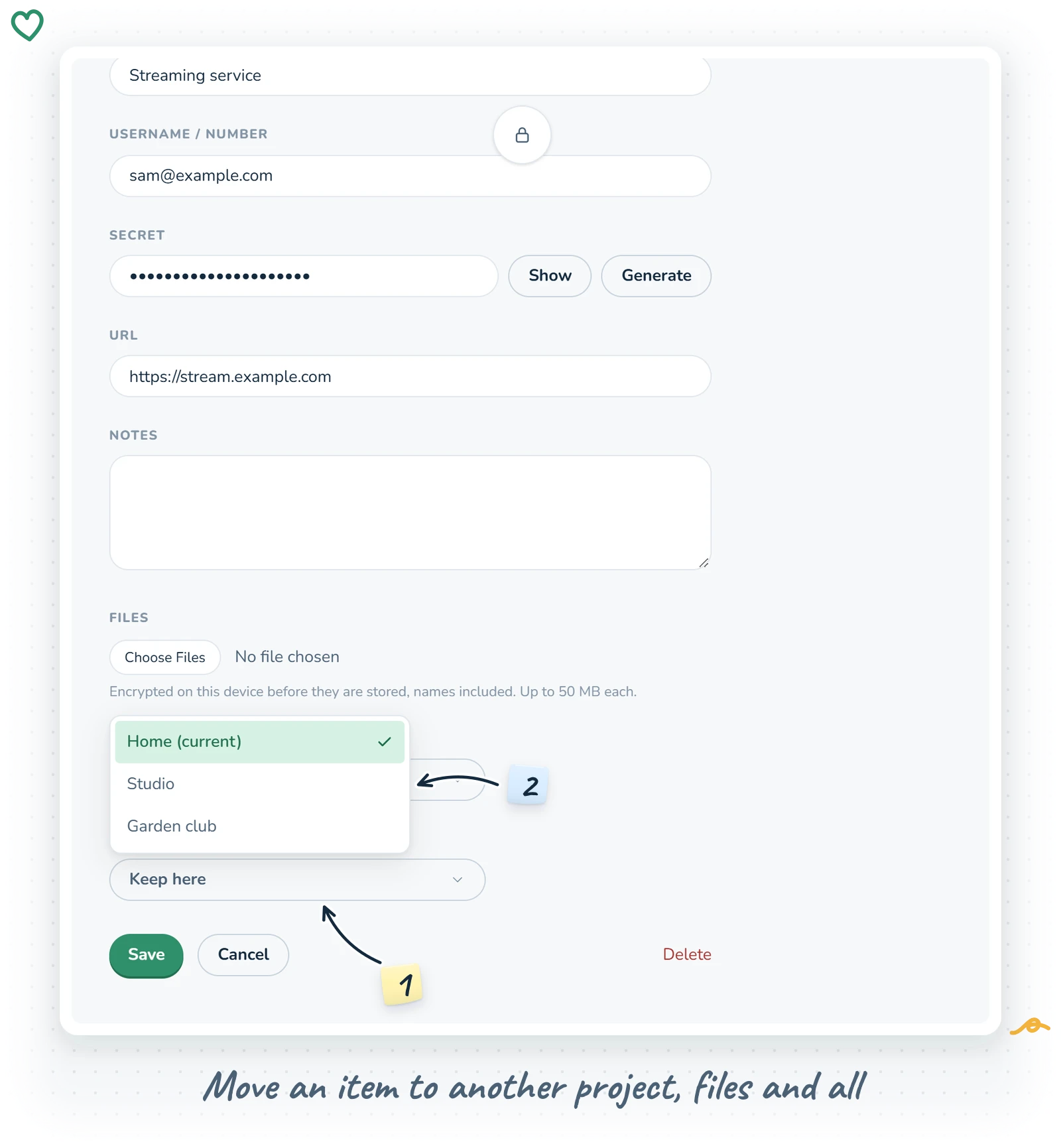
Filed the Wi-Fi password under the wrong project? Open the item, and under the folder picker you will find Move to another project. Pick the new project, choose one of its folders (or none), and press Save. The item moves with all of its files, still encrypted the whole way.
If something cannot be read
If an item ever cannot be decrypted (it was stored under a different passphrase, or it got damaged), the Vault does not hide it or break. A small amber note at the bottom says how many items cannot be read, with a button to delete each one. Everything else keeps working.
Why an encrypted password vault is built this way
Most of OScar is designed to be convenient. The Vault is designed to be certain. All the encrypting and decrypting happens on your device, and what is stored is only scrambled data that is useless without your passphrase. The trade-off is the one you met at the start: the passphrase is yours alone, and so is the responsibility for remembering it. I think that is a fair deal for the things that matter most.
The Vault comes with the full OScar plan, together with every other tool. Have a look at OScar or the plans on the pricing page. And go write that passphrase down.
- vault
- passwords
- encryption
- security
- files