The Translate guide · 3 min read
OScar Translate: paste, pick a language, done
How Translate in OScar works: paste any text, pick one of twelve languages, and get a natural translation that keeps your tone and line breaks. Nothing you translate is stored.
Some tools earn their place by being big. Translate earns it by being small. It is an AI text translator that lives one tap from your OScar home page and does one thing well: you give it text, it gives you that text in another language, sounding like a person wrote it. No accounts to juggle, no history to clean up. Here is the whole tool.
Finding it
Translate is one of the tiles in the Tools grid on your home page, next to the Phonebook and the Vault, and it is in the home menu in the sidebar too. It opens straight onto a blank page with the cursor already in the text box, ready for pasting.
How to translate something
- Paste or type your text into the big box. You do not need to say what language it is in; Translate works that out by itself.
- Pick a language from the "Translate to" picker. It starts on English.
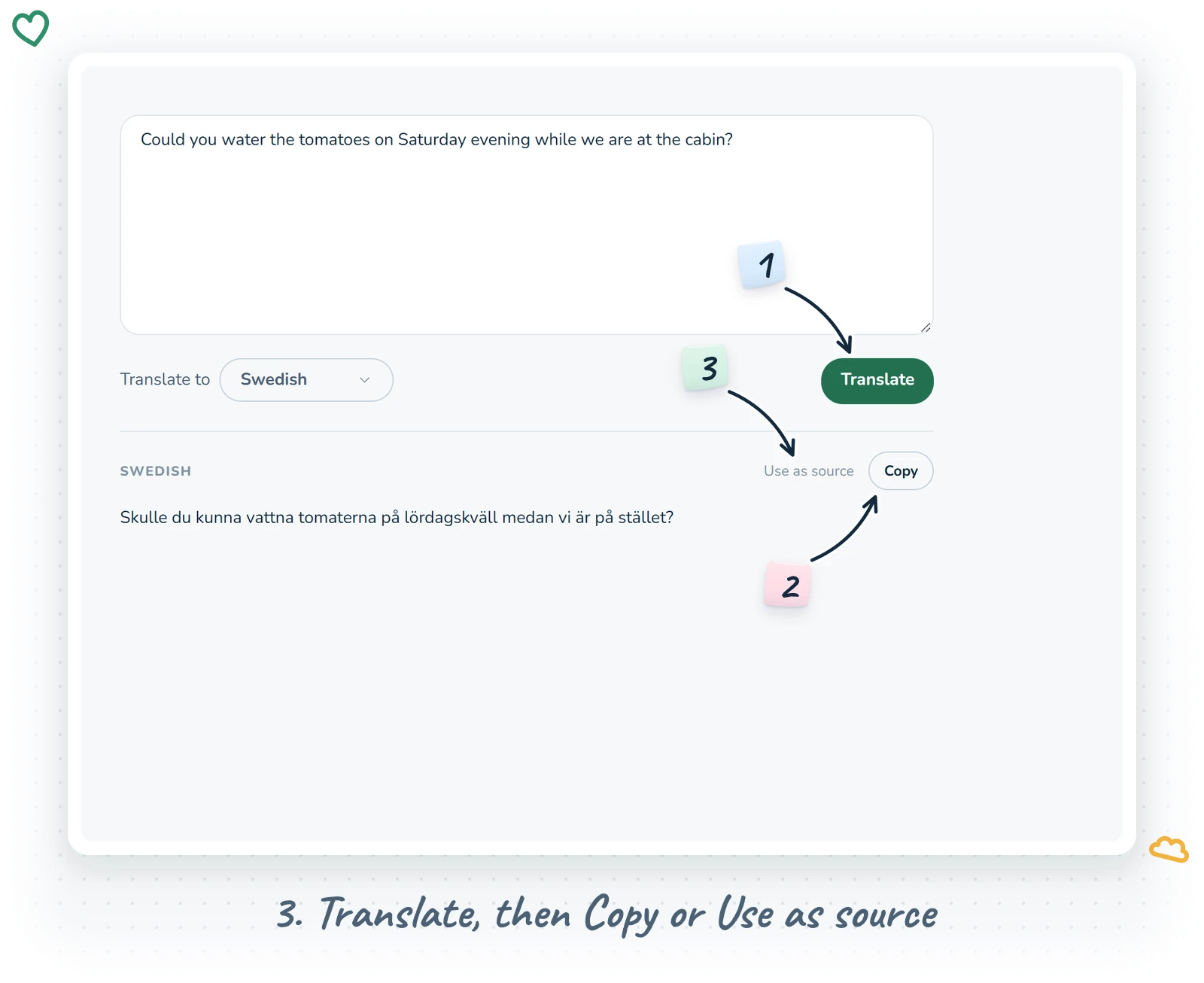
- Press Translate. The button reads "Translating..." for a moment, and the result appears underneath, headed with the language you chose.
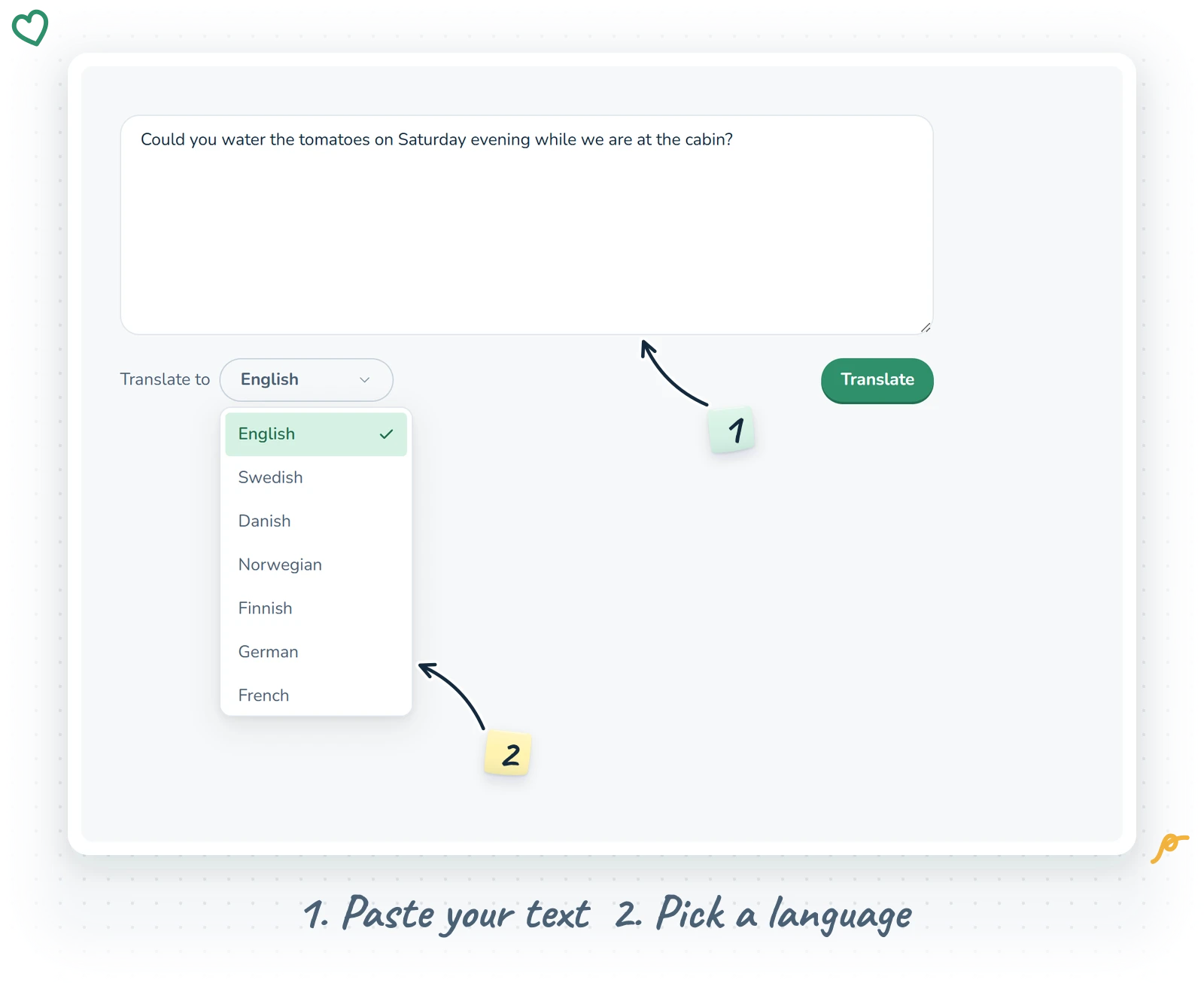
That is it. The box grows if you drag its corner, and you can translate anything from a single word to a long letter, up to 15,000 characters at a time.
The languages
You can translate into twelve languages:
- English, Swedish, Danish, Norwegian and Finnish
- German, French, Spanish, Italian and Dutch
- Portuguese and Polish
The source can be pretty much anything; the twelve are the languages it writes into.
Natural, not word-for-word
Translate is asked to keep the meaning, the tone and the formatting of what you give it. A cheerful message stays cheerful, a formal email stays formal, and your paragraphs and line breaks come back where you put them, so a list stays a list. You get the translation and only the translation: no "Here is your text:" preamble, no notes, no quotation marks to trim off before you paste.
If your text is already in the language you picked, it comes back lightly polished, which makes Translate a handy proofreader for a quick note in a language you are still learning.
What you can do with the result
Next to the language heading above the translation are two buttons:
- Copy puts the translation on your clipboard. The button says "Copied" so you know it worked.
- Use as source moves the translation up into the text box and clears the result. This is the quick way to chain things: translate into Swedish, tweak a word, then translate back into English to check that it still says what you meant.
If anything goes wrong, Translate says so in plain words under the button ("Translation failed, try again", or that a text is too long) and leaves your text exactly where it was.
Nothing is kept
This is the part I like most. Translate stores nothing. There is no history, no saved list, no record of what you translated. Your text goes off to be translated, the translation comes back to your screen, and that is the end of it. Reload the page and you have a fresh blank slate. It is a scratchpad, not an archive, so if you want to keep a translation, copy it into a note.
Why an AI text translator, and what it costs
Translate uses AI to do the translating, which is why the results read like real sentences rather than dictionary lookups. Each translation uses a tiny amount of the monthly AI credits that come with your plan. A normal page of text costs very little, so everyday use barely makes a dent.
As with any translation, AI or human, it is worth a quick read before you send something important, like a contract or a medical note. For the everyday stuff (a message to a neighbour, a menu, a reply to a supplier) it is fast, natural and pleasantly boring in the best way.
Little habits that make it better
- Paste whole paragraphs rather than single sentences. More context means a better translation.
- Use Use as source to check a translation by sending it back the other way.
- Keep the tab handy on your phone when travelling; it is quicker than any app store detour.
Translate is one of the tools in the full OScar plan, together with the Calendar, Budget, Phonebook, Vault and more. See the whole set on the OScar page, or the plans on the pricing page. Hej då, and goodbye.
- translate
- translation
- ai
- languages
- writing