The Phonebook guide · 5 min read
The OScar Phonebook: everyone you call, A to Ö
How the Phonebook in OScar works: an alphabetical list with a letter rail, search across names, numbers and emails, one-tap Call, Text and Map links, and birthdays that know how old people are turning.
Your phone already has contacts, so why would anyone want a phonebook in a web app? For me the answer was simple: I wanted the people in my life in the same place as my calendar, my notes and my budget, on every device I use, laid out the way a proper phonebook is. The Phonebook in OScar is a small, friendly personal contacts app that does exactly that. Here is everything it does.
Opening the Phonebook
The Phonebook is one of the tiles in the Tools grid on your OScar home page, and it also sits in the home menu in the sidebar. It opens the phonebook of your home project, so there is one place for everyone you know.
The list: alphabetical, the way it should be
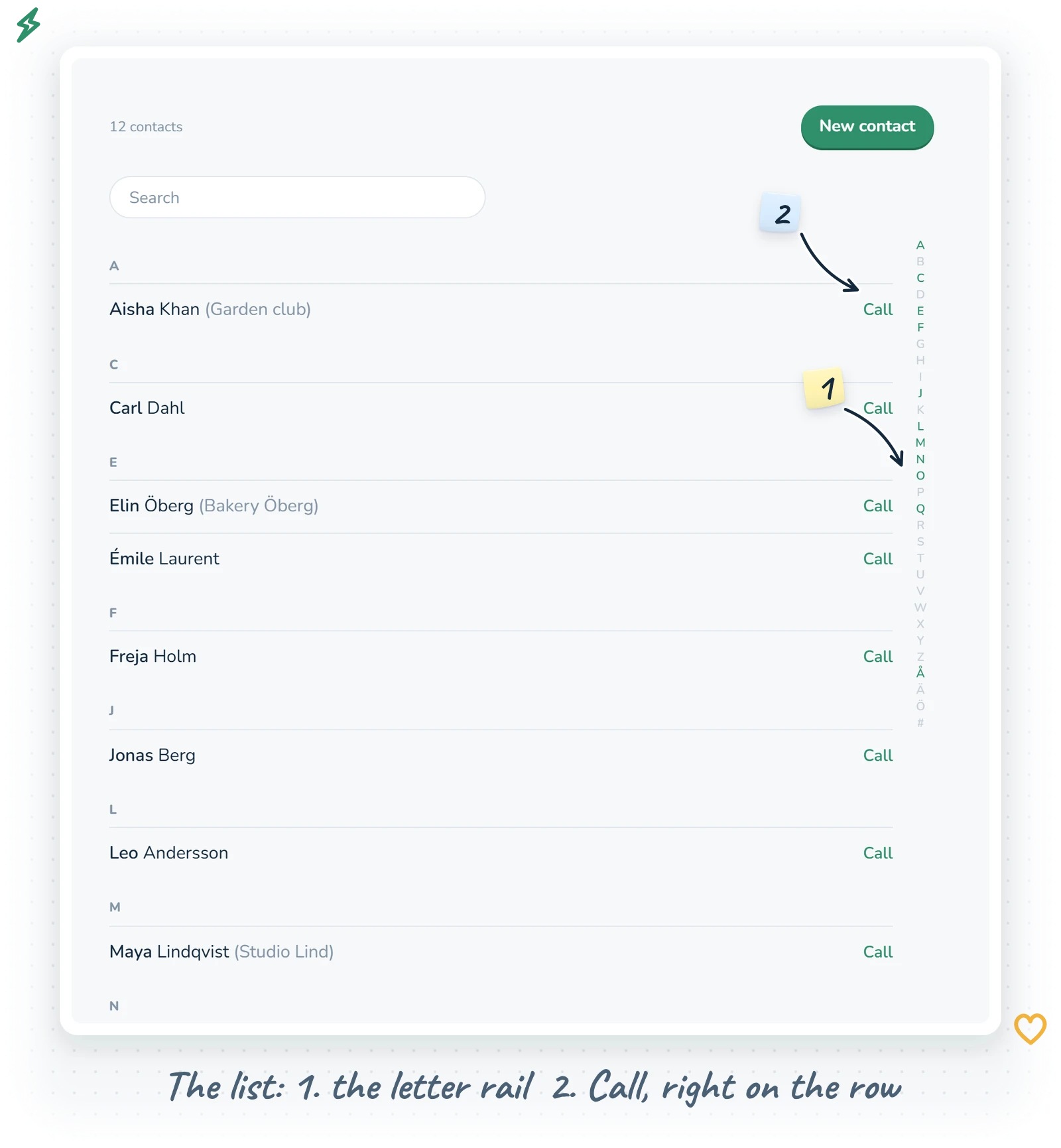
The main view is a list of everyone, grouped under letters. A small line at the top says how many contacts you have, with the New contact button beside it. Each row shows the first name in bold, the last name after it, and the company in grey brackets if there is one. Contacts without a person's name (a plumber's firm, say) are listed by their company.
Sorting with a Swedish accent
The list sorts by first name, then last name, then company. It uses the Swedish alphabet, which means Å, Ä and Ö are letters of their own and come after Z, exactly like in a Swedish phonebook. Other accented letters fold into their plain cousins, so an Émile files under E. Anything that starts with a digit or a symbol gathers under # at the very end, like on an iPhone.
Sticky letters and the jump rail
As you scroll, the current letter's header sticks to the top so you always know where you are. Down the right-hand side runs a slim rail of every letter from A to Ö plus #. Letters that have contacts are green and clickable: tap one and the list jumps straight there. Letters with nobody are greyed out. It is the fastest way through a long list, and it works nicely with a thumb.
Call, straight from the list
If a contact has a phone number, a green Call link sits at the end of their row. Tap it on your phone and it dials. It picks the number labelled mobile first, and otherwise the first number on the card. No need to open the contact at all.
Search
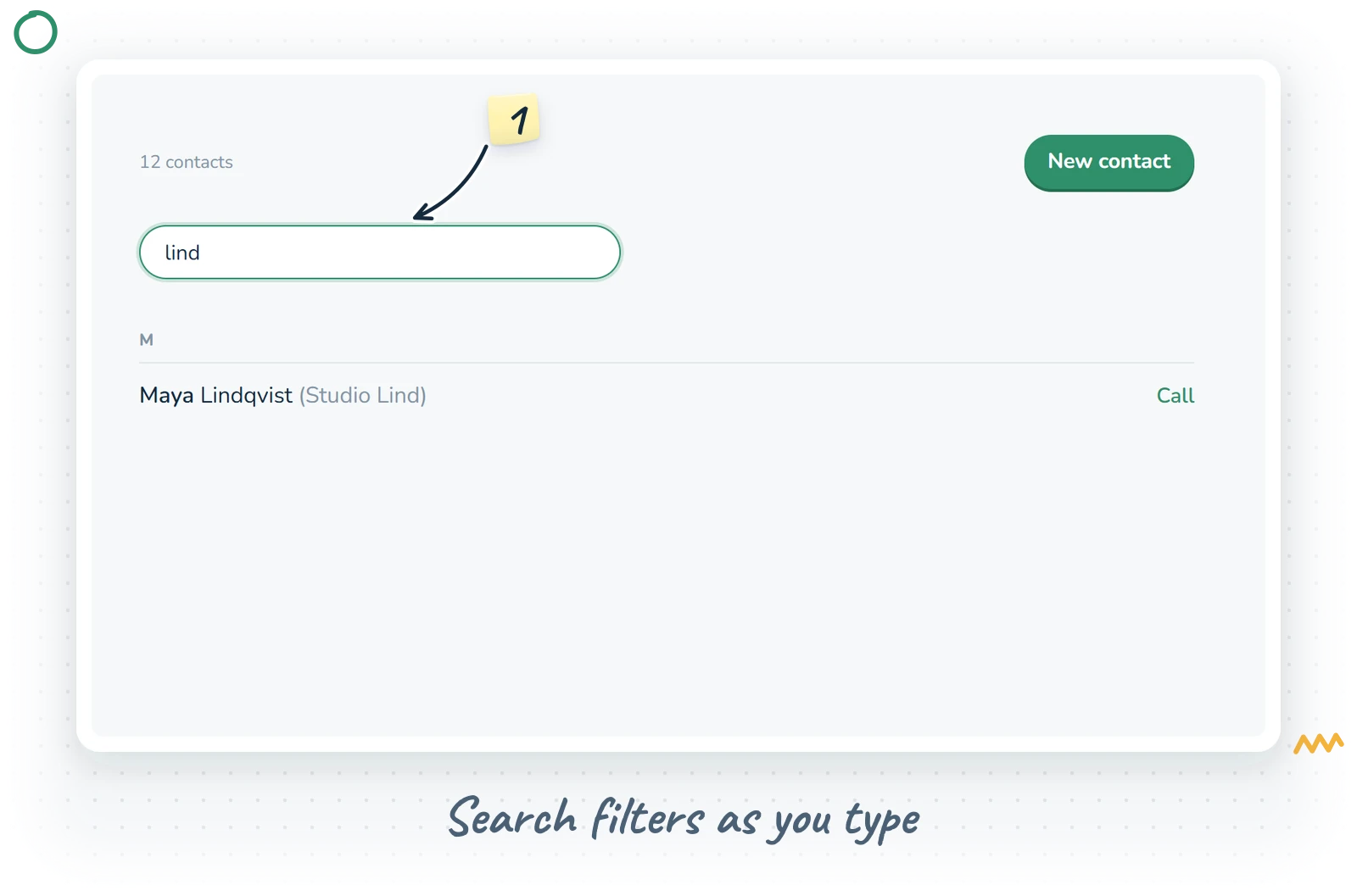
Once you have contacts, a search field appears above the list. Type a few letters and the list filters as you type. It searches first names, last names, companies, phone numbers and email addresses, so "0702" finds the number you half remember and "gmail" finds everyone on Gmail. While you search, the letter rail steps aside. If nobody matches, it tells you so: "No one matches."
A contact's card
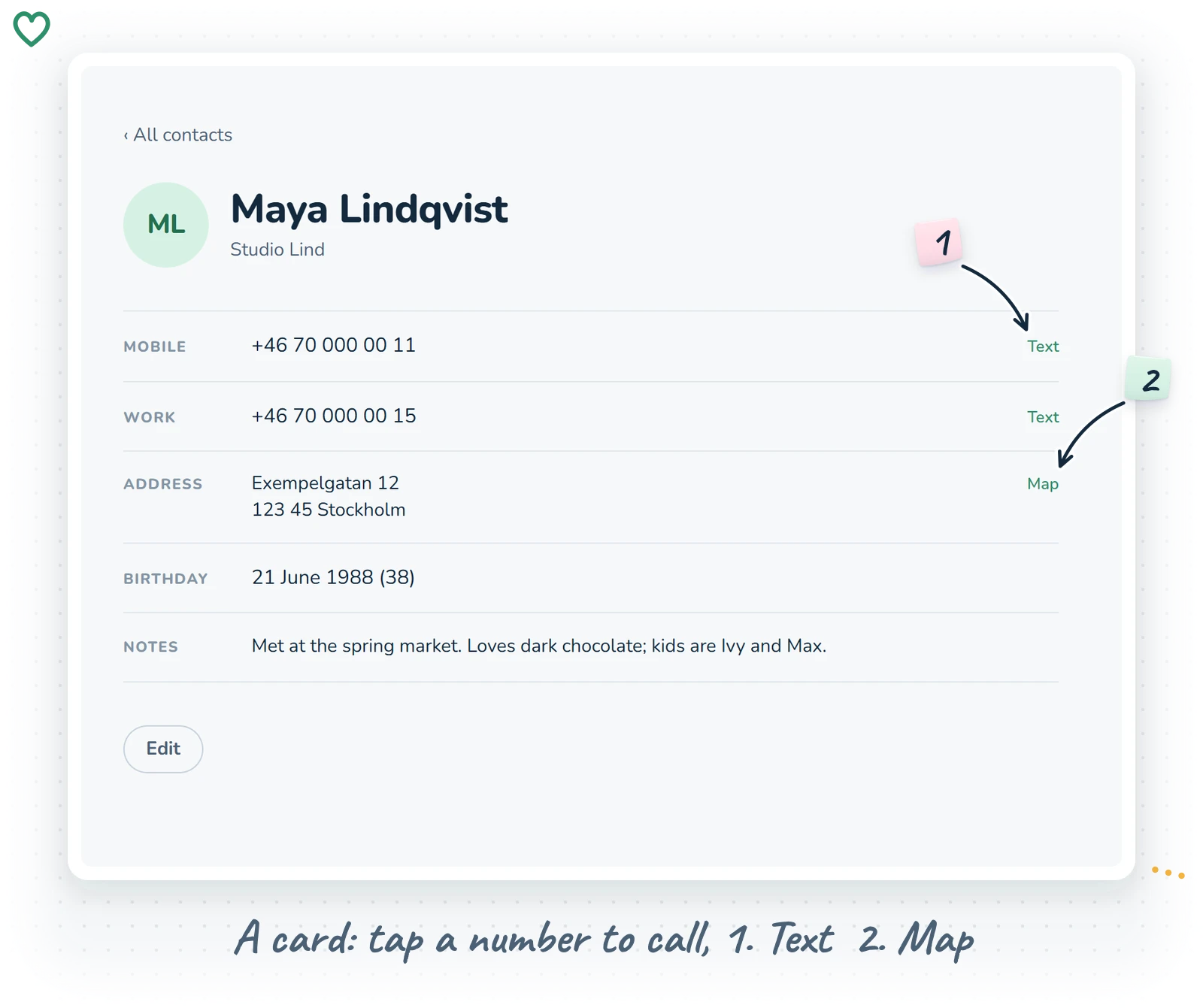
Click a name and their card opens. At the top is a round monogram with their initials, their name and their company. Below, every detail they have, one per row:
- Phone numbers, each with its label (mobile, home, work or other). Tap the number to call it, or tap Text beside it to start a text message.
- Email addresses. Tap one to write an email in your usual mail app.
- Address, kept with its line breaks, with a Map link that opens it in a maps app.
- Birthday, written out in full, with their age in brackets. The age is worked out from today's date, so it is always right, which is more than I can say for my memory.
- Notes, for anything else: their kids' names, the gift you gave last year, the door code.
If a card is still empty, it says so and nudges you to edit it. At the bottom is the Edit button, and at the top an "All contacts" link back to the list. Because the open card is part of the page address, your browser's back button (or a back-swipe on a phone) also takes you back to the list.
Adding and editing contacts
The New contact button sits at the top of the list. It opens a form, and Edit on a card opens the same form with their details filled in. The fields are:
- First name and Last name.
- Company.
- Phones: each row has a label picker (mobile, home, work, other) and the number. A new contact starts with one mobile row. + Add phone adds another, up to eight, and a trash button removes one.
- Emails: as many rows as you need, up to eight, with + Add email and a trash button per row.
- Address, a small multi-line field.
- Birthday, a date.
- Notes.
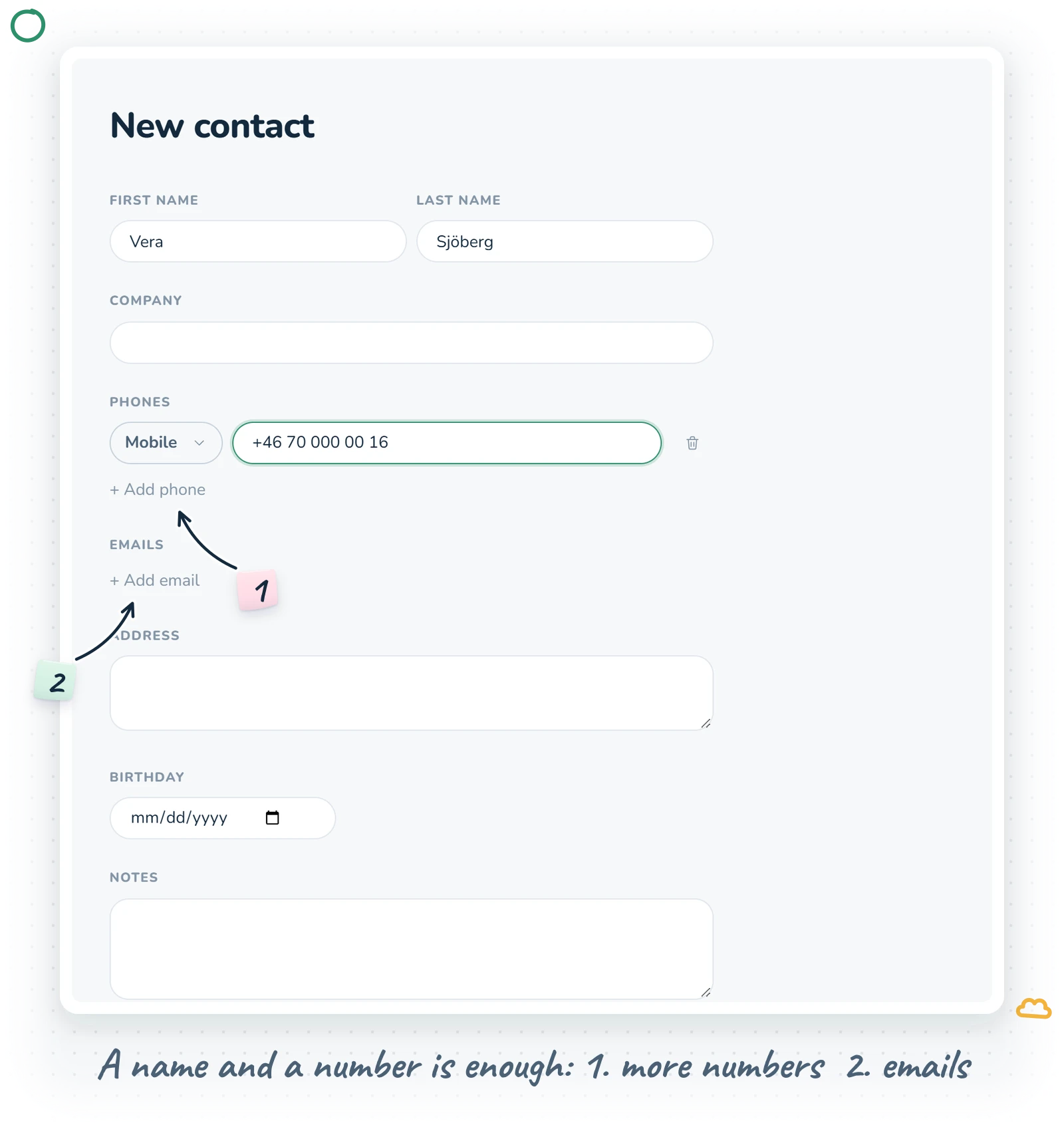
None of the fields are strictly required, so a contact can be as bare as a first name and a number. Press Save and you land on their card. Cancel leaves things as they were. On an existing contact, Delete removes it after asking you to confirm, and that cannot be undone.
What this personal contacts app deliberately does not do
The Phonebook is simple on purpose. There are no profile photos for now (the initials monogram does the job), no groups or tags, and it does not sync itself with your phone's own address book. What it gives you instead is a calm, tidy list that loads quickly, looks the same on every screen and puts a Call button exactly where your thumb expects it.
It also fits into the rest of OScar. The Phonebook sits beside the Calendar, Budget, Notes and Vault, so a birthday you spot here is one click away from going into the calendar, and the door code in someone's notes is right next to the rest of your life admin. For things that really should be secret, like a shared alarm code, the blog has a post on the Vault too.
A quick routine that works
Here is how I use it. When I meet someone, I add a first name and a number, nothing else. Later, when I have a minute, I open their card and add the rest: surname, the company, the birthday if I know it, a line in notes about where we met. It takes a minute, and a year later I am always glad I did it.
The Phonebook is part of the full OScar plan; see what else comes with it on the OScar page, or compare plans on the pricing page. Now, who were you meaning to call?
- phonebook
- contacts
- address book
- home page