The Notes guide · 9 min read
Notes in OScar: groups, folders, pins and a fast editor
A tour of the Notes tool in OScar: notes that autosave, groups and folders in the sidebar, pins, colours and every drag along the way.
Notes is the tool I open more than any other in OScar. It's a plain, quick notes app: you press a button, you type, and the note is saved before you've finished thinking about saving it. Around that simple core sit groups, folders, pins, colours and priorities, so a pile of scribbles can turn into something you can actually find again. This post walks through all of it, button by button.
Getting started with the notes app
Like every tool in OScar, Notes lives inside a project. Your home project has its own notes, a work project has its own, a side project has its own, and they never get mixed up. Open a project, pick the Notes tile, and you land on the start page. The word "Notes" sits up in the sidebar, next to the OScar logo, so the page itself gets straight to the point: your notes.
Press + New note (on the page, or under any open folder in the sidebar) and a new, empty note opens straight away. There is no "save" button anywhere, and that is on purpose: notes autosave as you type. Give the note a title in the big field at the top (leave it blank and it simply shows as "Untitled"), then write underneath.
When there's nothing yet the page tells you so, with a short reminder of how things work. Once you've written a few notes, they appear in the lists described below.
Writing a note
The editor is calm on purpose: a title, a body, and a formatting toolbar that sticks to the top of the screen while you scroll a long note.
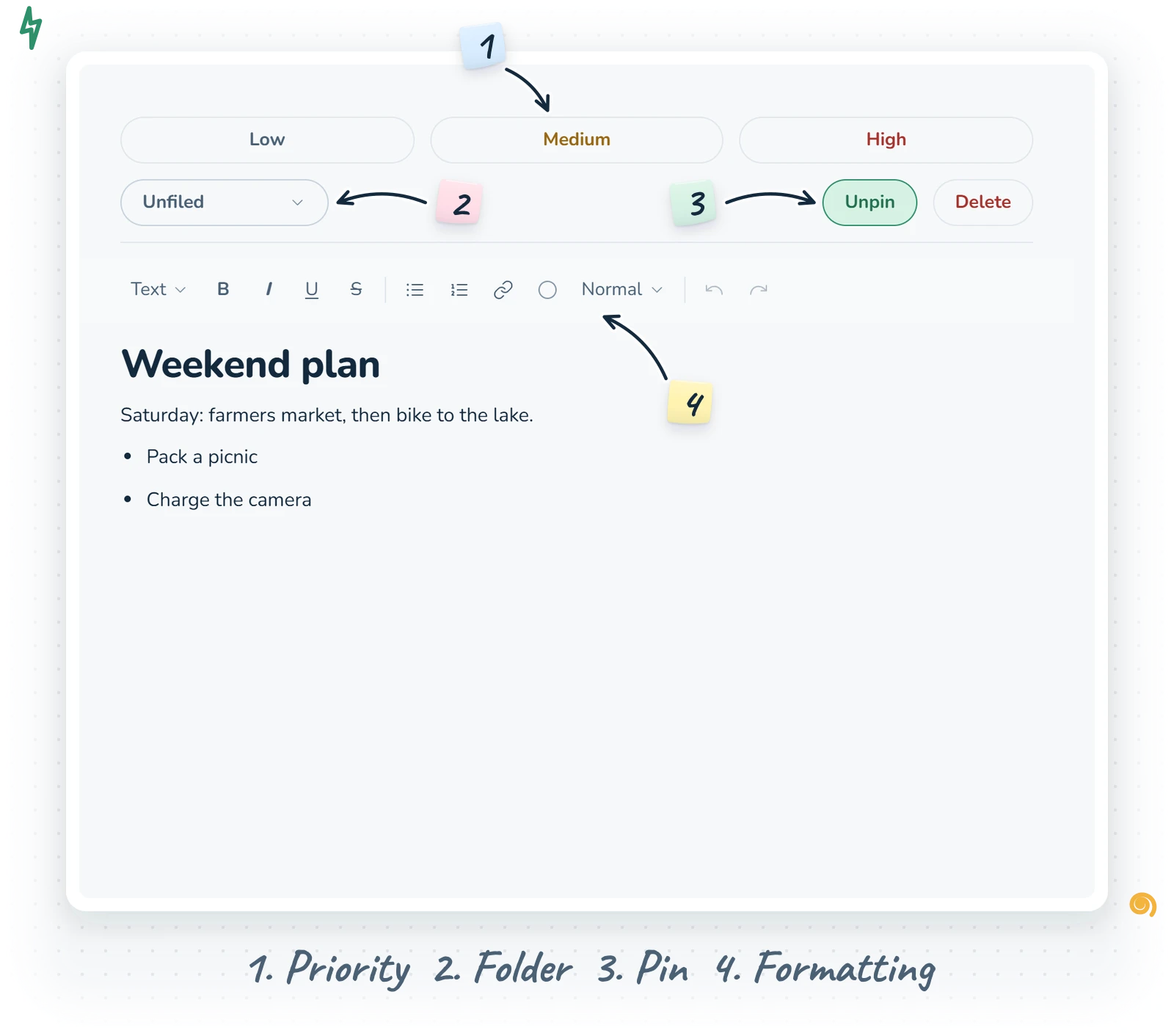
The toolbar
- Text style: a picker with Text, Heading 1, Heading 2 and Heading 3.
- Bold, Italic, Underline and Strikethrough.
- Bullet list and Numbered list.
- Link: select some words, press the link button and paste an address. Press it again on linked text to remove the link.
- Text colour: opens the same ten-colour card used across OScar, so your red is the same red everywhere.
- Size: Small, Normal or Large, for the odd line that should whisper or shout.
- Undo and Redo.
The usual keyboard shortcuts work too (Ctrl or Cmd plus B, I or U), and so do the common typing shortcuts, like starting a line with a dash to begin a bullet list. Web addresses you paste turn into links on their own.
Links that behave
Links in a note are a small but thought-through detail. While you're editing, clicking a link just places the cursor, so you can fix the linked words without being whisked off to another site. When you're only reading (the note isn't focused) a tap opens the link in a new tab, and Ctrl-click or Cmd-click always does.
Saving, pins, priorities and folders
A small status label tells you where you stand: "Unsaved" while you're mid-sentence, "Saving…" for a blink, then "Saved". On a phone that label moves up into the top bar next to the menu button, so it never gets in your way.
Above the text sit a few controls:
- Low, Medium and High: the priority buttons. Tap one to set it, tap the lit one again to clear it. In the lists, a priority shows as a quiet L, M or H at the end of the row.
- The folder picker: file the note in any folder or subfolder, or choose "Unfiled". Deep folder trees open collapsed, so long lists stay readable.
- Pin note (and Unpin): pinned notes move up into their own section.
- Delete: asks first, because a deleted note is gone for good.
The sidebar: groups, folders and notes
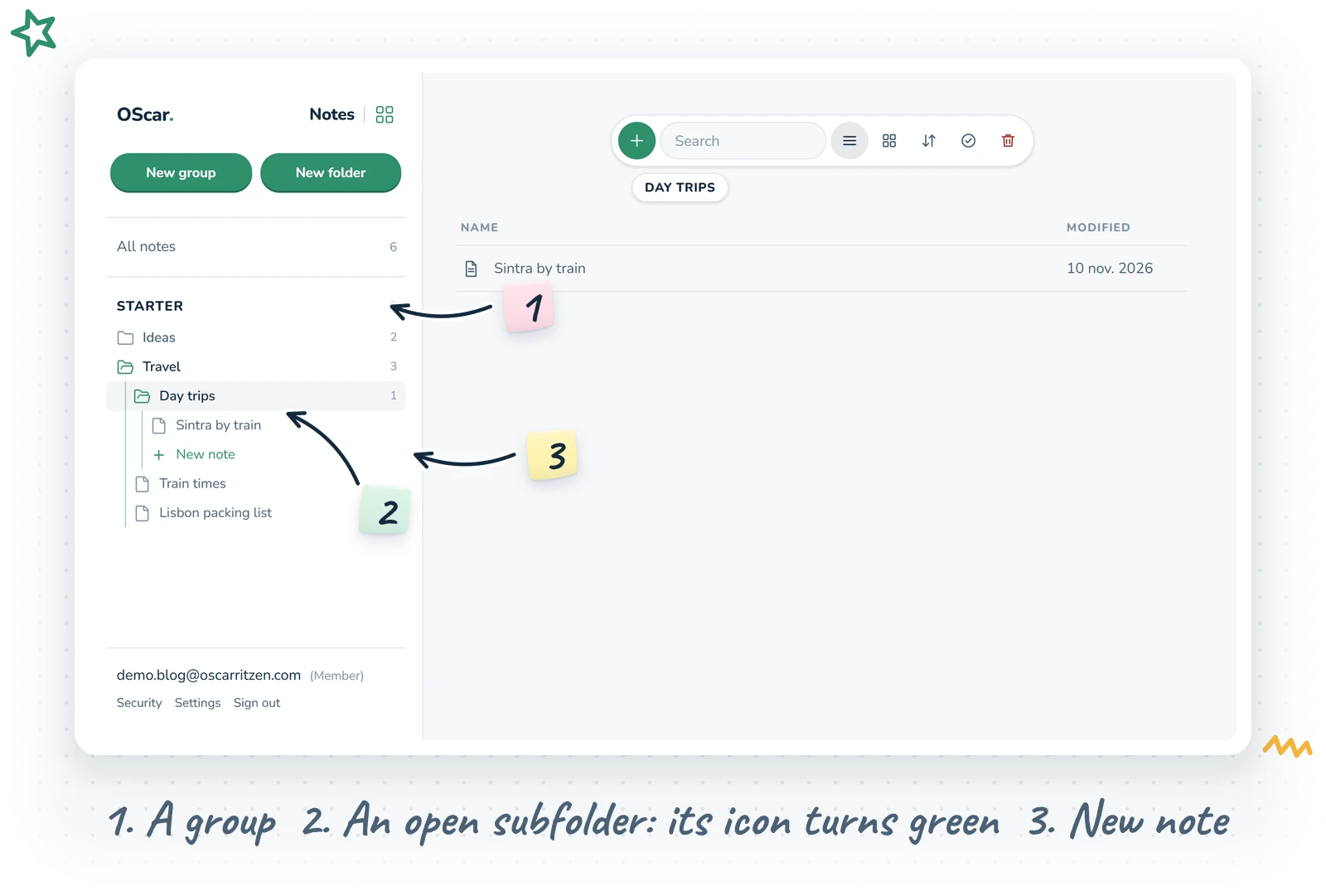
Notes keeps its structure in the sidebar, the same way Draw does, so every folder tool in OScar now feels like the same drawer. From top to bottom:
- The hub icon: the little green grid right beside the tool's name at the very top takes you back to the project's page.
- New group and New folder: the two green buttons. A group is a shelf, a folder is a box on it.
- All notes: the start page, with a count of everything. If some notes sit in no folder at all, a small line underneath says how many.
- Your groups: extra-bold capital headings with a count, closed until you click them. Inside sit their folders, each with a small folder icon. Your existing folders start out in a group called Starter; rename it, or make a few more ("Work", "Home", "Someday") and spread your folders over them.
Click a folder and two things happen at once: it opens in the sidebar, and the folder's own page appears on the right. In the sidebar the folder's icon turns from grey and closed to green and open, and what it holds appears one step in, under a thin guide line: its subfolders first, then its notes, with New note last. Folders can hold one level of subfolders, handy for "Recipes / Desserts" or "Trips / Japan". The guide line turns green on the way to the folder you're in, and the note you have open is marked in blue. The sidebar remembers which folders you left open, even after a reload.
Right-click a group for New folder here, Rename and Delete group. Right-click a folder for New subfolder, New note, Rename and Delete folder.
The pages: start page and folder pages
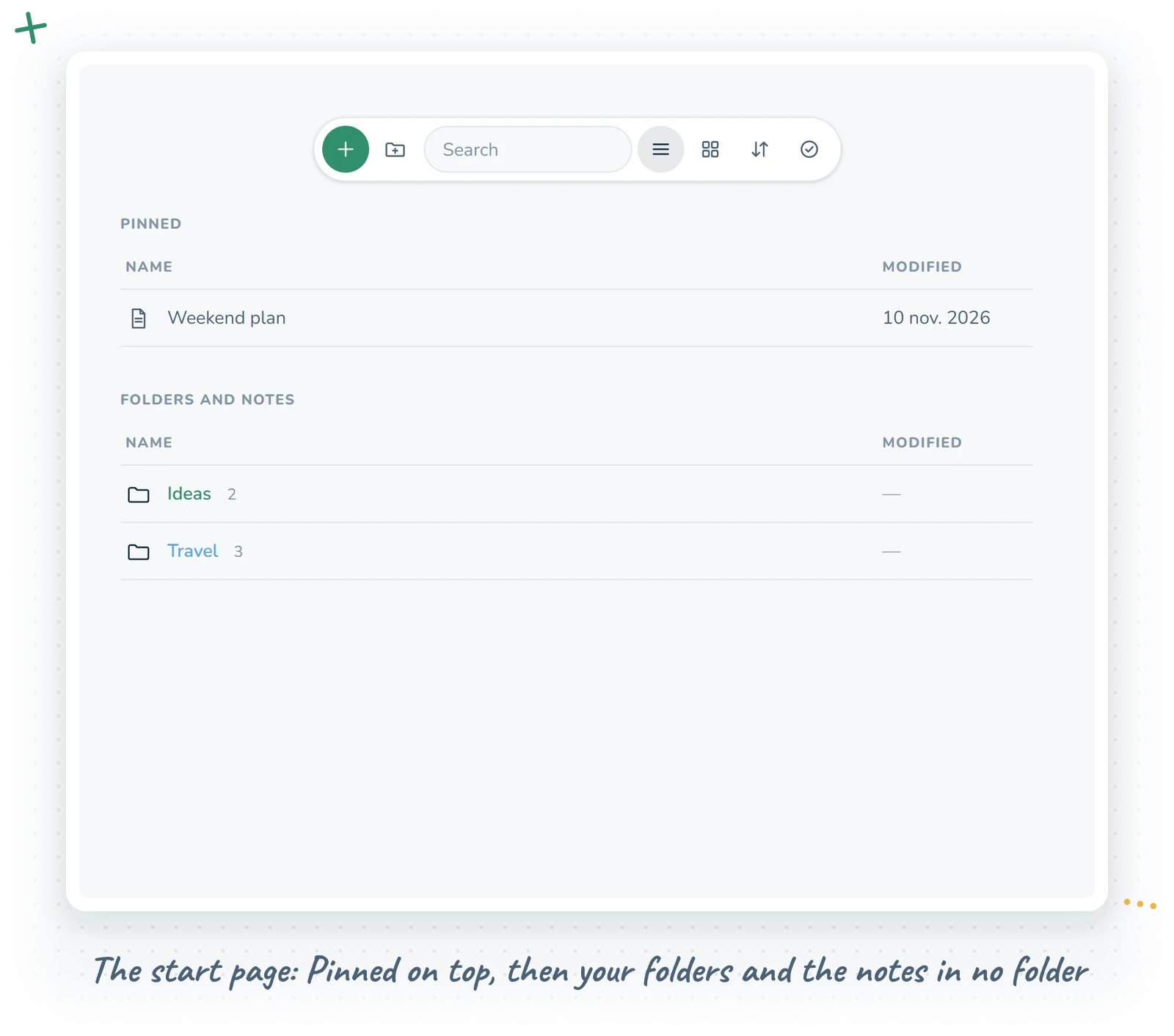
Every page has the same shape as Documents, Photos and Draw: a small floating pill of icons at the top that stays put while you scroll (hover an icon to see its name). From left to right: New note in green, New folder, a search field that filters notes and folders by name as you type, list and grid view, a sort picker (your own order, name or last modified) and Select. Below come the folders, then the notes.
The start page, All notes, shows:
- Pinned: only appears when something is pinned. Every pinned note is here, whichever folder it lives in, with the folder's name in grey beside the title. Pinned notes live only here on the start page, so you never see the same note twice.
- Your top-level folders, each with the number of notes inside. Click one to step in.
- The notes in no folder, the ones you haven't filed yet.
On a folder's page the folder's name sits in a small pill right under the toolbar. Click the name to rename it; the field opens exactly where the name was, so nothing on the page jumps around. A red bin, Delete folder, joins the end of the toolbar (the notes inside move up, they aren't deleted). Below come the folder's subfolders (drop a note on one to file it there), then its notes. In list view you can drag notes into the order you like.
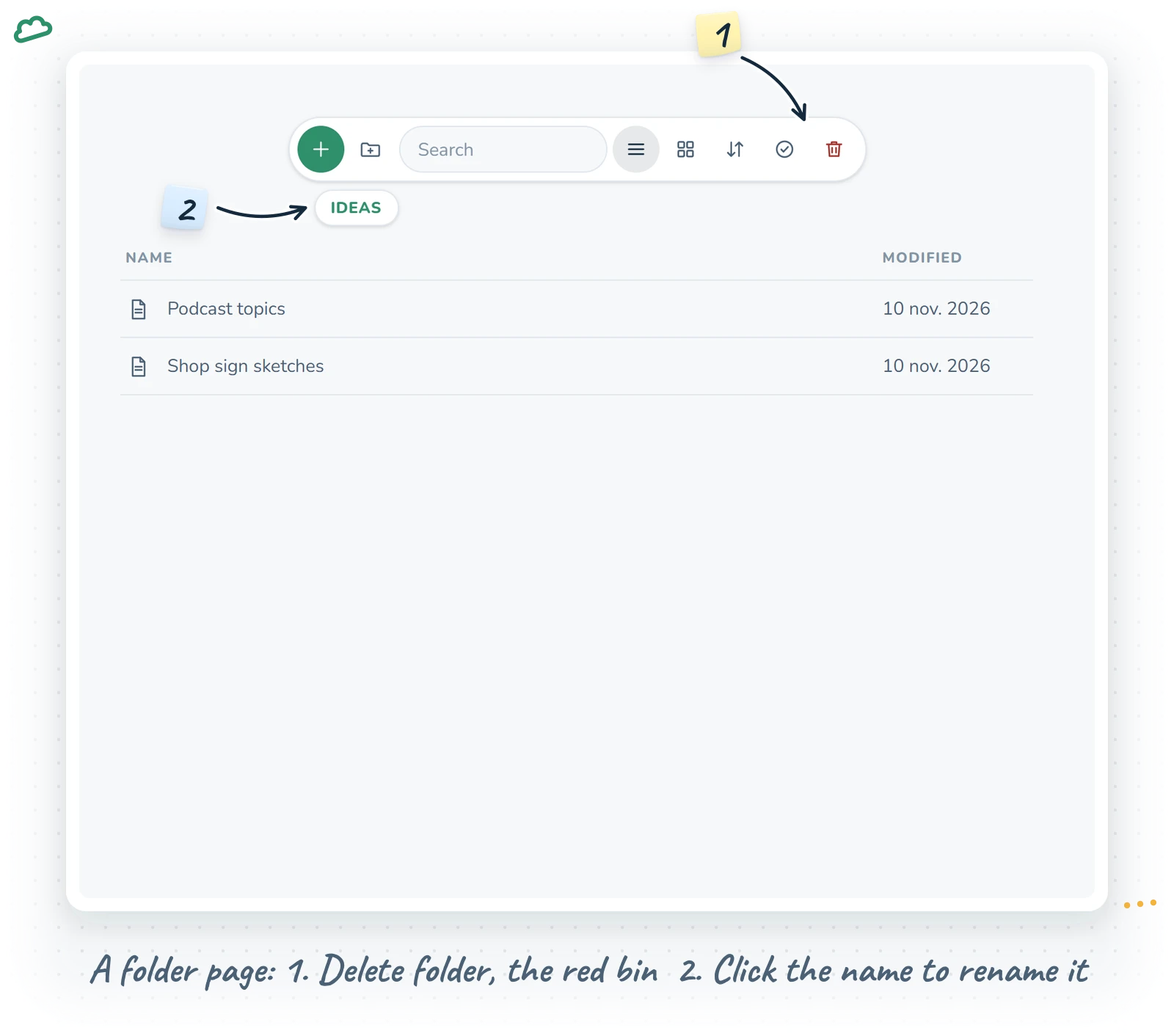
Deleting a folder asks first and never deletes notes: whatever it holds moves up a level, and notes from a top-level folder simply become unfiled.
Colours
Right-click a note and choose Color… (on a phone, swipe the note to the right). Pick a colour and the title itself takes that colour (no dots, just tinted text), on the page and in the sidebar's folder tree. A red note is quicker to spot than any label.
Dragging things around
Almost everything can be dragged:
- Drag a note onto a folder in the sidebar (or a subfolder tile on a folder page) to file it there, or onto All notes to take it out of every folder.
- Drag a note onto another note inside a folder to reorder. A thin green line shows whether it'll land above or below.
- Drag groups and folders in the sidebar to rearrange them, or drop a folder on another group to move it there.
New notes appear at the top of their folder, and the order you set by dragging stays put.
You can even move notes between projects. Open two projects' Notes in two browser windows side by side and drag a note, or a whole folder, from one to the other. It moves into the folder under your pointer, and both windows refresh. Nothing is copied or lost on the way.
Right-click and Select
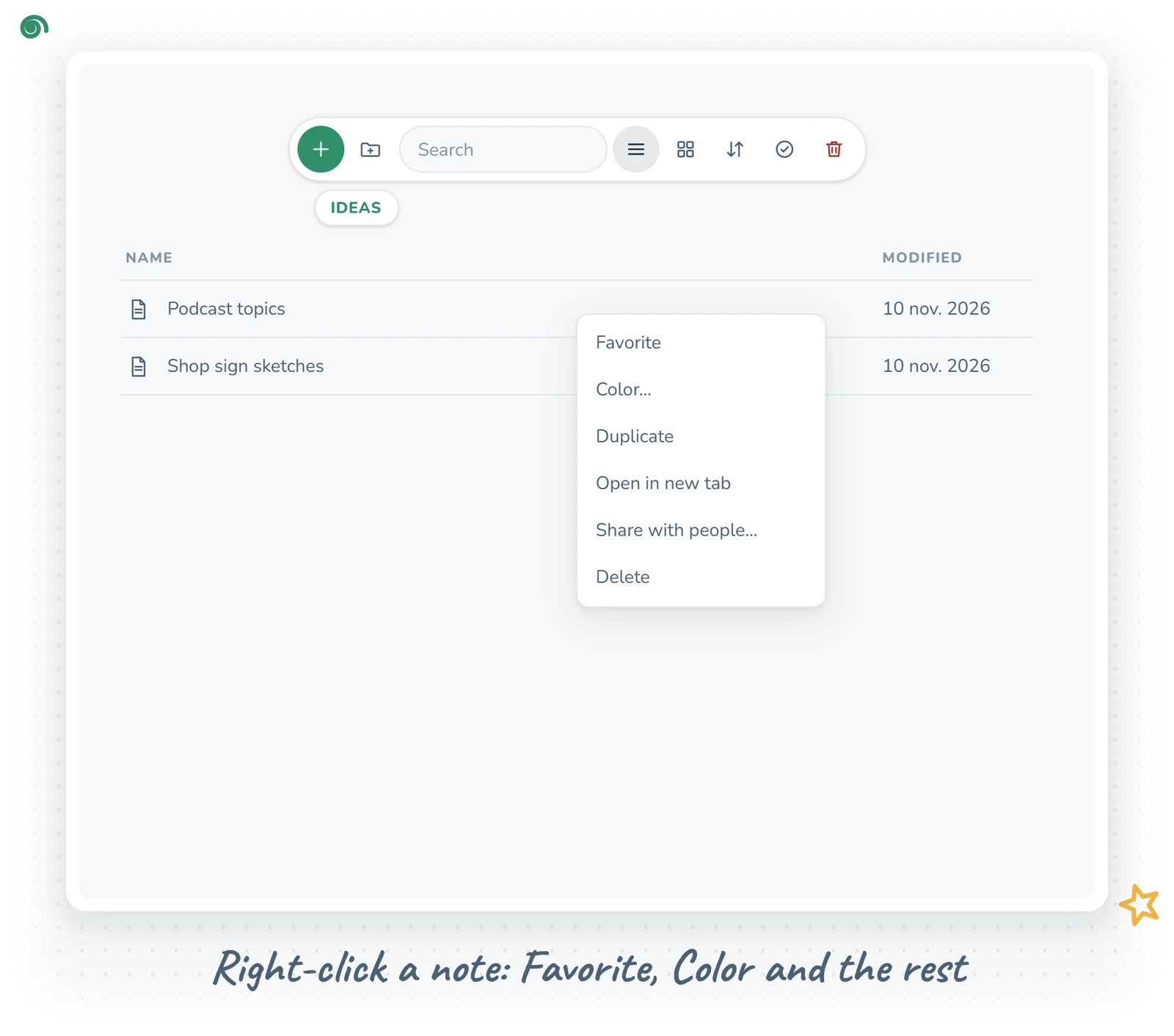
A note's row is clean: just the title and the date. Everything you can do with a note lives in its menu. Right-click a note on a computer and you get:
- Favorite: puts a small star beside the title.
- Color…: the ten colours, or back to the default.
- Duplicate: a copy lands at the top of the same folder.
- Open in new tab: for when you want two notes side by side.
- Share with people…: more on that below.
- Delete: asks first.
On a phone, swipe a note to the left and two buttons slide in: Settings, which opens the same menu as a sheet, and Delete. Swipe it to the right for Color. In grid view each note has a small three-dot button in its corner instead.
For tidying up in bulk, press Select (the tick in the toolbar). Rows turn into checkboxes, and a bar at the bottom lets you pick all, move the chosen notes to any folder, or delete them in one go.
Sharing a note
Choose Share with people…, type the email of someone with an OScar account, and pick Can view or Can edit. The dialog lists everyone who has access, and you can change or remove them at any time. If you're on the family plan, your family members show up as one-click chips, so you don't have to type anyone's address.
The other person finds the note under Shared with me in the home menu. With edit access they write in the same editor you do. With view access they can read it, and the page says "View only".
Notes on your home page
Your home project's notes also appear as a small widget on the home page. It lists your latest notes five at a time (with a Load more link), has a button for a new note, and a folder picker that narrows it down to one folder. The folder you pick is remembered on that device. It's the fastest way to jot something down: open OScar, press new, type.
On your phone
Notes was tuned on an iPhone as much as on a desktop:
- The sidebar is the menu: open it from the top bar, tap a group, tap a folder. The menu stays open while the folder's page changes behind it, so you can keep browsing.
- Long-press, then drag to move a note, a folder or a group in the menu. A plain scroll never turns into an accidental move.
- Tap a folder's name on its page to rename it.
- Swiping back from a note returns you to the list right where you were.
Tips from daily use
- Pin the two or three notes you open every day (the shopping list, the current to-do) and leave everything else in folders.
- Use groups as chapters: "Now", "Reference", "Archive" keeps a long folder list calm, and a closed group keeps the menu short.
- Colour a note red when it needs attention, and change it back when it doesn't. A colour is quicker to scan than a priority letter.
- Keep one project per area of life. Work notes in the work project, home notes in the home project, and the home page shows the right ones.
Wrapping up
Notes doesn't try to be a wiki or a database. It's a fast place to write, with just enough structure to keep things findable, and it sits right next to your files, lists and calendar in the same project. You can see how it fits with the other tools on the OScar page and browse everything on the tools page.
Notes is part of the OScar plan, €18 a month or €172 a year with every tool included. Have a look at pricing and come write something. Checkout opens soon.
- notes
- note taking
- productivity
- folders
- oscar