The Media guide · 10 min read
Media in OScar: photos and videos in folders, albums and a lightbox
How the Media tool in OScar works: photos and videos, groups and folders, favorites, albums, the lightbox with zoom and swipe, camera details and sharing.
Media is the picture side of OScar's file tools: a private photo library for your photos and videos that you can browse by folder. Holiday shots, family pictures, the clip of the first steps, the photo of the parking spot, screenshots you'll need exactly once. This post covers everything it does today, from the first upload to albums, the lightbox and share links.
Getting started with your private photo library
Media lives inside a project, like every OScar tool, so a project for the summer house can keep its own pictures apart from your family album. Open a project and press the Media tile.
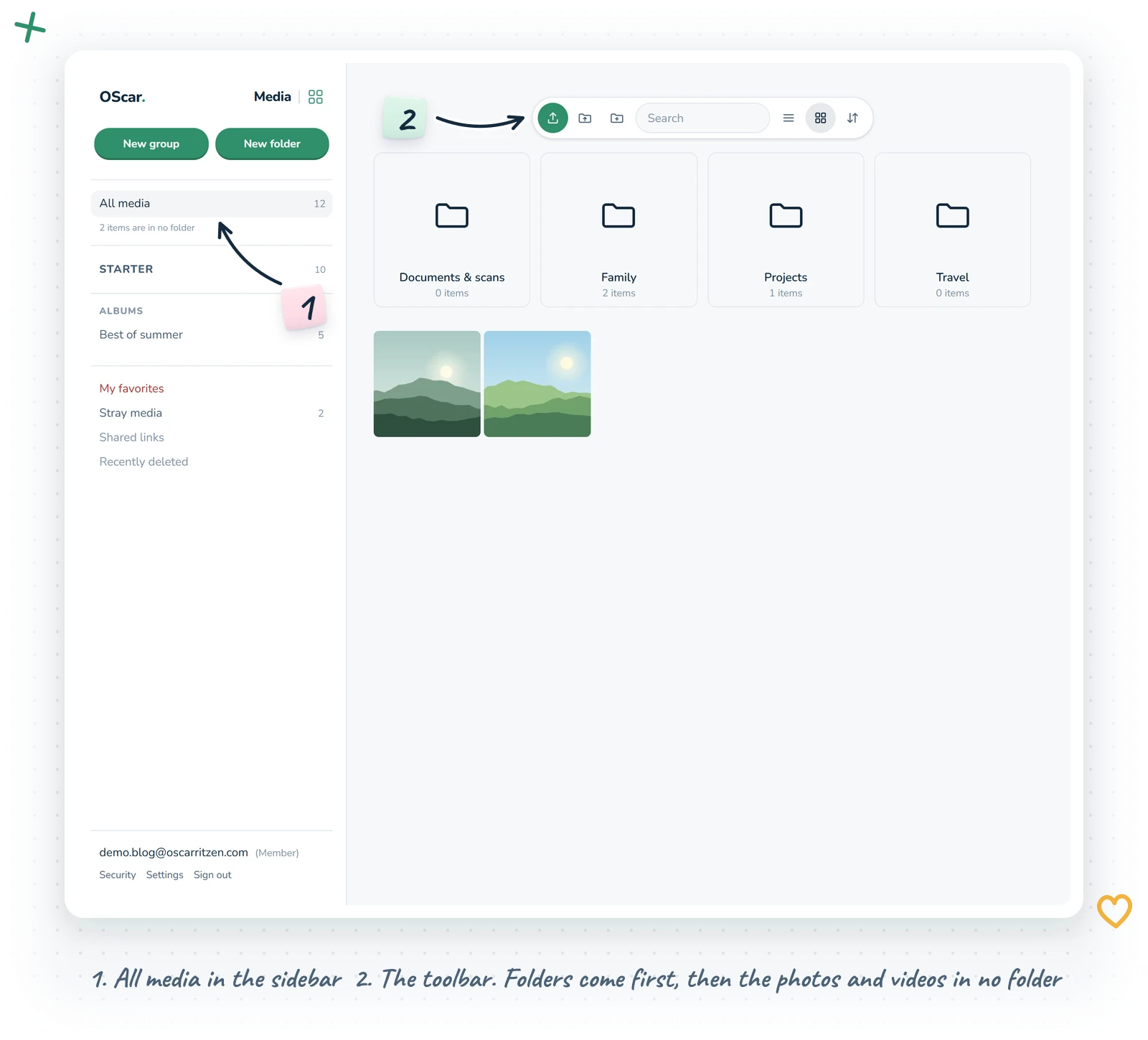
Media opens on All media: your top-level folders, then the photos and videos that sit in no folder yet (more on it below). The word "Media" sits up in the sidebar beside the OScar logo, with a small green grid icon next to it that takes you back to the project's page. The toolbar is a small floating pill of icons at the top of the page (hover one to see its name): Upload in green, Upload folder (on a computer), New folder, a search field, list and grid view, a sort picker, and inside a folder a red Delete folder bin. It stays put while you scroll, so search is never a long scroll away.
The fastest way in is still the old-fashioned one: drag a pile of pictures from your computer into the window and they upload into the folder you're looking at. Media takes pictures up to 200 MB each, and videos (MP4, MOV and WebM) up to 10 GB each. Big files go up in pieces, several at a time, so a long video doesn't have to start over because of one slow moment.
The sidebar: groups and folders
The sidebar holds the structure, laid out like Notes and Draw. New group and New folder sit at the top, then All media with a count. Below come your groups: extra-bold capital headings with a count, closed until you click them, each holding folders. Your existing folders start out in a group called Starter; make more ("Trips", "Family", "Work") and spread folders over them.
Click a folder and it opens in the sidebar: its little folder icon turns from grey and closed to green and open, and what it holds appears one step in, under a thin guide line: its subfolders first, then its photos (each with a tiny thumbnail before its name, so you spot the sunset without opening anything) and Add media. The guide lines turn green along the way to the folder you're in, and a photo you have open is marked in blue. On a phone the menu shows three levels at a time: a folder on the third level has a small arrow and opens as its own panel, with a back button and the full path on top. The sidebar remembers which folders you left open, even after a reload. Meanwhile the folder's page appears on the right: the toolbar with the folder's name in a small pill under it (click the name to rename it), then the photos as a grid of square thumbnails.
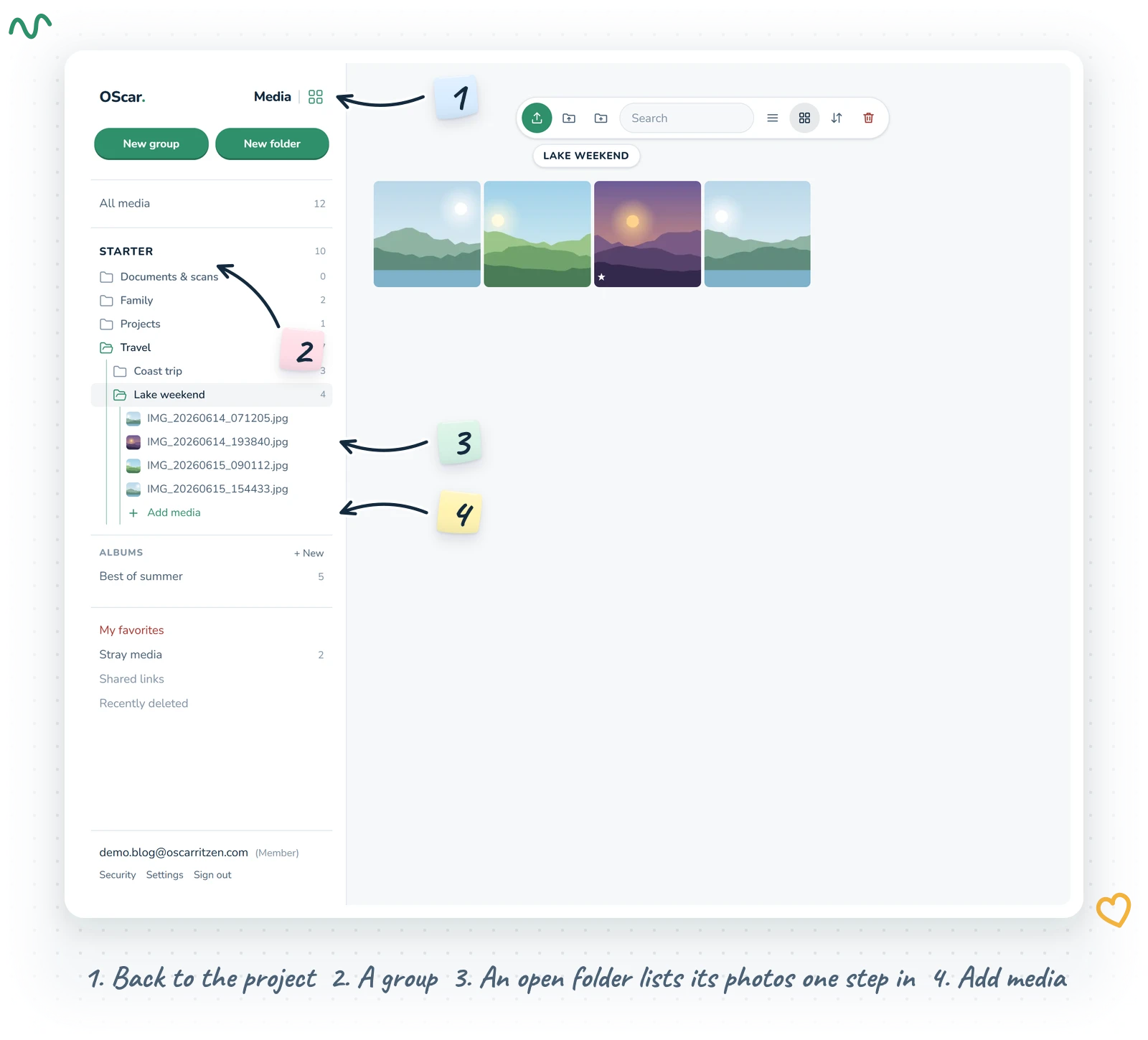
Further down sit Albums, then My favorites, Stray media, Shared links (every link you've made, with a count) and Recently deleted.
Stray media
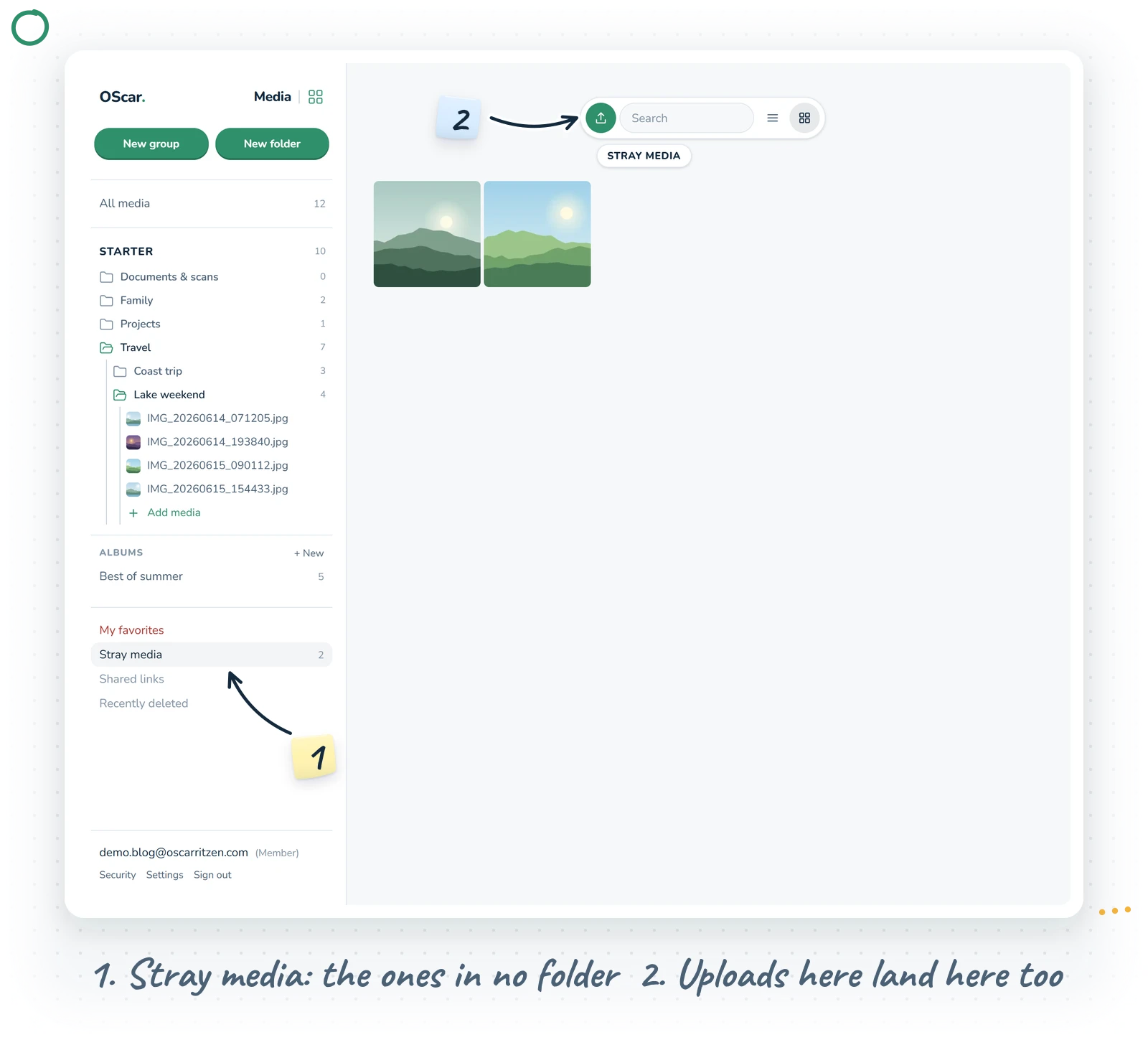
Not every picture needs a home straight away. Stray media gathers every photo and video that sits in no folder at all, with a count in the sidebar. Upload from there, or from All media, and the files land right in it, ready to be dragged into a folder whenever you get round to it (or never; they show up on All media either way).
What happens when you upload
Uploads go through a queue at the bottom of the screen with a progress bar per file, Retry for anything that failed and cancel for anything you changed your mind about. While each photo uploads, OScar quietly reads what your camera saved inside it:
- The date it was taken. If the camera didn't save one, OScar tries the file name (phones often name files after the date). If neither works, you can set the date by hand in the info drawer.
- The camera and lens, plus settings like aperture and shutter speed.
- Where it was taken, if your phone saved a location.
A video gets the same treatment: OScar reads the date it was recorded from the file and grabs a frame from it as its picture in the grid, with the video's length in the corner.
iPhone HEIC photos get a proper preview too, while the original file stays exactly as you uploaded it. And if the same photo is already in your library, the queue asks: Skip duplicates or Keep both. A different file with the same name as one in the folder offers Replace as new version as well: the old one stays in the photo's history.
All media
All media is where Media opens, and it's always one click away at the top of the sidebar, with the number of photos and videos you have beside it. The page works exactly like All documents: your top-level folders come first, then the photos and videos that aren't in a folder. Open a folder to step in, switch between list and grid with the two round buttons, and drop pictures on the page to upload them. Anything dropped on the All media row in the sidebar moves out of its folder.
The lightbox
Click a photo to select it, double-click (or press Enter) to open it in the lightbox. On a phone, a tap opens it. The lightbox fills the screen with a large preview and lets you:
- Step through photos with the left and right arrow keys or the on-screen arrows. The next photos load ahead so it feels instant.
- Zoom with the mouse wheel, the + and − keys (0 resets), a double-click, or a pinch on a touch screen, then drag to look around.
- Press F to favorite the photo, or click its name to rename it.
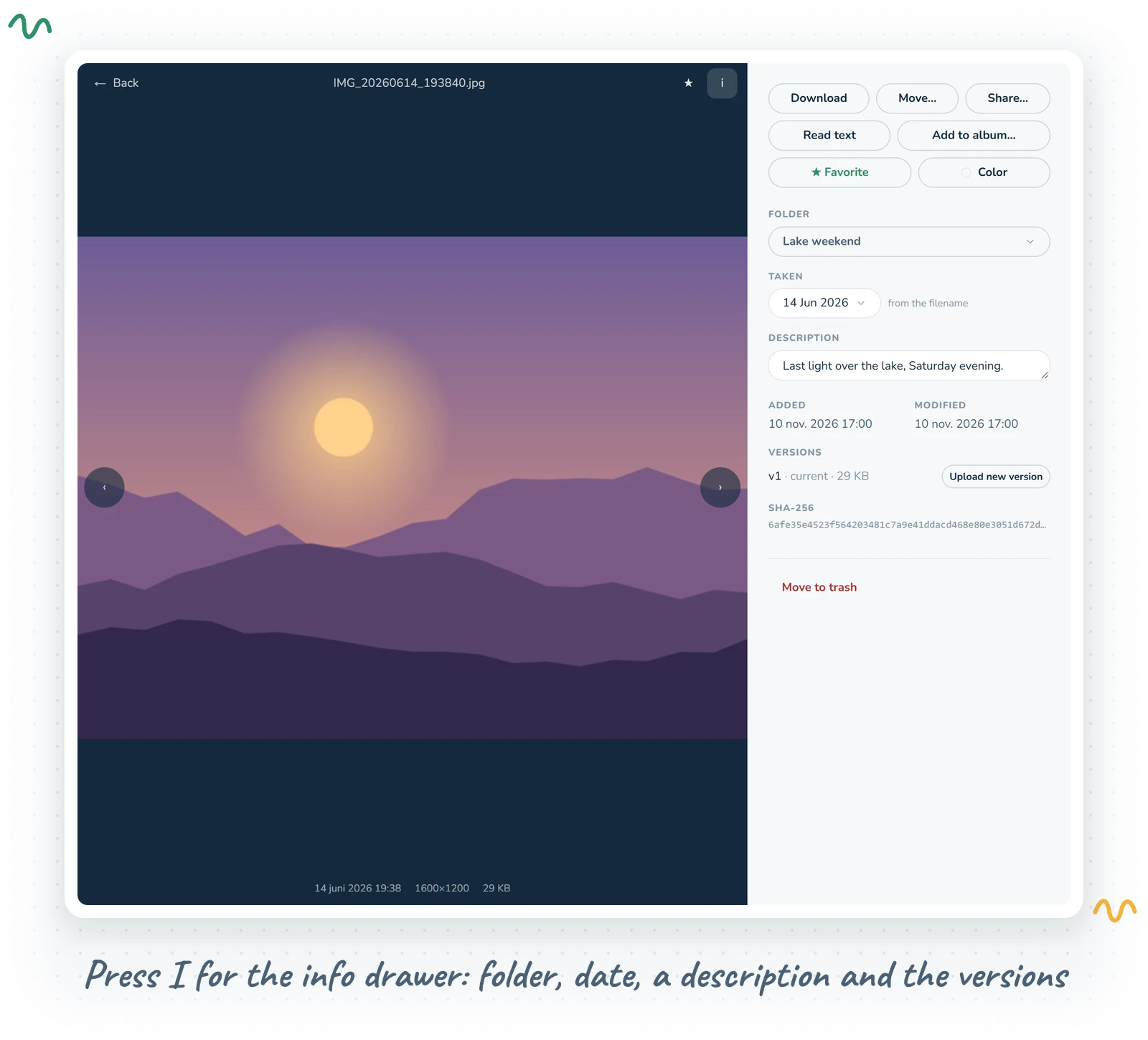
- Press I (or the Info button) for the info drawer.
- Press Esc to go back to where you were.
A video plays right in the lightbox with the usual controls, and you can jump around in it freely. The file is never re-encoded: you watch the video exactly as you uploaded it. One catch: an iPhone video in its HEVC format plays in Safari but not in every other browser. Where it can't play, the lightbox shows its picture and a Download button instead.
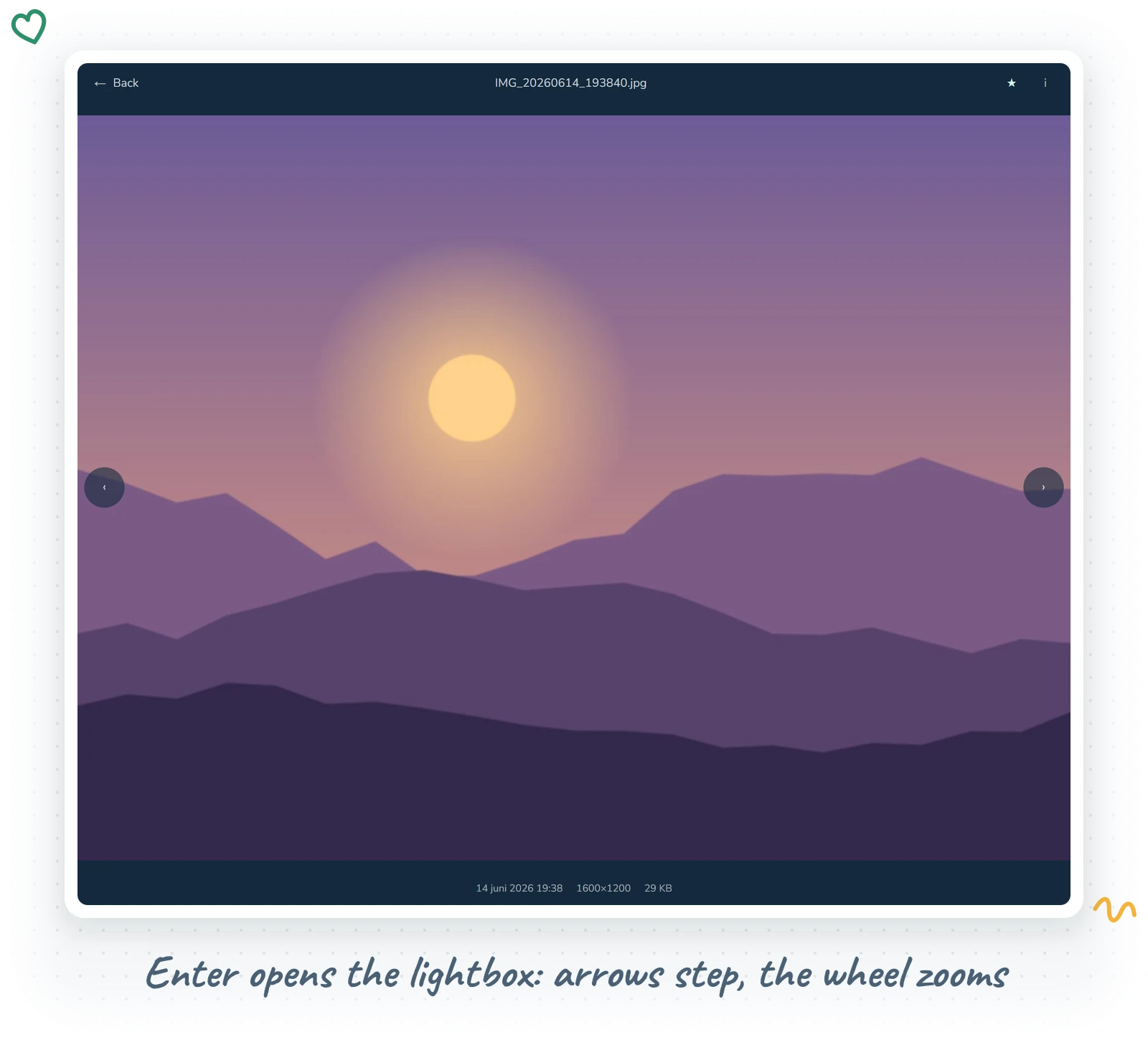
Flicking through a hundred photos still counts as one step back in your browser history, so the back button takes you to the grid, not to photo 99.
The info drawer
The drawer holds everything about one photo: its folder, the Taken date (editable, with a small note when it came from the file name or was set by hand), a description, favorite and colour, the added and modified dates, the camera, and the location with an Open in Maps link. A collapsible EXIF section lists the raw camera details for the curious. From here you can also Download, Move…, Share…, Add to album… or move the photo to the trash.
Edited a photo somewhere else, or trimmed a video? Upload new version under Versions puts the new file in its place and keeps the old one listed below it, with its own thumbnail. Restore brings an older version back (the one it replaces is kept too), and the small × deletes a version you no longer need. Versions count towards your storage, so tidy them when space gets tight.
Photographed a menu, a whiteboard or a receipt? Press Read text and OScar reads the words in the image so search can find them later. It uses a few of your monthly AI credits.
Albums
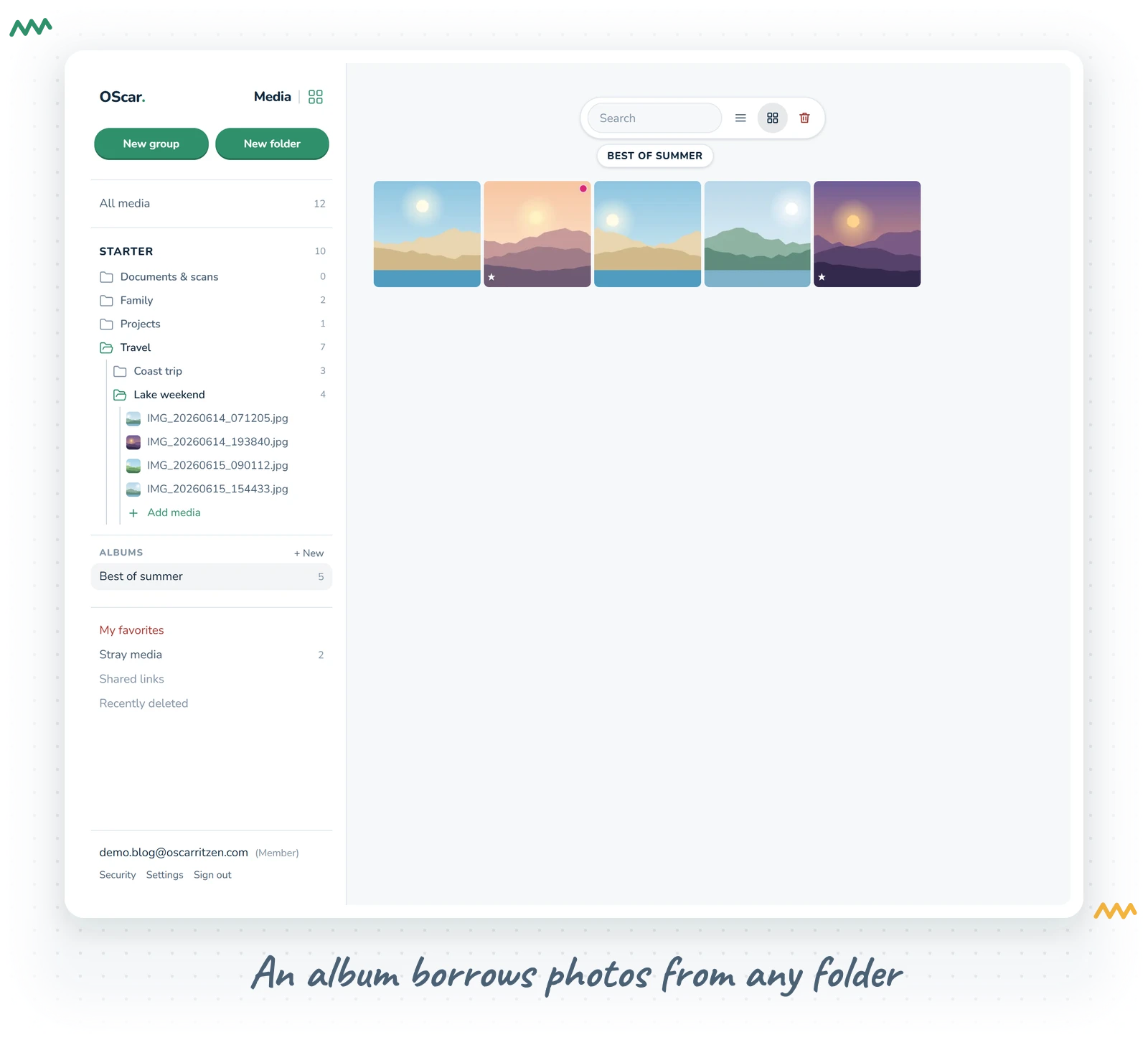
Folders are where a photo lives. Albums are collections that can borrow photos from anywhere, so the same picture can be in "Best of 2026" and "Grandma" without being copied. Ways to add photos:
- Add to album… from a photo's right-click menu, the lightbox, or the bulk bar with several photos selected. You can make a new album right in that picker.
- Drag photos onto an album in the sidebar. This adds them; it never moves them out of their folder.
The sidebar's Albums section has + New (a name field, with Create and Cancel right under it), and a right-click on an album gives you Rename and Delete album. Inside an album, click the heading to rename it, right-click a photo for Set as album cover or Remove from album, and use Delete album in the toolbar when you're done with it. Deleting an album never deletes photos: they stay in Media.
Folders, favorites and colours
Right-click a photo for the full menu: Open, Download, Rename, Move…, Favorite, Share link…, Share with people…, Color…, Add to album…, Info and Move to trash. Folders have their own menu with Download as zip, New subfolder, Rename, Move… and Color…. In the sidebar a right-click on a folder gives the short version (New subfolder, Add media…, Rename, Color… and Move to trash), and on a group New folder here, Rename and Delete group.
A colour puts a small dot in the corner of the tile, and favorites get a little star and gather in the sidebar's My favorites.
Folders sort by name with numbers in natural order, so "1 Spring" comes before "10 Winter". Drag photos onto a folder or a sidebar folder to move them, drag folders and groups around the sidebar to rearrange it, or drag between two projects' Media open in two browser windows to move them to another project.
Search
Press Ctrl K (Cmd K on a Mac) for quick search. It finds folders and photos by name, description and any text read from the image. Narrow it with the kind picker, or type is:favorite into the box. See all opens the full results.
Selecting many and downloading
Shift-click selects a range and Ctrl or Cmd-click adds single photos. A small bar floats at the bottom with the count, Select all and Clear, and a row of round icon buttons: move, download (several photos arrive as one zip, folders included), colour, add to album, favorite and trash. Hover an icon to see its name; on a phone they line up under the count. Arrow keys move the selection around the grid, and ? shows every shortcut.
Trashed photos wait in Recently deleted for 30 days, each showing the days it has left, so a slip of the finger is always fixable with Restore. The red bin icon beside the search field there empties the trash for good (it asks first).
Sharing photos
- Share with people… gives another OScar user access to a photo or a whole folder, to view and download. They find it under Shared with me. On the family plan your family members are one-click chips.
- Share link… makes a link for anyone: pick 1, 7 or 30 days (links always expire) and a gate, either a password or the visitor's email address. A folder link shows that folder's own photos. Copy it right away, as it's shown only once, and revoke it whenever you like from the dialog or the Shared links view, which also shows who came by. The link's address starts with viaoscar.com, a neutral address made for sharing, so the person you send it to sees a tidy link rather than anyone's name.
On your phone
- Tap a photo to open it, swipe left and right to browse, pinch to zoom, double-tap to zoom in.
- In list view, swipe a row to the left for a red Delete (it goes to Recently deleted), or to the right for Settings (the right-click menu as a sheet) and Color. Photos and folders alike.
- Press Select in the toolbar to pick several photos, then Done.
- Long-press and drag a photo onto a folder to move it.
- The search icon in the toolbar opens quick search.
A few tips
- Keep folders for where photos belong (a trip, a project) and albums for stories that mix them.
- After importing old scans, give them a rough date in the info drawer, so sorting by date puts them in the right spot.
- Use a time-limited link with a password when sending wedding photos to relatives, rather than a public album that lives forever.
Wrapping up
Media is a quiet, private place for your photos and videos, sitting right beside the notes, documents and lists of the same project. See how the tools fit together on the OScar page, or browse all the tools.
Media is part of the OScar plan, €18 a month or €172 a year with 50 GB of storage. Take a look at pricing and give your camera roll somewhere nice to live. Checkout opens soon.
- photos
- videos
- photo library
- albums
- folders
- oscar