The Invoices guide · 8 min read
Invoices: clean PDF invoices without the fuss
How Invoices on oscarritzen.com works: make a free PDF invoice in your browser in a minute, or go Premium to keep every invoice, number them in series and mark them paid.
Invoices does one job and tries to do it without drama: you fill in who you are, who you are billing and what for, and you get a tidy, free PDF invoice back. No spreadsheet template with mystery formulas, no Word file where the total refuses to line up. This post walks through every part of it as it works today.
The free version lives at /invoices and needs no account. Premium adds a memory: every invoice kept, numbered in series, searchable and marked paid when the money lands.
Getting started with a free PDF invoice
Open /invoices and you will see one form split into two parts: Your details and The invoice. Fill in both, press Download PDF, and the invoice lands in your downloads folder a moment later.
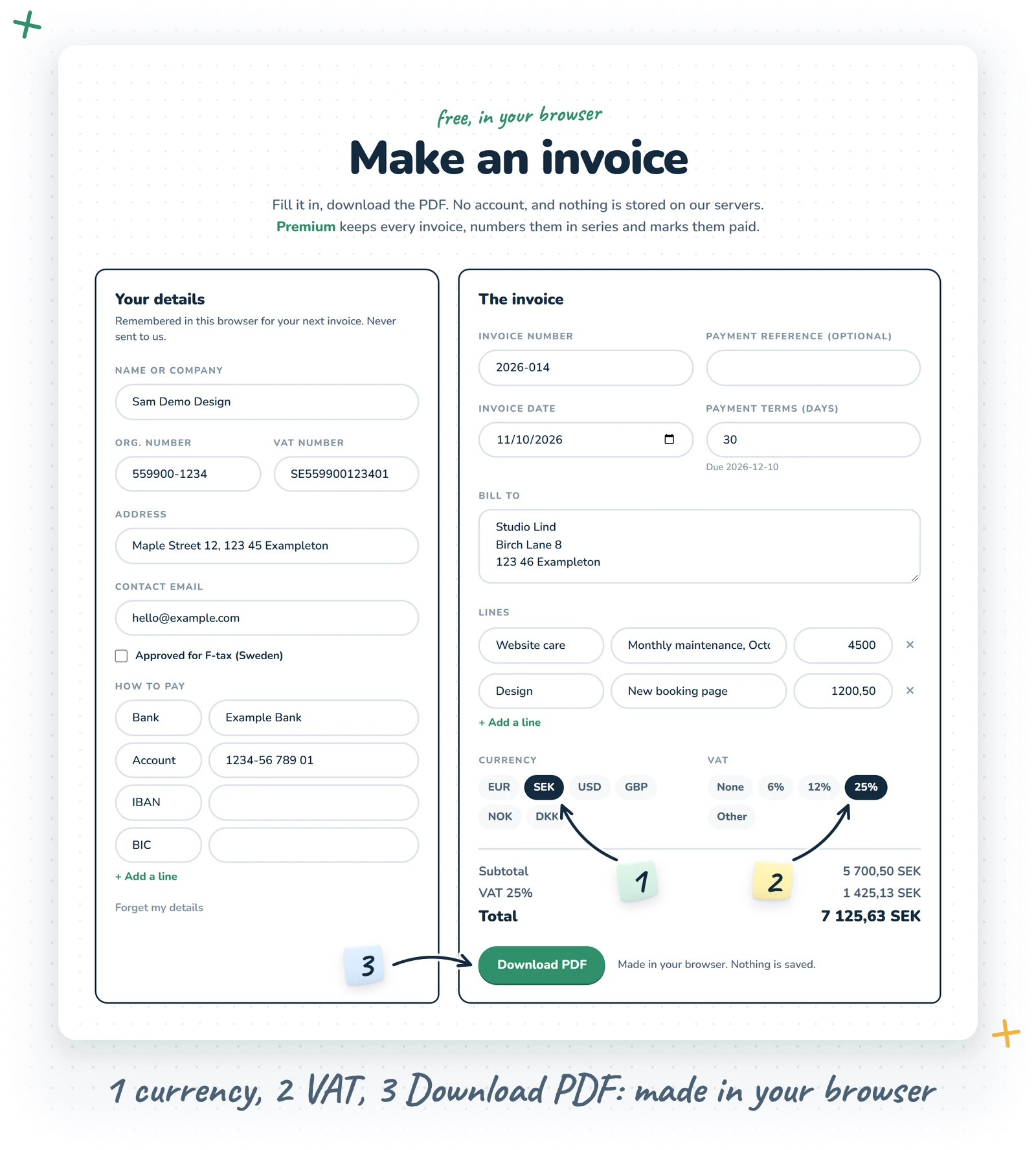
Here is the part I like most: the PDF is made right there in your browser. The invoice is never sent to me and never stored. The small line under the button says it plainly: "Made in your browser. Nothing is saved."
Your own details are the exception, in a good way. They are remembered in this browser, so the next invoice starts already filled in. They still never leave your device. In a private window the form works just as well; it simply forgets you afterwards, as private windows do.
Your details
This is the "from" part of the invoice, the block that tells your customer who is asking for money:
- Name or company, the bold first line at the top.
- Org. number, printed next to your name if you have one.
- Address, one line, which also goes in the footer.
- VAT number, if you are registered.
- Contact email, printed in the footer as the place to ask questions.
- Approved for F-tax (Sweden), a checkbox for Swedish businesses that adds the F-tax sentence to the footer.
- How to pay: label and value pairs such as Bank, Account, IBAN and BIC. Use + Add a line for more (Swish, a payment link, whatever your customers use), up to six.
Leave a field empty and it simply doesn't print. No awkward "VAT: " with nothing after it.
The invoice itself
The second half is about this particular bill:
- Invoice number, for example 2026-001. In the free version you type it yourself.
- Payment reference, optional, for anything the customer should mark the payment with.
- Invoice date and Payment terms (days). The due date is worked out from the two and printed for you.
- Bill to: your customer's name and address, one per line.
Lines, amounts and totals
Under Lines each row has an Item, a Description and an Amount. Add as many as you need with + Add a line, remove one with its remove button. Amounts accept both styles, 1200.50 and 1200,50, because commas are a perfectly reasonable decimal point in much of Europe.
Currency and VAT
Pick a currency with one tap: EUR, SEK, USD, GBP, NOK or DKK. For VAT choose none, 6, 12, 25 or "other" and type your own percentage. With VAT on, the form shows a subtotal, the VAT and the total as you type. With none, the invoice says in its footer that no VAT is charged, so your customer is not left wondering.
If something is missing, the form tells you in plain words before it makes the PDF: "Add who the invoice is for", "Add at least one line", or "Every line needs an amount, like 1200 or 1200,50". No cryptic errors, I promise.
What the PDF looks like
The PDF is calm and readable. Your name and details sit top right, how to pay top left, then an Invoice details block with the invoice number, invoice date, payment terms, due date and, when there is one, a "Mark payment with" line for the reference. Below that comes Bill to, a table of items, descriptions and amounts, then the subtotal, VAT and total.
The footer collects your address, VAT number, contact email and the tax sentences. A long invoice flows onto more pages, each marked "continued" and numbered "Page 1 of 2", so nothing gets cut off.
Invoices Premium: everything kept
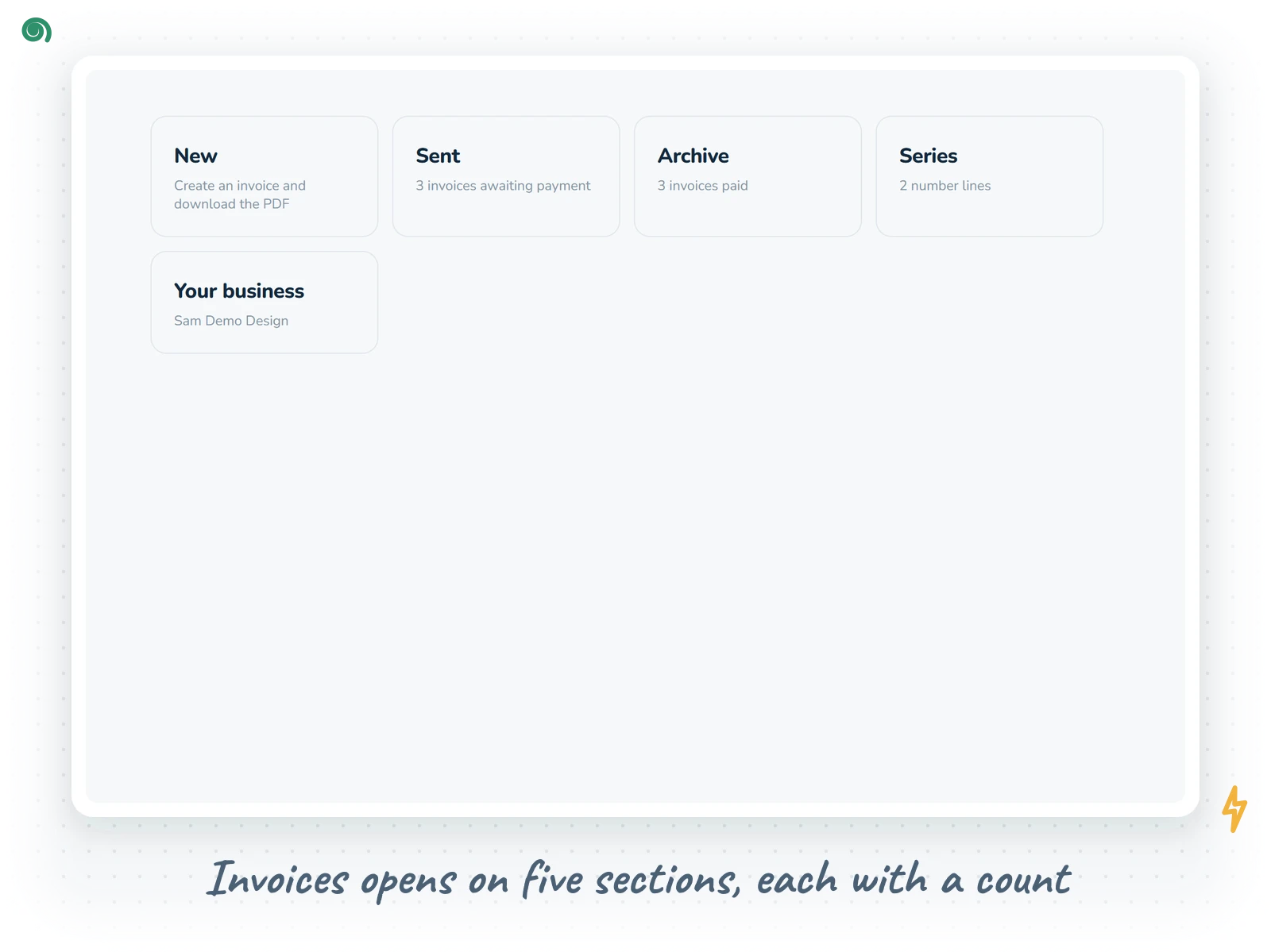
The free maker is perfect for the odd invoice. Once you bill regularly you will want a memory, and that is what Premium is. Inside your account, Invoices opens on five sections: New, Sent, Archive, Series and Your business, each with a small count so you see at a glance how many invoices are waiting for payment.
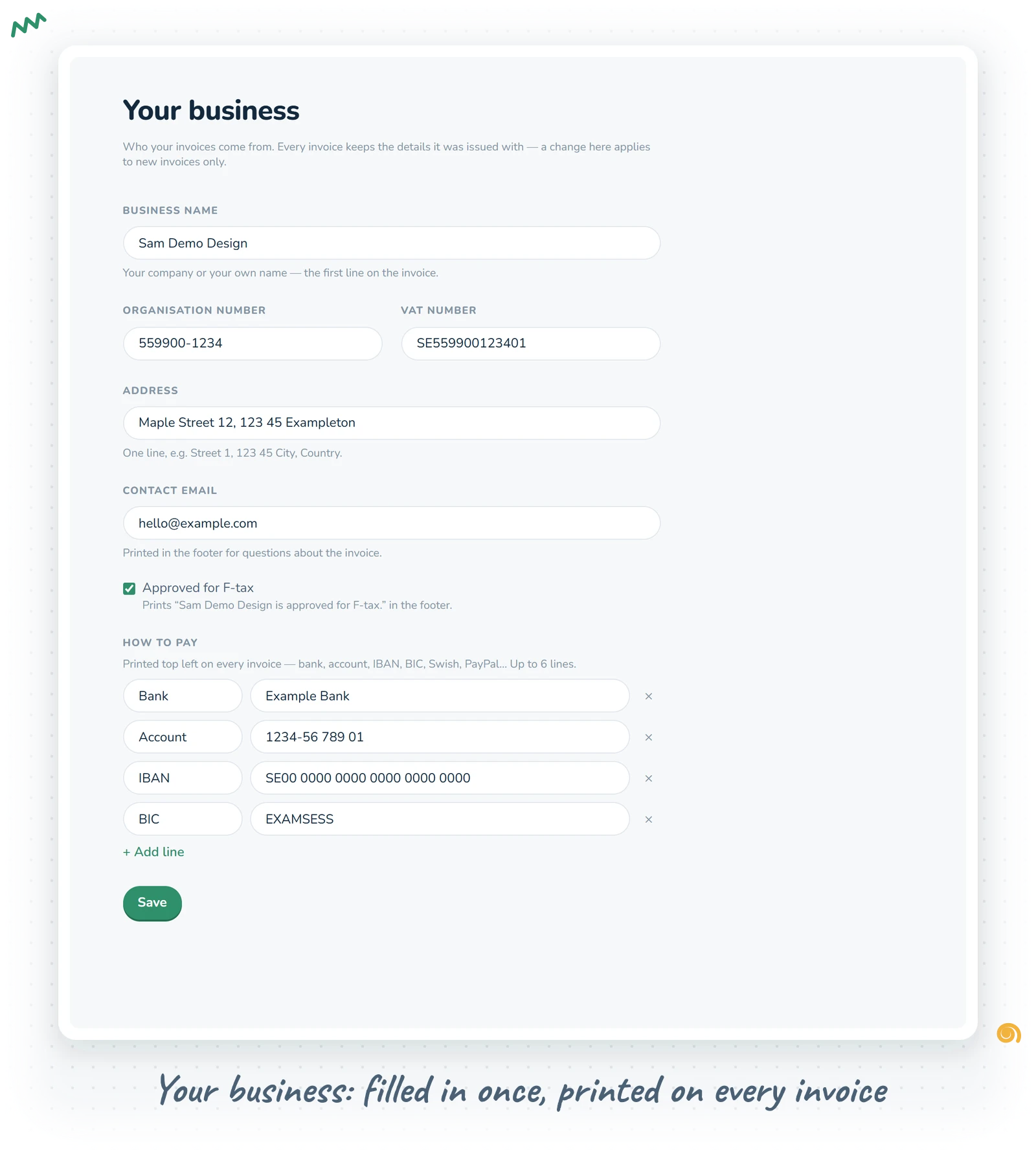
Your business
Fill in Your business once before your first invoice: business name, organisation number, address, VAT number, contact email, the F-tax checkbox and your how-to-pay lines. Every new invoice uses these details. Each issued invoice keeps the details it was made with, so if you move office next year, last year's invoices still show the old address, exactly as they were sent.
Making an invoice
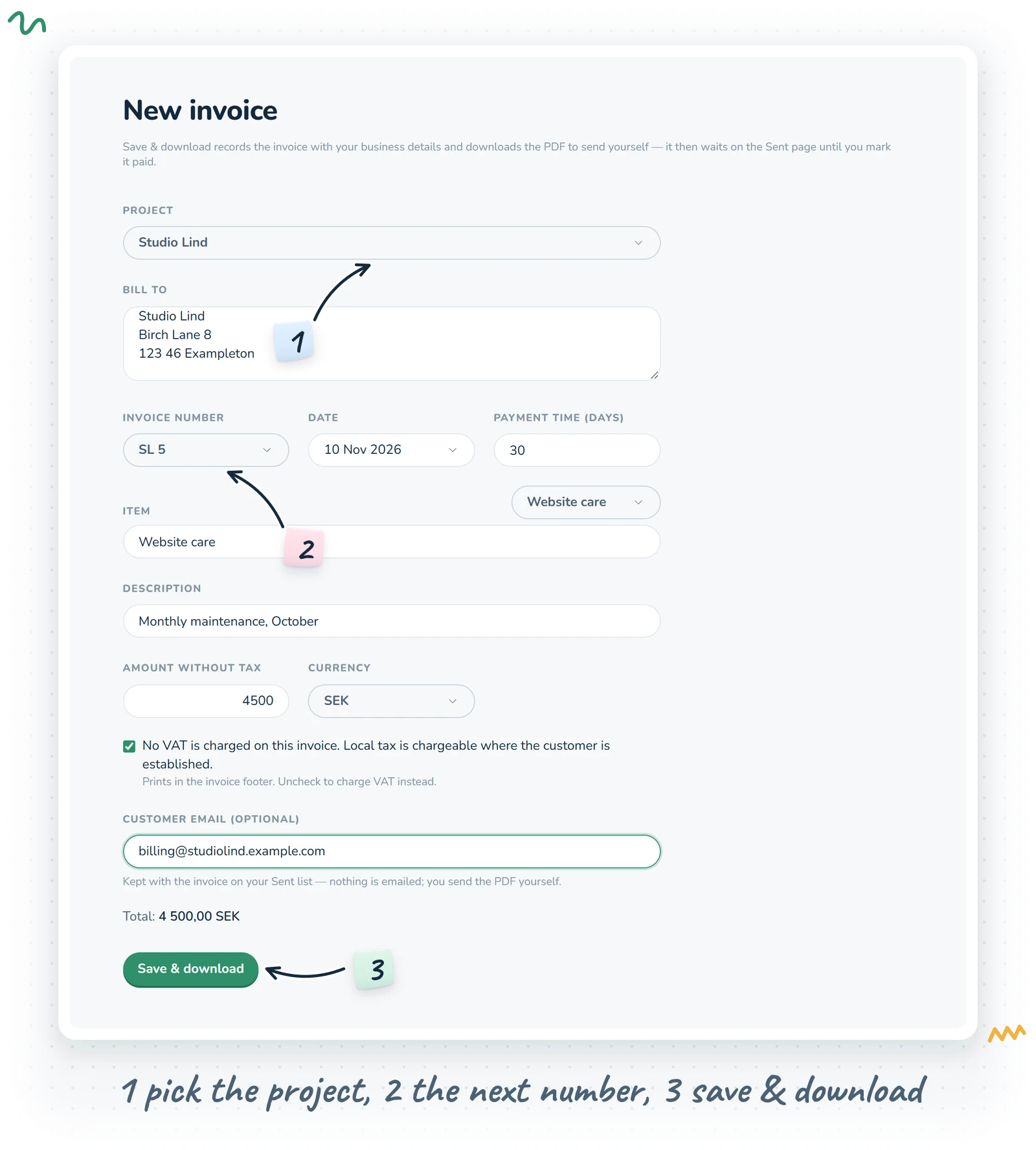
Press New and you get the composer:
- Project: who or what you are billing, such as a client or a job. Make a new one right in the picker.
- Bill to: the customer's name and address.
- Invoice number: picked, never typed. More on that below.
- Date and Payment time (days).
- Item and Description, with presets.
- Amount without tax and a currency (SEK, EUR or USD).
- A checkbox for No VAT is charged on this invoice, ticked by default. Untick it and a VAT % field appears.
- Customer email (optional), kept with the invoice for your records. Nothing is emailed; you send the PDF yourself, the way you like.
Press Save & download. Invoices asks you to confirm (once saved, the number is used), records the invoice, downloads the PDF, and takes you to your Sent list.
Numbering series that never skip
In many countries invoice numbers must run in an unbroken order. Typing them by hand is how gaps and duplicates sneak in, so Premium doesn't let you type them at all.
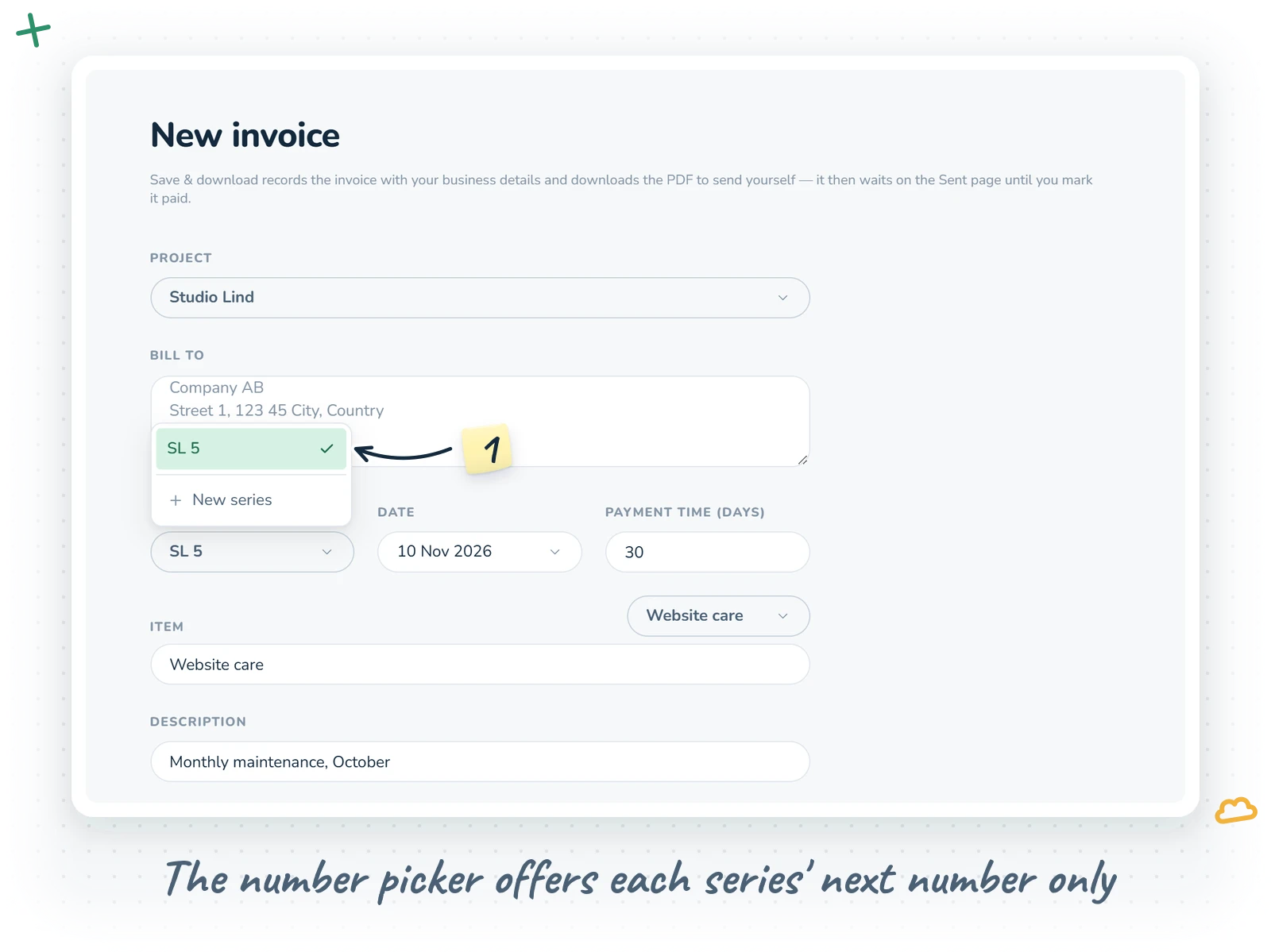
Instead you make a series: a short set of letters, like "MN" or "WEB". The number picker then offers each series' next number only, "MN 1", then "MN 2", and so on. You can make a new series straight from the picker. If two invoices race each other, the second one is stopped rather than given a duplicate number.
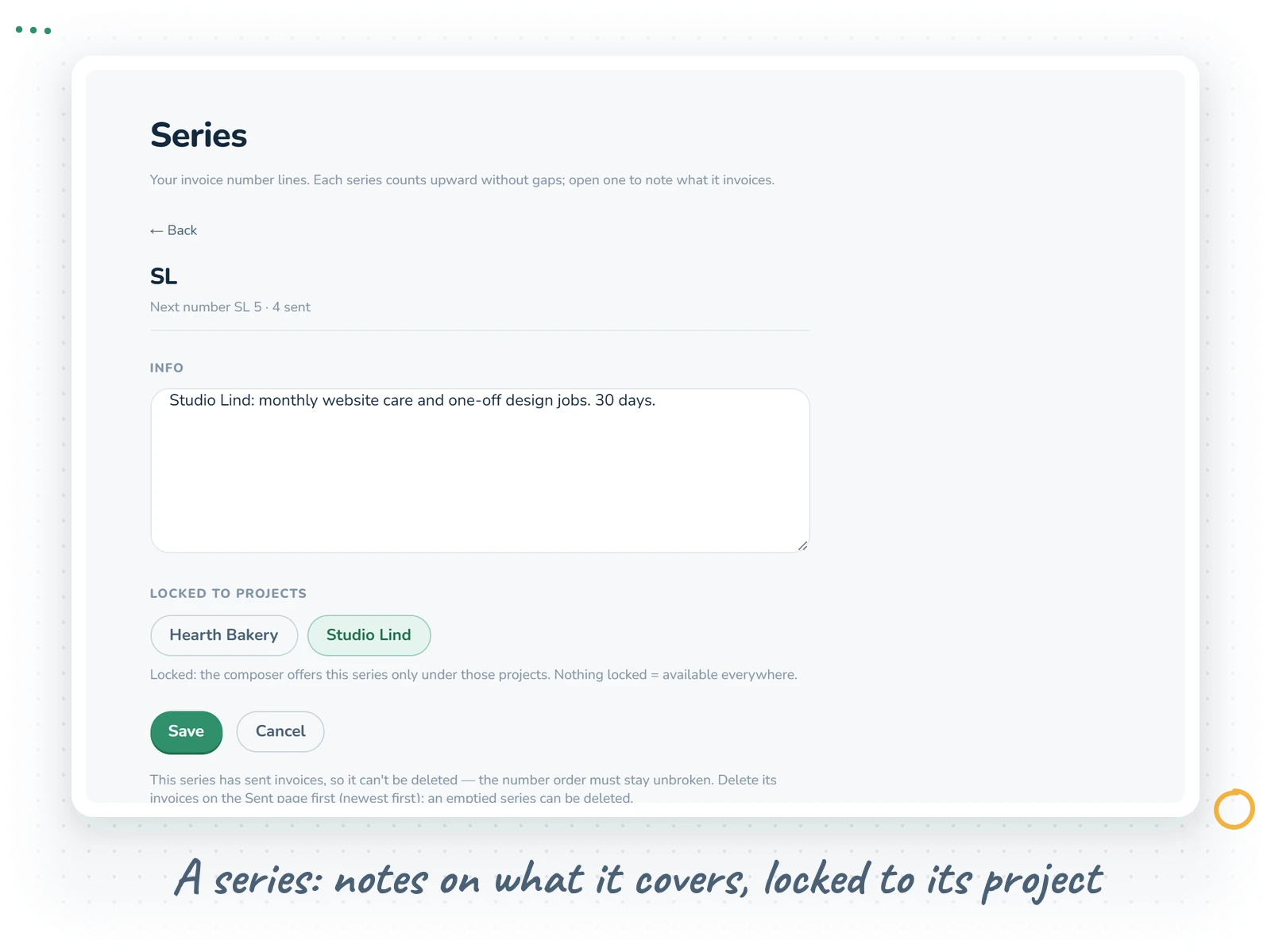
On the Series page each series has a notes field for what it is used for (projects, clients, terms) and can be locked to projects, so it only shows up when you bill those projects. A series you create from the composer locks itself to the project you picked. A series can be deleted only while it is unused, because deleting one with invoices would break the order it vouches for.
Every saved invoice also gets its own short payment reference, unique within its series, printed as "Mark payment with" on the PDF.
Presets for the lines you bill often
If you send the same kind of invoice every month, retyping "Website maintenance / October" gets old fast. The Presets picker next to the item keeps item and description pairs per project: pick one to fill both fields, or save the current pair as a new one. You can delete a preset straight from the list.
Better still, a new invoice opens with the project's most recently used pair already filled in. Switch project and only the fields you haven't touched change, so anything you typed by hand stays put.
Sent, paid and the Archive
Sent lists every invoice awaiting payment. Open one to see all its details (bill to, customer email, date, terms, item, description, amount, VAT and total), download the PDF again at any time, or press Mark as paid.
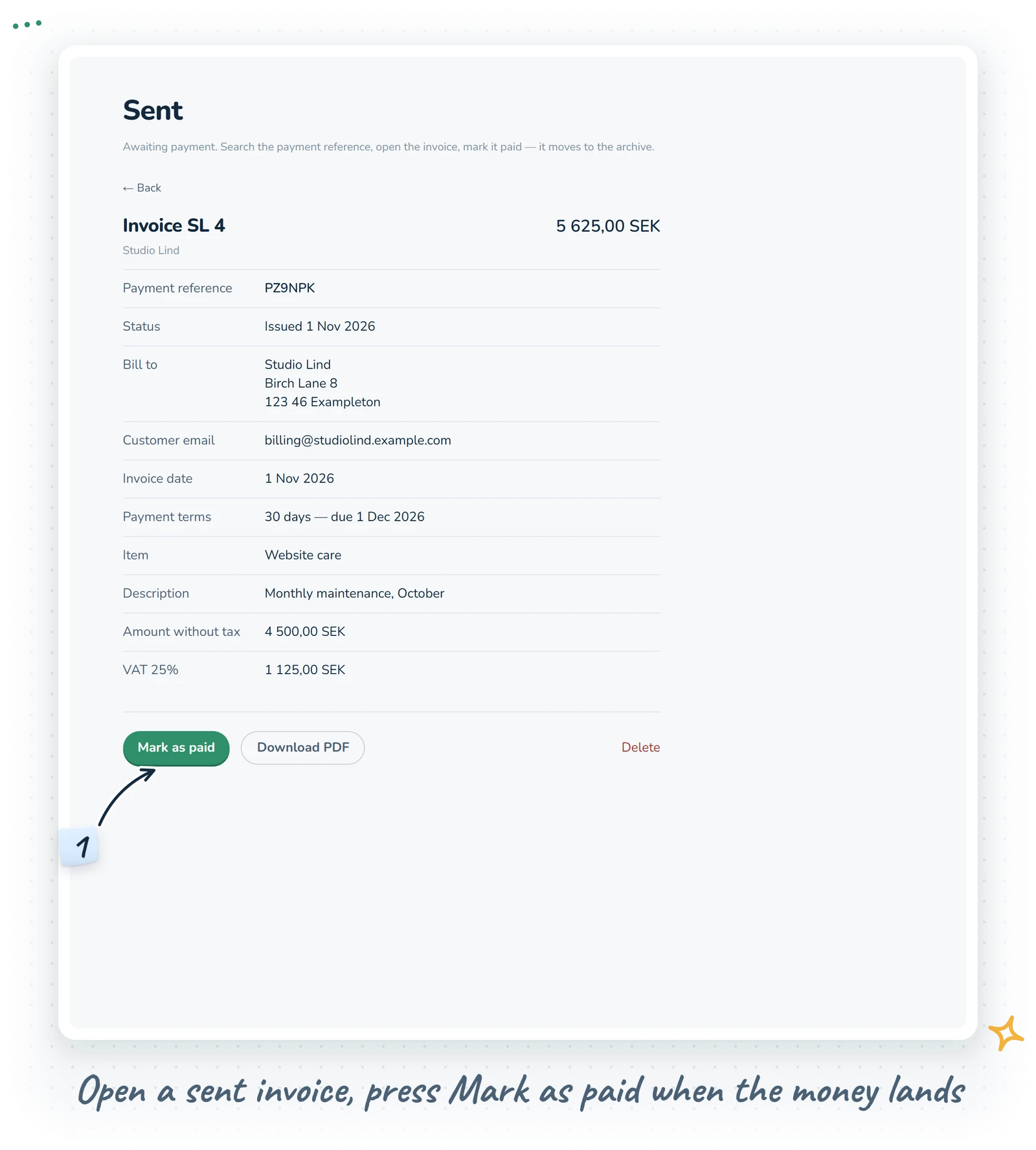
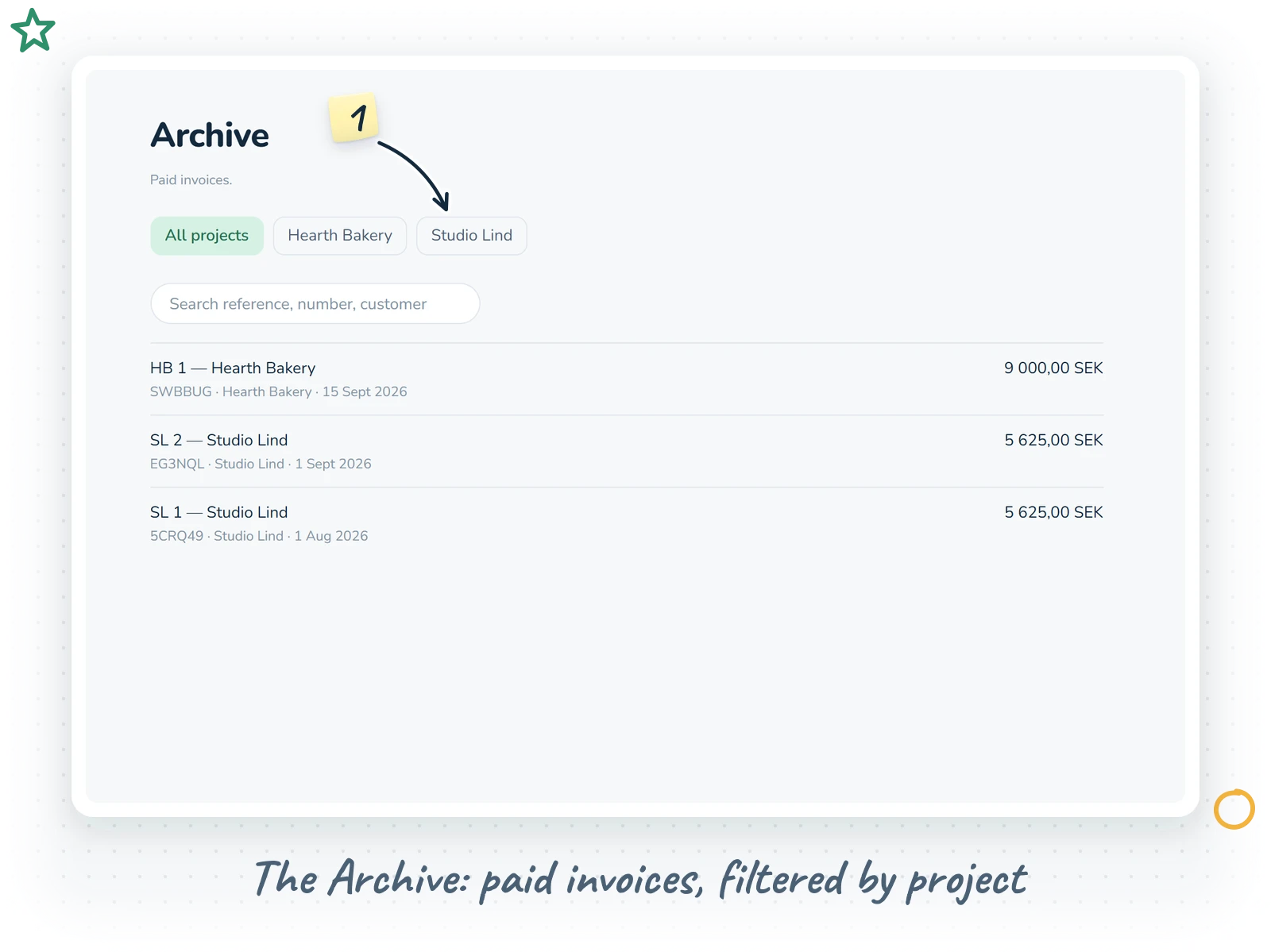
Marking an invoice paid moves it to the Archive. It is reversible with Mark as unpaid, in case you got excited too early. The Archive can be filtered by project, and both lists have a search box that finds invoices by payment reference, number or customer. When a payment notice arrives with a reference on it, paste it in and there is your invoice.
Deleting a mistake
Made a typo? The Delete button on a Sent invoice is there for the newest invoice in its series. Deleting it frees the number and the reference for the corrected one, so the order stays unbroken. Earlier invoices, and anything already paid, are records and stay put.
Free vs Premium
The free Invoices at /invoices is the full invoice maker: your details (remembered in your browser), as many lines as you need, six currencies, VAT choices, and a clean PDF download. No account, nothing stored.
Invoices Premium is €6 a month or €58 a year, VAT included. It adds every invoice saved with Sent and Archive, your business details on every invoice, numbering series that never skip a number, presets for the lines you bill often, and mark-as-paid with search by payment reference. Invoices is also included in the full OScar plan with every other tool. See pricing for the details. Checkout opens soon; until then the free version is yours to use.
Tips for tidy invoicing
- Fill in How to pay with everything your customers need. The fewer questions they have, the faster you get paid.
- Pick payment terms you actually mean. Thirty days is common, but nobody minds a shorter one.
- In Premium, give each client or type of work its own series and lock it to that project. The picker gets shorter and your numbering tells a story.
- Write a note on each series about what it covers. Future you will be grateful.
- Keep the payment reference visible. It is the quickest way to match money to invoices.
That is Invoices: small, tidy and happy to stay out of your way. Make your first one at /invoices, or have a look at the Invoices page.
- invoices
- freelance
- small business
- invoice generator