The Draw guide · 12 min read
Draw: a hand-drawn whiteboard, tool by tool
A full tour of Draw, the hand-drawn whiteboard on oscarritzen.com: every tool, shortcut, export, share link, comment and AI helper, and what the free version gives you.
Draw is a hand-drawn whiteboard that lives in your browser. Boxes come out a little wobbly, arrows look like you sketched them on the back of an envelope, and the canvas never ends. It is where I plan projects, map out flows and think out loud, and this post walks through everything it does today, button by button.
You can try it right now at /draw. No account, no sign-up form, no "just one more step". The page opens, you draw.
Getting started with the hand-drawn whiteboard
When you open Draw you get a blank sheet of paper and a toolbar. Pick a tool, drag on the canvas, and you have made something. That is honestly most of the learning curve.
In the free version your drawing is kept in your own browser. Close the tab, come back tomorrow, and it is still there. Nothing is sent to me; it simply stays on your device. If you later make an account, Draw notices the drawing waiting in that browser and offers to bring it in, so you never have to start over.
Two things worth knowing from minute one:
- Press ? (or the small i button at the top right) for the full list of tools and shortcuts. It is searchable, so typing "arrow" finds every arrow trick.
- Press Ctrl+/ for the command palette. Type a few letters of any action, press Enter, done. When you forget where something lives, this is the shortcut that saves you.
The toolbar: every drawing tool
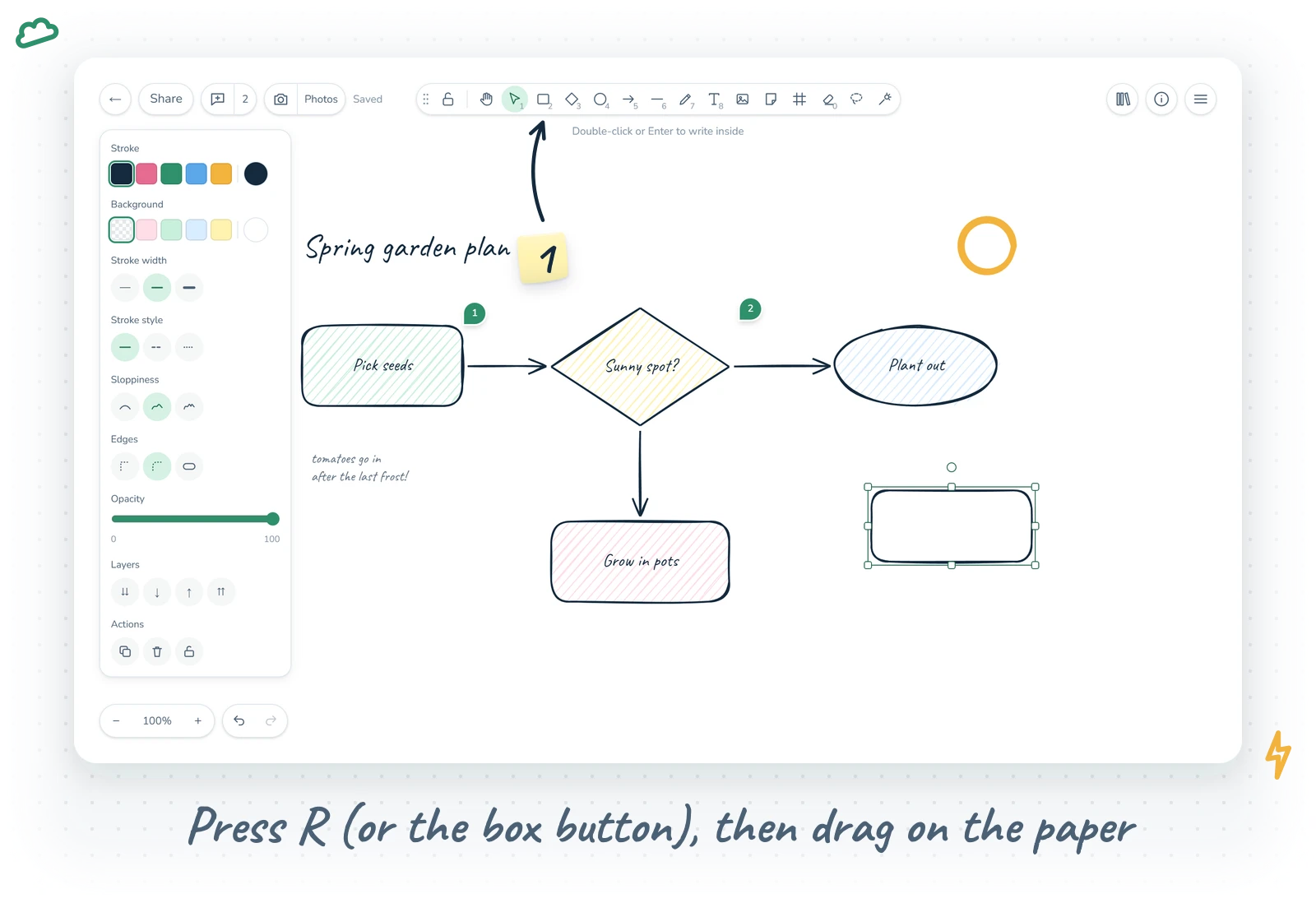
Every tool has a letter and most also have a number, so your hand can stay on the keyboard.
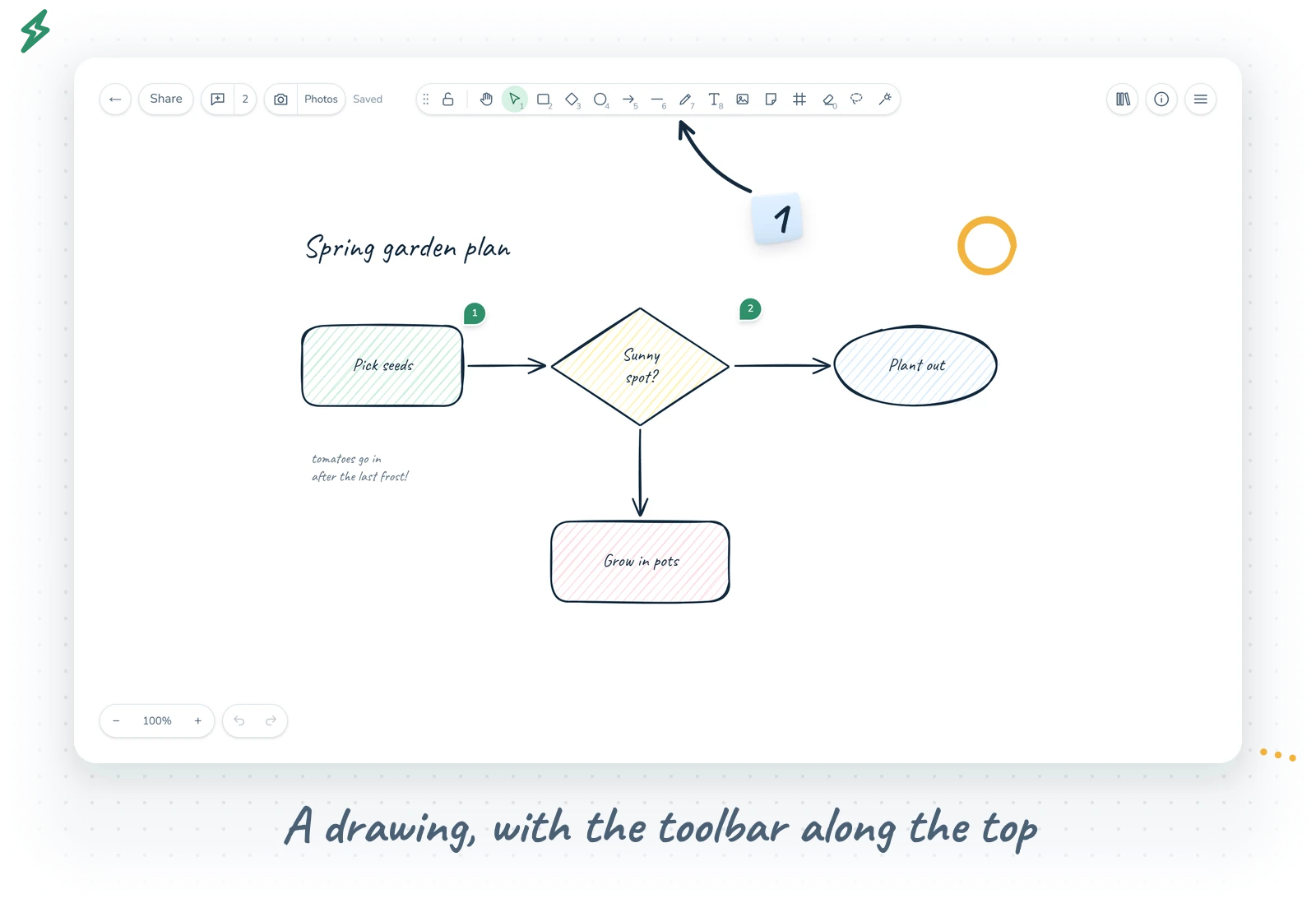
- Hand (H) moves around the canvas without touching anything on it.
- Selection (V or 1) picks things, drags them, and selects an area when you drag over empty paper.
- Rectangle (R or 2), Diamond (D or 3) and Ellipse (O or 4) draw the classic shapes. Hold Shift for a perfect square or circle.
- Arrow (A or 5) can be dragged in one go, or clicked point by point and finished with Enter. An arrow that starts or ends on a shape attaches to it, so when you move the shape, the arrow follows.
- Line (L or 6) is the arrow's quieter sibling: no heads, no attaching.
- Draw (P or 7) is the freehand pen. It stays active between strokes, so you can scribble a whole signature without reselecting it.
- Text (T or 8) writes wherever you click. Click inside a shape and you write inside the shape instead.
- Image (9) places a picture. You can also just paste or drop images straight onto the canvas.
- Eraser (E or 0) has two modes. Brush removes only what the circle touches, a bit like a real eraser. Whole object removes entire items. Use [ and ] to change the brush size.
- Sticky note (N) drops a yellow note you can type on straight away.
- Frame (F) draws a named area. Things inside move with it and are cut off at its edges. Frames are also your slides, more on that later.
- Lasso (W) lets you draw a loop around things to select everything wholly inside it.
- Laser pointer (K) leaves a red trail that fades by itself. Perfect for "look at this bit" while presenting, and it is never saved.
- Eyedropper (I) picks any colour from the canvas. I and Shift+S give it to the stroke, Shift+G (or Alt+click) to the background.
Normally a shape tool hands you back to Selection after one use. Press Q (or the padlock in the toolbar) to keep the current tool, which is lovely when you need twelve boxes in a row.
Styling: colours, fills and fonts
Select something and the style panel shows what you can change. Stroke and background colours have quick picks plus a full picker with shades, a hex field, opacity and the eyedropper. You can pin a favourite colour to the quick row, and the picker also lists the drawing's most used custom colours, so a consistent palette almost happens on its own.
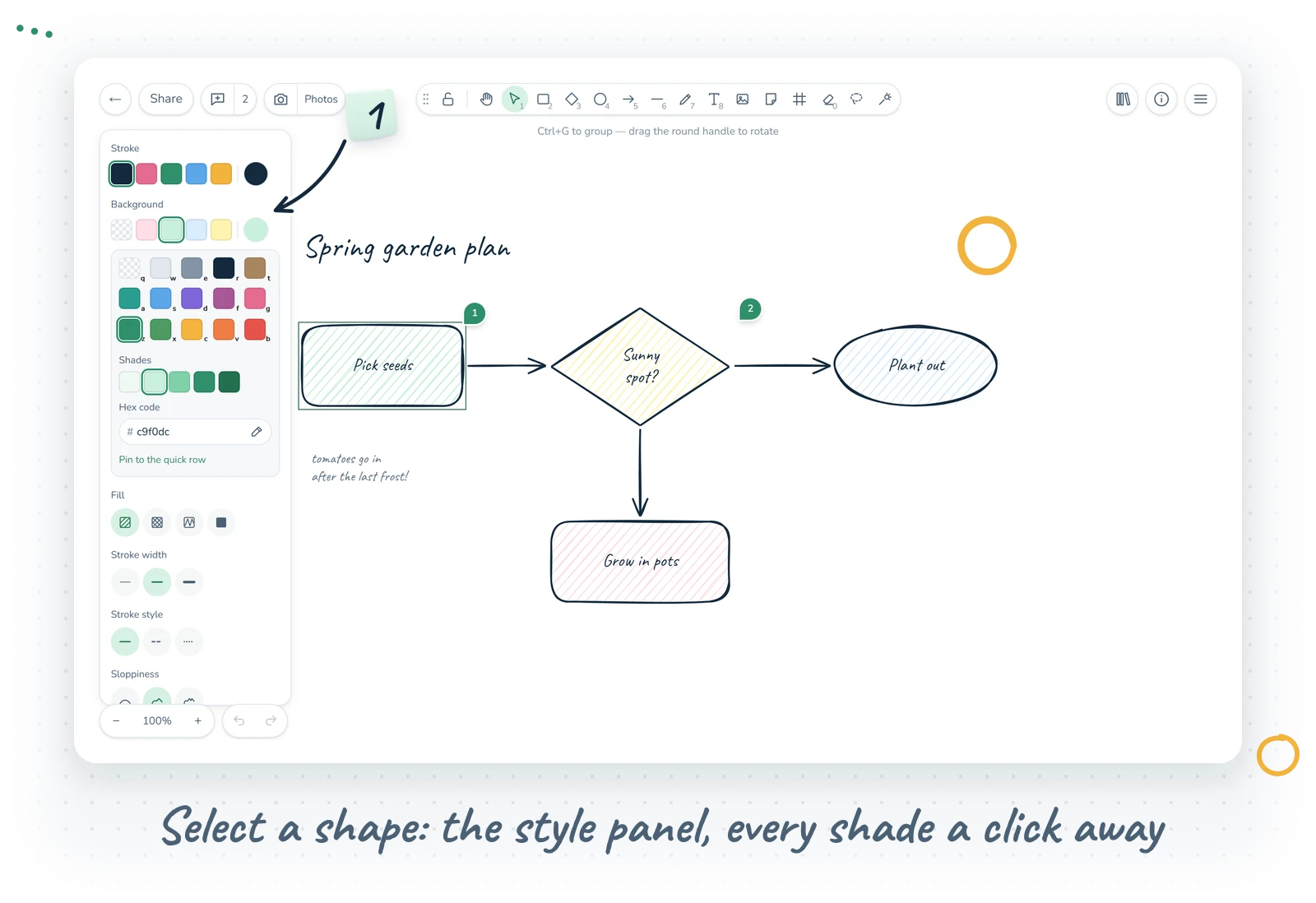
Fills come in hachure, cross-hatch, zigzag and solid. There is stroke width, stroke style, sloppiness (how hand-drawn it should look), edges (sharp, round, or a pill with fully rounded ends for sketching buttons) and, for pen strokes, a variable width that thins with speed or an even line.
Arrows get a surprising wardrobe of heads: arrow, triangle, bar, circle and diamond, filled or outlined, plus the crow's-foot family for database diagrams (one, many, one or many, exactly one, zero or one, zero or many). An arrow can be sharp, curved or elbowed.
Text has a font list you open with Shift+F: Hand-drawn, Sans, Code, Lilita One, Comic and Serif, searchable by name. Sizes run S, M, L and XL, and Ctrl+Shift+> or < nudges the selected text a tenth bigger or smaller. Ctrl+B and Ctrl+U make it bold or underlined, and there are B and U buttons in the panel too.
One little detail I am fond of: the text tool writes free text where you click. Double-click a shape (or select it and press Enter) to write a label centred inside it. Labels inside shapes can sit top, middle or bottom, and the right-click menu can wrap text in a box, bind a text to a shape or unbind it again.
Selecting, arranging and editing
This is where Draw goes from "doodle pad" to "actually useful":
- Shift+click adds or removes one item from the selection. Ctrl+click picks one member inside a group. Alt+click picks the item underneath when things are stacked; click again to go deeper.
- Ctrl+D duplicates, and Alt+drag drags a copy while the original stays put.
- Ctrl+G groups and Ctrl+Shift+G ungroups.
- Ctrl+] and Ctrl+[ move things one layer forward or back; add Shift to go all the way.
- Ctrl+Shift+Arrows align the selection. The panel also centres and distributes with equal gaps once you have three items.
- Shift+H and Shift+V flip horizontally and vertically.
- Ctrl+Alt+C and Ctrl+Alt+V copy and paste styles, so one item's colours, fill, stroke and font can be handed to others.
- Ctrl+Shift+L locks items so they can't be moved or deleted by accident. Right-click the canvas for "Unlock all".
- Tab switches a shape's type: box to diamond to ellipse, or an arrow from sharp to curved to elbow.
- Arrow keys nudge by 1 px, with Shift by 10 px. Drag the round handle to rotate (Shift snaps to 15 degrees).
- Ctrl+Z and Ctrl+Y undo and redo, as you would hope.
Flowcharts at keyboard speed
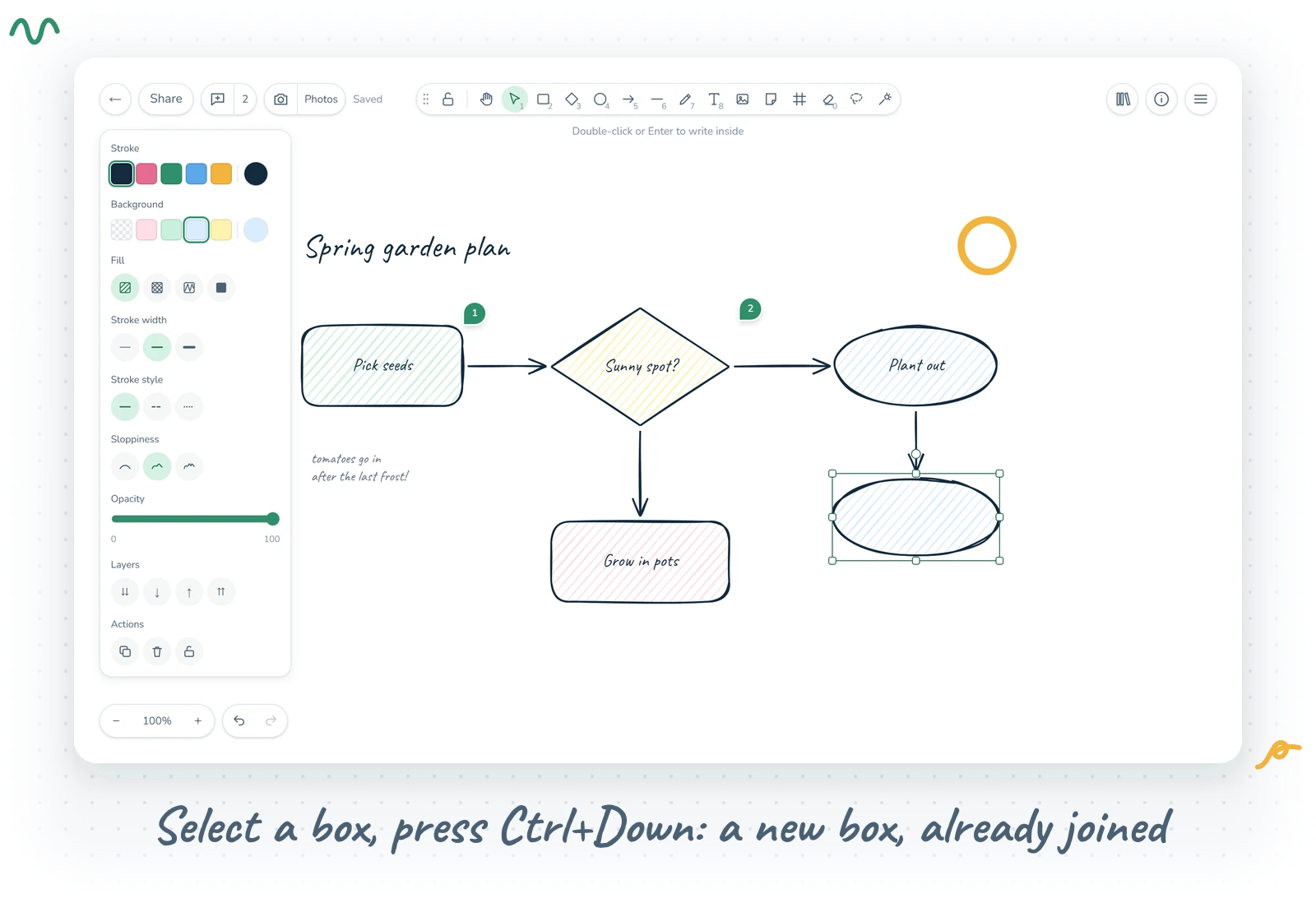
Select a box and press Ctrl+Arrow: a new box appears in that direction, already joined by an attached arrow. Alt+Arrow hops to the connected box that way. You can sketch a whole process without touching the mouse, which feels a little like cheating.
Links, pictures and the right-click menu
Ctrl+K attaches a web address to anything, shown as a small badge you click to open. Right-click an item and choose "Copy link to object" to get an address that points at that exact item; paste it as another item's link and its badge jumps there.
Pictures can be cropped: double-click one (or press Enter), drag the handles, then Enter or Esc when done. Right-click offers "Reset crop" if you change your mind. And the right-click menu (a long press on touch) is always there with every action for whatever you pointed at.
Finding your way around the canvas
Pan with Space+drag, the scroll wheel, or two fingers on a phone. Zoom with Ctrl+scroll or a pinch. Shift+1 fits everything on screen and Shift+2 fits just the selection.
- Ctrl+' shows a grid that drawing and moving snap to.
- Alt+S turns on snapping to objects, with guide lines as things line up with their neighbours.
- Alt+Shift+D gives you a dark canvas for night work. Exports keep the real colours unless you ask for dark.
- Alt+Z is Zen mode: toolbar and panels vanish, only the drawing stays.
- Alt+R is View mode, where nothing can change. Esc leaves it.
- Ctrl+F finds text, labels and frame names. Enter jumps to the next match.
On a tablet, Pen mode lets the stylus draw while your fingers move the canvas. It switches itself on the first time a stylus touches the screen. The menu also lets you pick the canvas background colour, and there is a "Clear canvas" for brave fresh starts.
Bringing things in: Mermaid, charts, files and the library
Mermaid to diagram (in the menu) takes a pasted Mermaid flowchart, sequence, class or ER diagram and turns it into ordinary shapes with attached arrows, which you can then move and restyle like anything else.
Copy a couple of columns from a spreadsheet (a label and a number) and paste: Draw offers to turn them into a bar chart, a line chart or plain text.
Ctrl+S saves the drawing as a file and Ctrl+O opens one, including files made on excalidraw.com, so you are never locked in.
The Library holds reusable pieces: add the selection (or right-click, "Add to library"), click a piece to place it, rename or remove pieces, and import library files, Excalidraw's included. The free Draw keeps three pieces in your library; Premium keeps as many as you like.
Exporting your drawing
Ctrl+Shift+E opens the export dialog with a live preview. Choose PNG or SVG, with or without the background, the whole drawing or only the selection, at 1x, 2x or 3x, light or dark. Then download it or copy it.
The clever bit is Embed scene: the drawing travels inside the picture file. Open or drop that image back into Draw and it becomes editable again. The file gets a bit bigger, but you never lose the original. Shift+Alt+C copies a PNG of the selection straight to the clipboard when you just need it in a chat.
Saving, folders and the sidebar
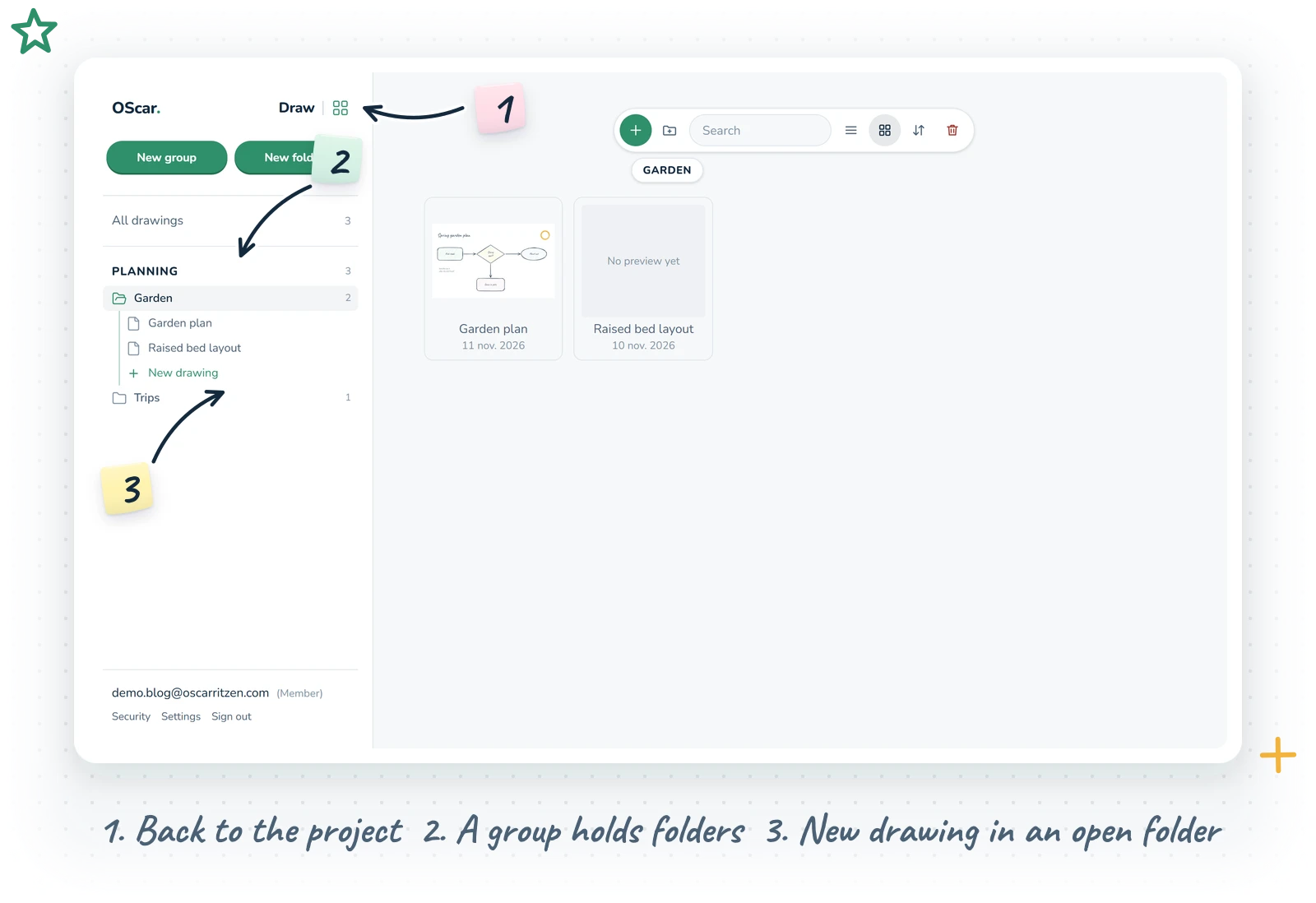
With an account, every drawing is saved to your account and opens on any device. The sidebar keeps them in order:
- Inside a project, the little green grid icon beside the word "Draw" at the very top takes you back to the project's page.
- New group and New folder sit at the top. Groups are headings that hold folders; folders hold drawings and can nest subfolders a few levels deep.
- All drawings opens the start page: your top-level folders, then the drawings that sit in no folder. It works like the start page of Documents, Photos and Notes: a small floating pill of icons at the top with New drawing in green, New folder, a search field, list and grid view and a sort picker; inside a folder its name sits in a pill under the toolbar and a red Delete folder bin joins the end. The grid shows each drawing's preview. Right-click a drawing for Favorite, Color, Rename, Move, Share and Delete; a coloured drawing keeps its colour in the sidebar too. On a phone, swipe a drawing to the left for Settings (the same menu as a sheet) and Delete, and to the right for Color.
- Groups are the extra-bold headings, and they start closed, so a long list stays calm. Click one to open it.
- Clicking a folder opens it: its little icon turns from grey and closed to green and open, and its subfolders and drawings appear one step in under a thin guide line, with New drawing last. The guide lines turn green along the way to the folder you're in. On a phone the menu shows three levels at a time: a folder on the third level has a small arrow and opens as its own panel, with a back button and the full path on top. The sidebar remembers which folders you left open, even after a reload.
- Drag to reorder groups, folders and drawings. Drop a drawing on a folder to file it, or among another folder's drawings to file it right there in one move.
- Right-click a folder for New subfolder, Rename and Delete. Deleting a folder doesn't delete its drawings; they move up one level.
Sharing, comments and live collaboration
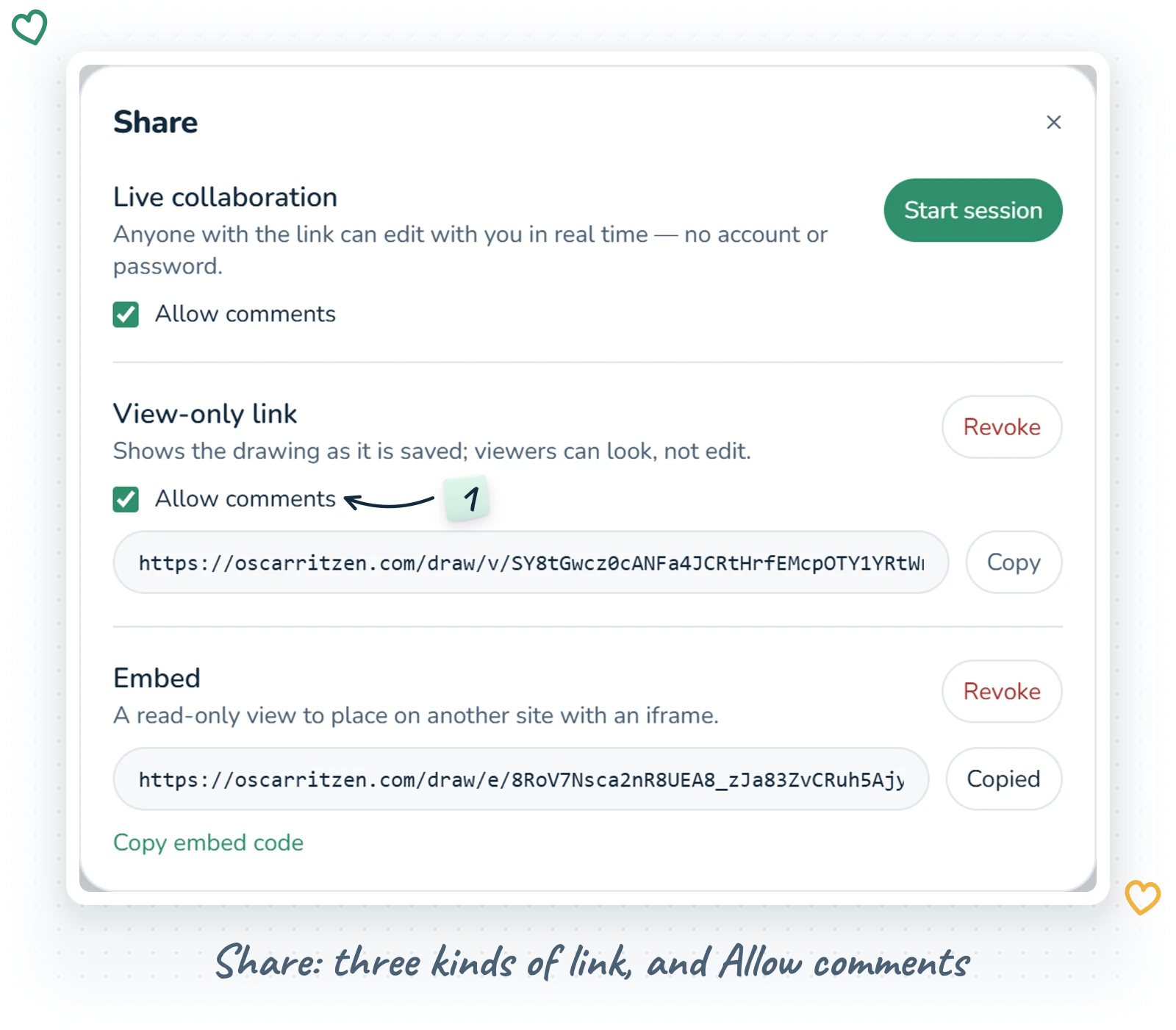
The Share button offers three kinds of link:
- Live collaboration: anyone with the link can edit with you in real time, with live cursors, no account or password needed. "End session" stops it for everyone.
- View-only link: shows the drawing as it is saved. Viewers can look but not edit.
- Embed: a read-only view you can put on another site, with a "Copy embed code" button that gives you the iframe.
Links work until you revoke them. Live and view-only links have an Allow comments checkbox. With it off, visitors can still read the comments, but they can't write, reply, resolve or move them.
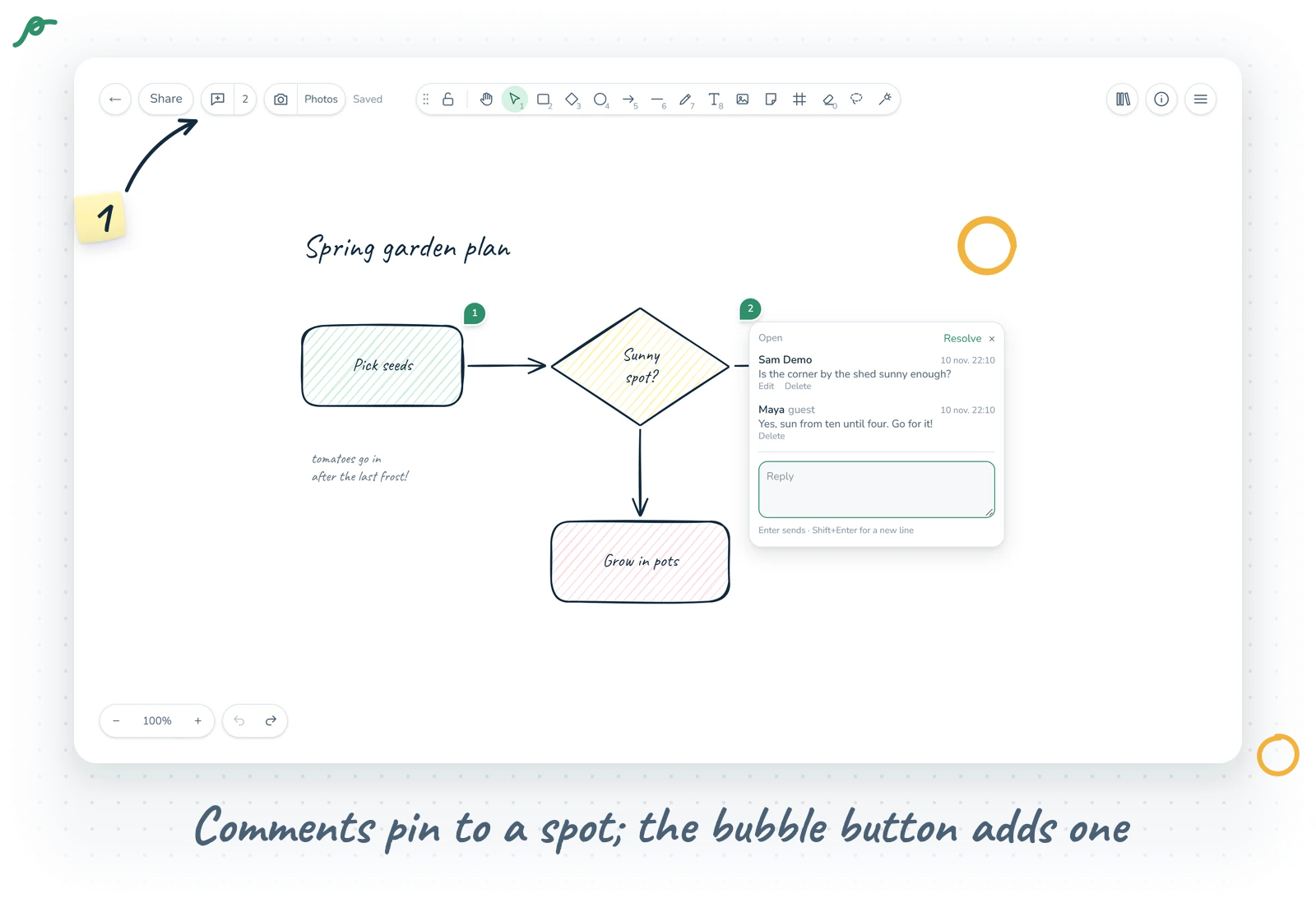
Comments pin a thread to a spot on the canvas: choose Add comment, then click where it belongs. Drag a bubble to move it, reply, resolve or reopen, and the list shows every thread at once. Visitors pick a name the first time they comment. And if you spot a typo in something you wrote, you can edit your own comments right in the thread.
The Camera button takes photos (on a phone it opens the camera) and keeps them in the drawing's Photos tray. Drag one onto the canvas, or click it, to place it. Whiteboard photo from a meeting, straight into your notes.
Slides and presenting
Every frame is a slide. Open Slides and presenting from the menu to put them in order, present full screen (arrow keys to move, Esc to stop) or export them as PDF or PowerPoint. In a live session, others can follow along with your slides. Grab the laser pointer and you have a tiny conference talk.
AI helpers
Two AI tools live in the menu, the right-click menu and the command palette:
- Text to diagram: describe a flowchart, a sequence, classes or a database. The AI drafts it, you can check it, edit it or ask for changes, and then insert it as ordinary shapes.
- Wireframe to code: sketch a page, select it, and the AI builds a working HTML page from it. Add optional notes (colours, what it is for), preview the result, then download or copy it.
Each request spends AI credits from your monthly allowance.
Free vs Premium
The free Draw at /draw is the whole editor, not a demo: every drawing tool, styles, frames, Mermaid diagrams, the library (three pieces), and export to PNG, SVG and file, all kept in your browser with no account.
Draw Premium is €7 a month or €70 a year, VAT included. It adds unlimited drawings saved to your account, folders and a cloud library, share, view-only and embed links, comments, slides and presentations, live collaboration, and the AI tools with a monthly batch of AI credits. Draw is also part of the full OScar plan, together with every other tool. All the details are on the pricing page. Checkout opens soon; until then the free version is yours to use.
A few favourite tips
- Lost? Shift+1 brings everything back into view.
- Hold Shift while drawing lines or arrows for clean 15 degree steps.
- Hold Ctrl while dropping an arrow end to keep it free instead of attached.
- Press Esc or Ctrl+Enter to finish text; plain Enter starts a new line.
- With the library, photos or menu open, a click elsewhere only closes the panel. Nothing underneath gets touched, so click away freely.
- When in doubt, Ctrl+/ and type what you want.
That is Draw, wobbly lines and all. Go make a mess on a fresh canvas, or read more about it on the Draw page.
- draw
- whiteboard
- diagrams
- flowcharts
- collaboration