The Checklist guide · 6 min read
Checklist in OScar: shared lists, ticked off together
How Checklist in OScar works: lists for groceries, packing and chores, invites by email, live ticks, colours, drag to reorder, and share links that work without an account.
Checklist started life as a tiny app my household used for groceries, and it earned a permanent spot in OScar. It does one thing well: lists that several people use at once. Think of a shared shopping list where your partner adds oat milk at home while you're already in the dairy aisle, and you see it appear. It works just as well for packing, chores, a party or a moving day. Here is everything it does.
Getting started with a shared shopping list
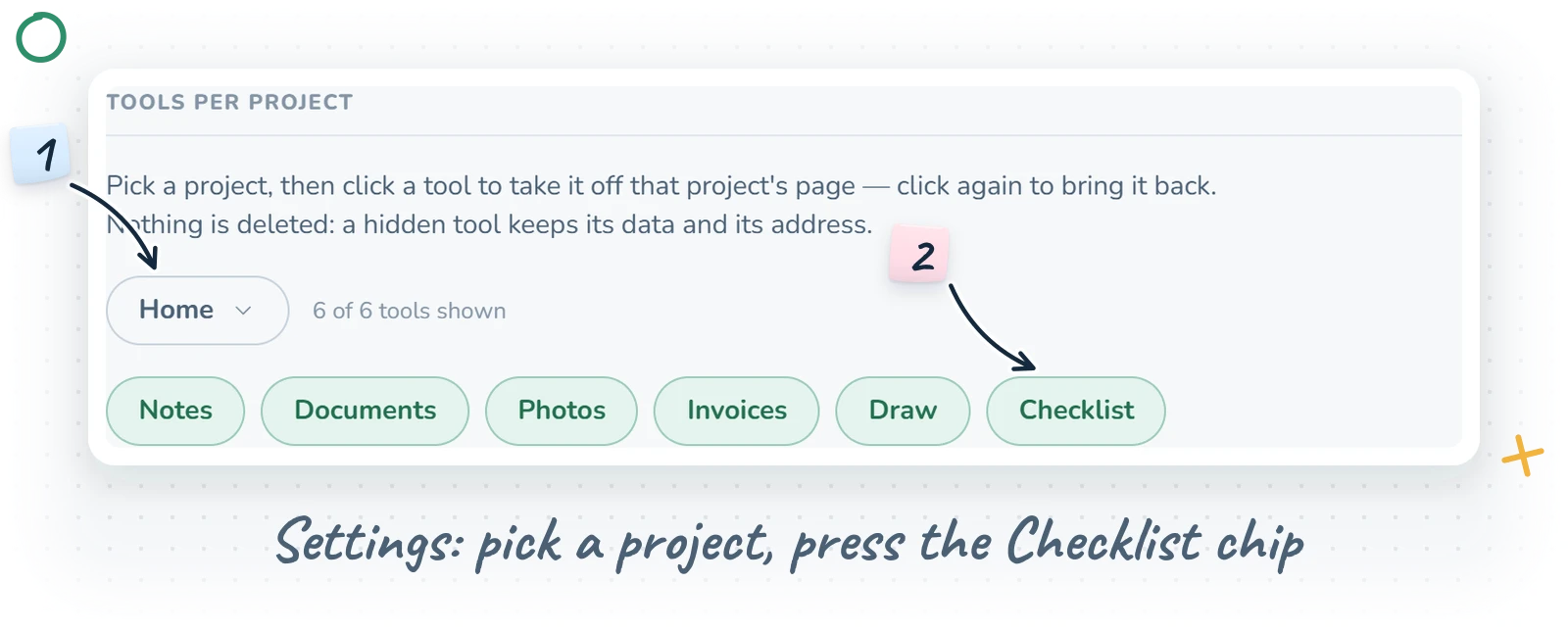
Checklist is a project tool, but it's opt-in: it isn't on every project page until you ask for it. To turn it on, open Settings (next to Security at the bottom of the sidebar), find Tools per project, pick a project and press the Checklist chip. It now appears as a tile on that project's page.
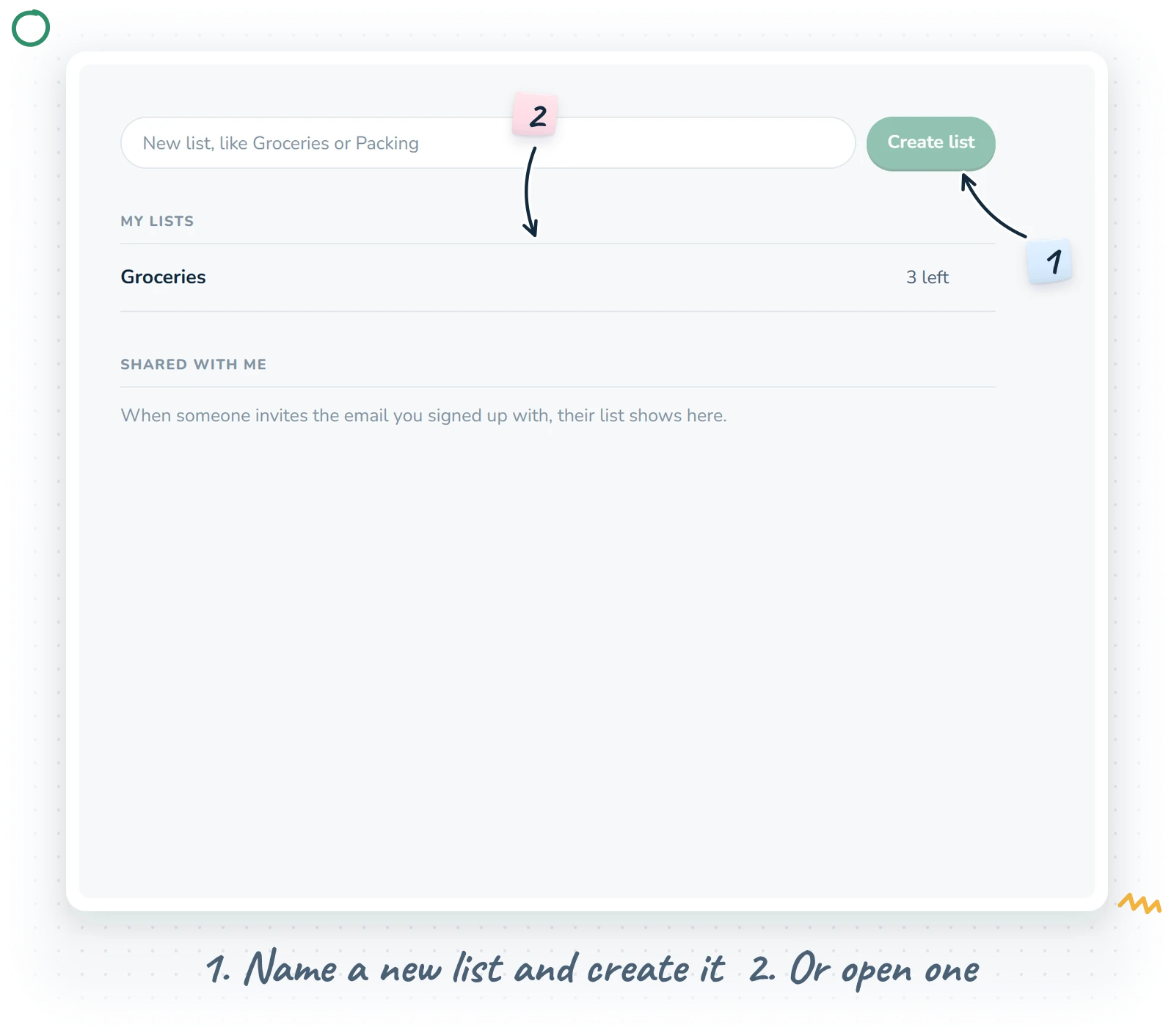
Open it and you see the overview:
- A field that says "New list, like Groceries or Packing" and a Create list button. Type a name, press the button, and the new list opens right away.
- My lists: the lists you own in this project. Each row shows how many items are left ("3 left"), "All done" when everything is ticked, or "Empty".
- Shared with me and Invitations: on your home project's Checklist, more on those below.
Adding and ticking items
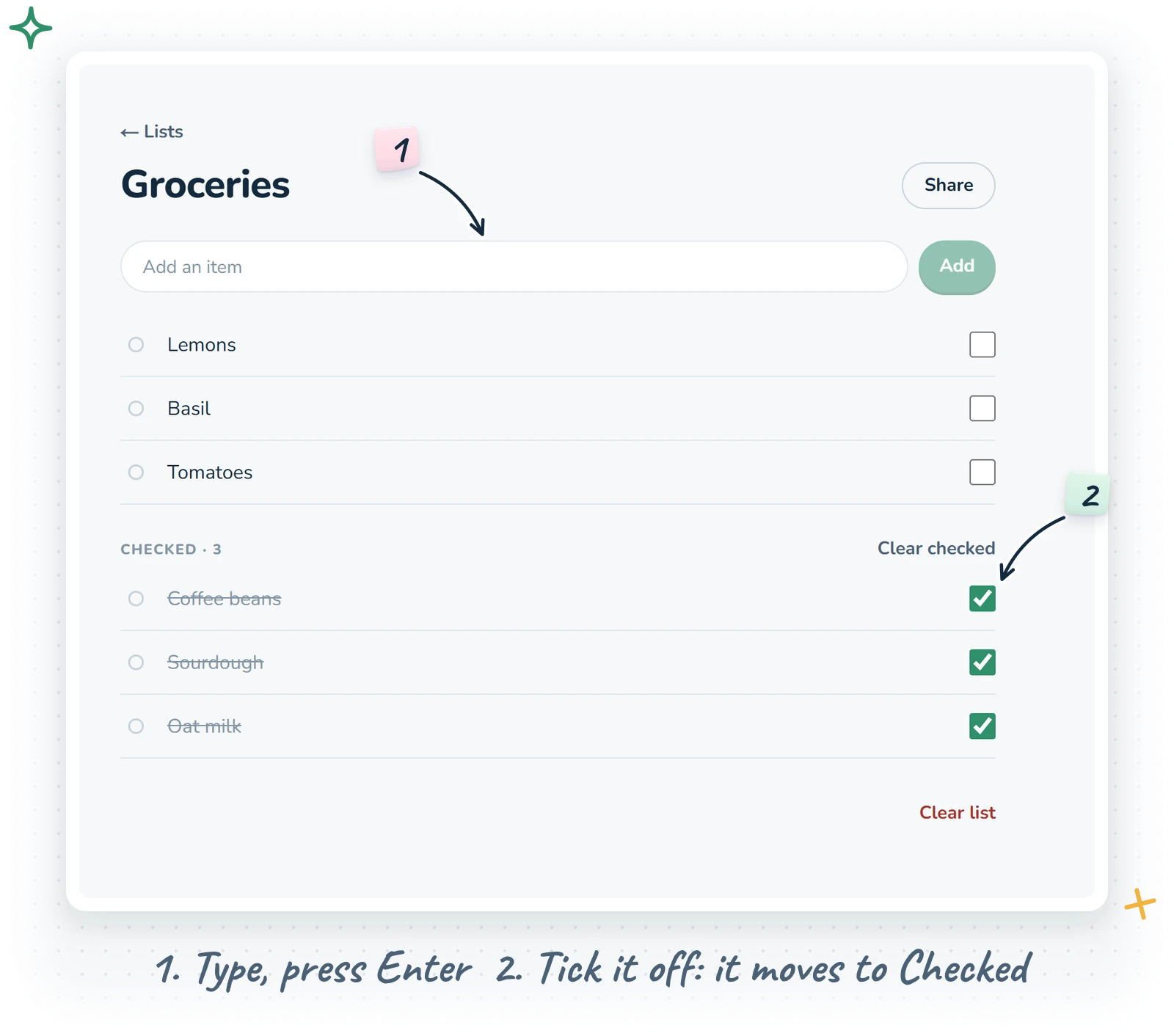
Inside a list, the Add an item field sits at the top. Type, press Enter (or the Add button) and the item appears at the top of the list. The field stays open and focused, so you can rattle off "eggs, Enter, bread, Enter, coffee, Enter" without touching the mouse.
Each item has a checkbox on the right. Tick it and the item slides down into the Checked group at the bottom, struck through and greyed out. Untick it and it comes back up. The Checked heading shows how many items are in it.
Two clean-up buttons keep things tidy:
- Clear checked, next to the Checked heading, removes everything you've ticked. Perfect after a shop.
- Clear list, at the very bottom, empties the whole list for everyone. It asks first, because it means it.
A list holds up to 250 items (a counter appears as you get close), and you can keep up to 100 lists. If you need more than that for groceries, I'd like to know what you're cooking.
Renaming, colours and order
Renaming
Click an item's name to edit it in place. The text stays exactly where it was, no jumping. Press Enter to keep the change, Escape to cancel. The list's owner can also rename the whole list by clicking its title at the top.
Colours
Every list has three colours: green, yellow and red. Use them however your household likes. Green for "we have a coupon", red for "do not forget this one", yellow for "check the price first". On a computer, click the small dot at the start of a row to show the three colour rings, pick one (click it again to clear it), and press Done.
Order
Drag unchecked items up and down to reorder them. A thin line shows where the item will land. The order is shared, so if you arrange the list in the order of your supermarket's aisles, everyone shopping from it gets the same route. Checked items always sit in their own group below.
To delete a single item on a computer, hover the row and click the ×.
Sharing with people
A list is at its best with more than one person on it. Press the Share button at the top of a list (it shows "2 people", "3 people" and so on once others have joined) to open the People panel.
Inviting by email
Type someone's OScar account email and press Invite. The next time they sign in, they find an invitation at the top of their home project's Checklist, saying who invited them to which list, with Join and Decline buttons. Joining opens the list straight away. Invitations last 14 days, and while they wait they're listed under Waiting to join, where you can Revoke them.
On the family plan, your family members appear as one-click chips under the invite field, so adding the whole household takes three taps.
Everything happens live
This is the fun part. When anyone on the list adds, ticks, renames, colours or reorders an item, everyone else who has the list open sees the change within a moment, with no refreshing. Two people can split up in a shop and the list keeps itself honest.
Who's in the list
The People panel lists everyone with access, marking the Owner and "(you)". The owner can Remove a member, who loses access at once, or Delete list, which removes it for everyone. A member who no longer needs the list can Leave list. Coming back takes a new invitation.
Lists other people share with you show under Shared with me on your home project's Checklist, next to your own lists, so you don't have to remember whose list lives where.
Share links: no account needed
Not everyone you shop with has OScar, and that's fine. In the People panel, press Create a share link. Anyone holding that link can open the list and add, tick, rename, colour and remove items, without signing in to anything. Use Copy to grab the link and send it however you like.
A visitor on a share link sees the same list as you, kept up to date every few seconds while the page is open, and straight away when they come back to it. On a phone they can use their browser's Share, then Add to Home Screen, and the list becomes its own little app icon. That's how my household uses it: one tap from the home screen, straight into the groceries.
Since anyone with the link can change the list, keep it among people you trust. If it ever travels too far, New link makes a fresh one (the old link stops working at once), and Revoke link switches link access off entirely.
On your phone
Checklist was built phone-first, because that's where lists get used:
- Swipe an item left to reveal a red delete button.
- Swipe an item right to reveal the three colour rings, big enough for a thumb.
- Press and hold an item's empty space, then drag, to reorder it.
- On the overview, swipe a list left to delete it (if you own it) or leave it (if someone shared it with you).
- Tap the checkbox to tick. Your own changes show at once, even on a slow connection in the back of the shop.
Tips from the kitchen
- Keep one long-lived "Groceries" list and use Clear checked after each shop, rather than making a new list every week.
- Sort the list in the order of your usual shop once, and every trip gets quicker.
- Make a "Packing" list per trip and let everyone add their own things. Nobody forgets the chargers again (well, less often).
- Put a household's lists in the home project and work lists (like an event checklist) in that event's project. Each project's Checklist shows only its own lists.
- Give the share link to the friend without an account, and the grandparent who just wants an icon on the phone.
Wrapping up
Checklist is small on purpose: lists, ticks, three colours and the people you share them with, all updating live. It sits inside your projects next to your notes and files, so the packing list for the cabin lives in the same place as the cabin's documents. See how it fits with everything else on the OScar page, or browse all the tools.
Checklist is part of the OScar plan, €18 a month, and OScar Family covers three people for €36 a month. Have a look at pricing and start ticking things off together. Checkout opens soon.
- checklist
- shared lists
- groceries
- family
- oscar