The Calendar guide · 6 min read
The OScar Calendar: your week, one double-tap away
How the OScar Calendar works today: the month view, repeating events, categories and colours, and the home-page card where a double-tap adds an event and a long press shows the day.
Most calendars want to be a command centre. Mine just wants to tell me what Thursday looks like. The Calendar in OScar is a personal calendar app built for one person's life: a clean month view, events that repeat when you need them to, and a little card on the home page that lets you add a dentist appointment without ever opening the tool. Here is exactly how it works, button by button.
Where the Calendar lives
The Calendar shows up in two places. The first is your home page, the first thing you see when you open OScar. There, a calendar card sits next to your budget and your quick notes, showing the current month with today circled in green and a small dot under every day that has something booked. If you use the Overview (the sheet of cards you can switch to from the home page), the Home card carries a compact week strip instead, headed with the week number.
The second place is the full Calendar page. You get there by clicking the word Calendar in the heading of the home card. That page is where you edit things, set up repeats and generally get into the details.
The home card: gestures instead of menus
The home card is deliberately quiet. There are no buttons on the days, just gestures, and a small "i" next to the heading that explains them if you forget.
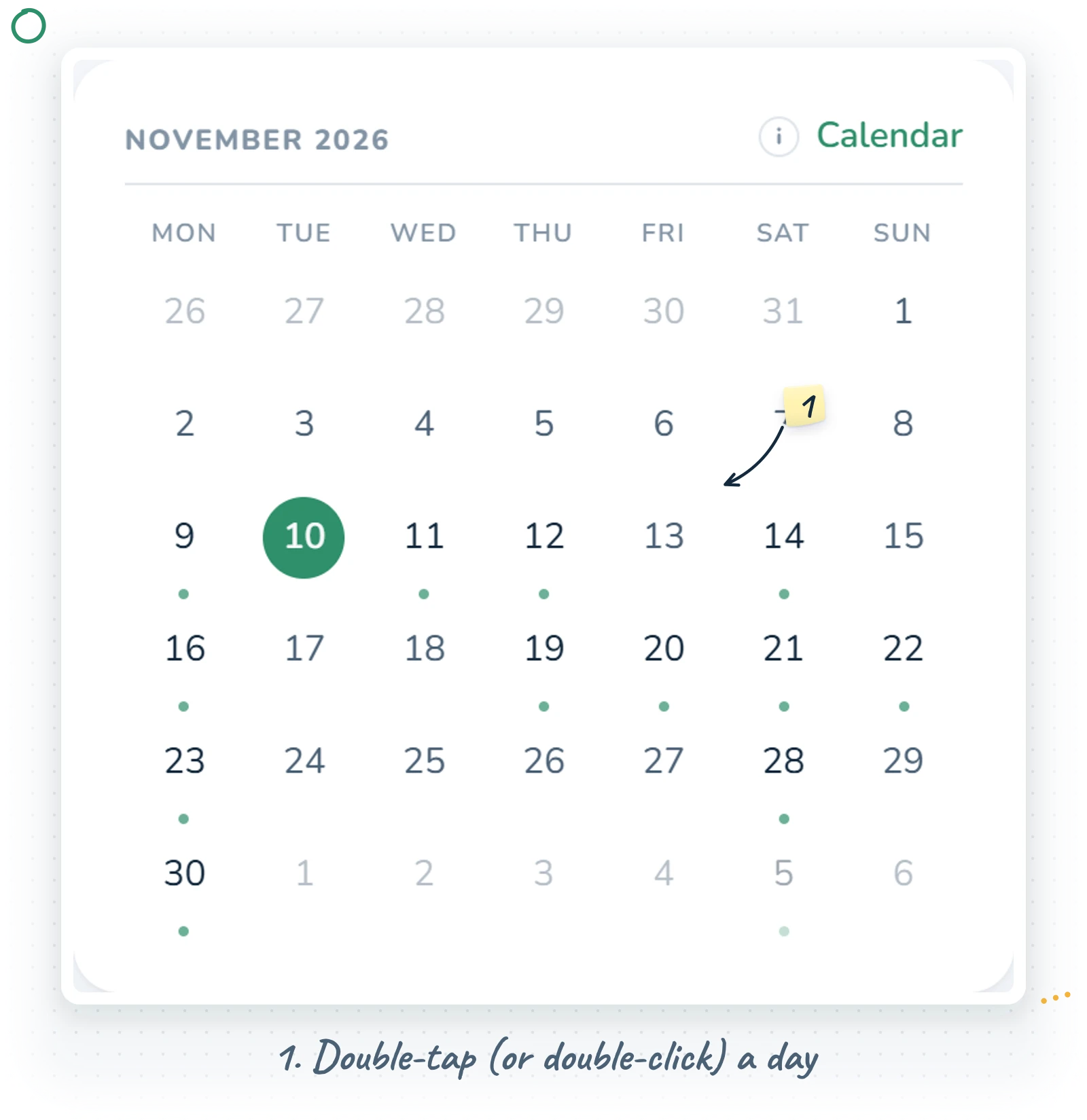
Double-click or double-tap a day to add an event
Double-click a day on a computer, or double-tap it on a phone, and the grid fades out. In its place a quick-add form fades in, titled with the day you picked. Nothing pops up, nothing slides over the page; the form simply takes the calendar's spot. It asks for:
- A name for the event (the only thing it really needs).
- A description, if you want one.
- A start and a stop time, both optional. Leave them empty and the event is all-day; the form even reminds you with "No times = all day".
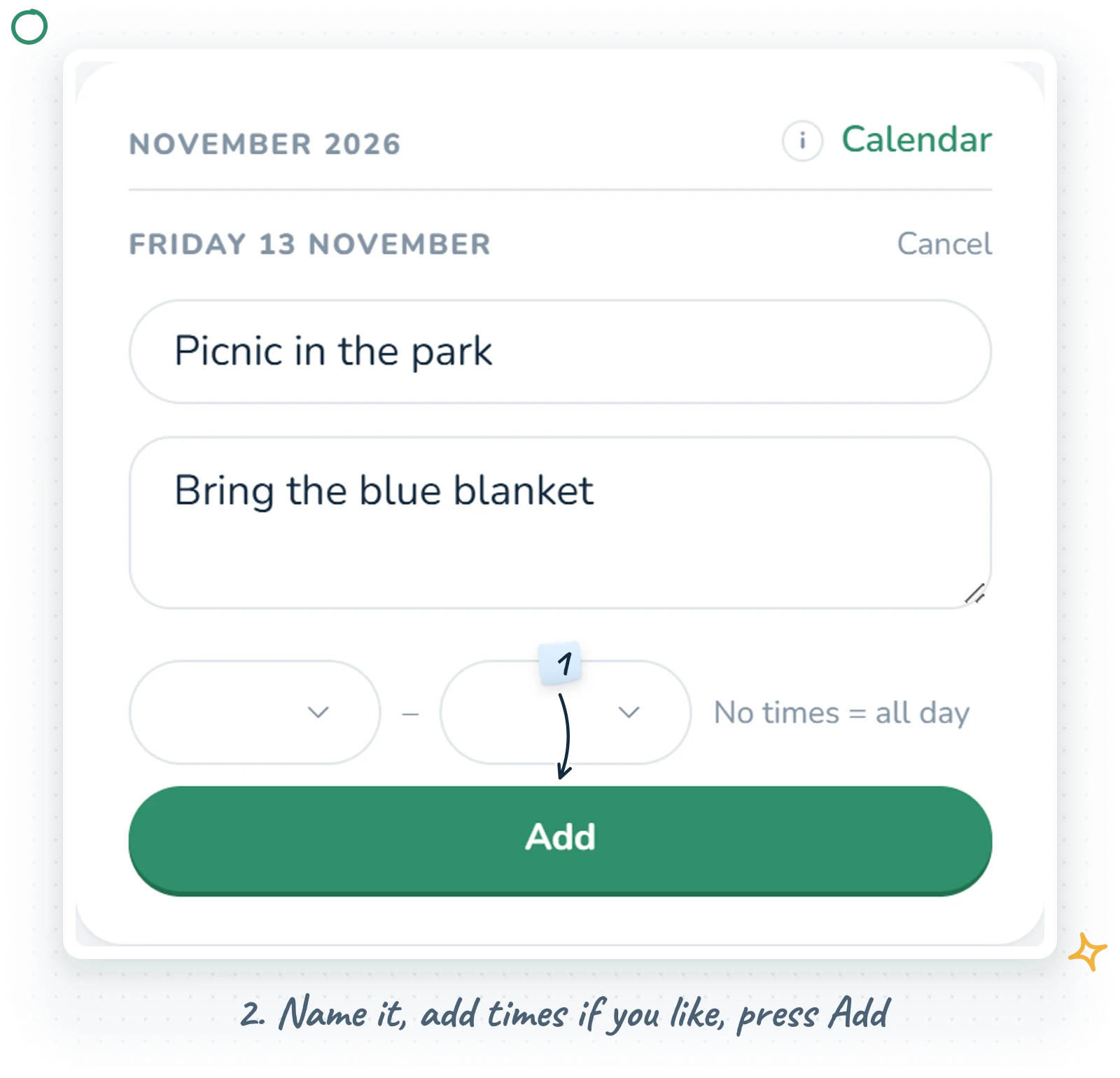
When you pick a start time, the stop time fills itself in 90 minutes later, because that turns out to be how long most of my things take. You can change it, of course. A Clear link empties both times again. Press Add and the grid fades back in with the new dot in place. Changed your mind? Cancel, or the Escape key, takes you back without saving.
A small detail I am quietly proud of: phones do not reliably report double-taps, so OScar counts the two taps itself. Two quick taps on the same day is all it takes.
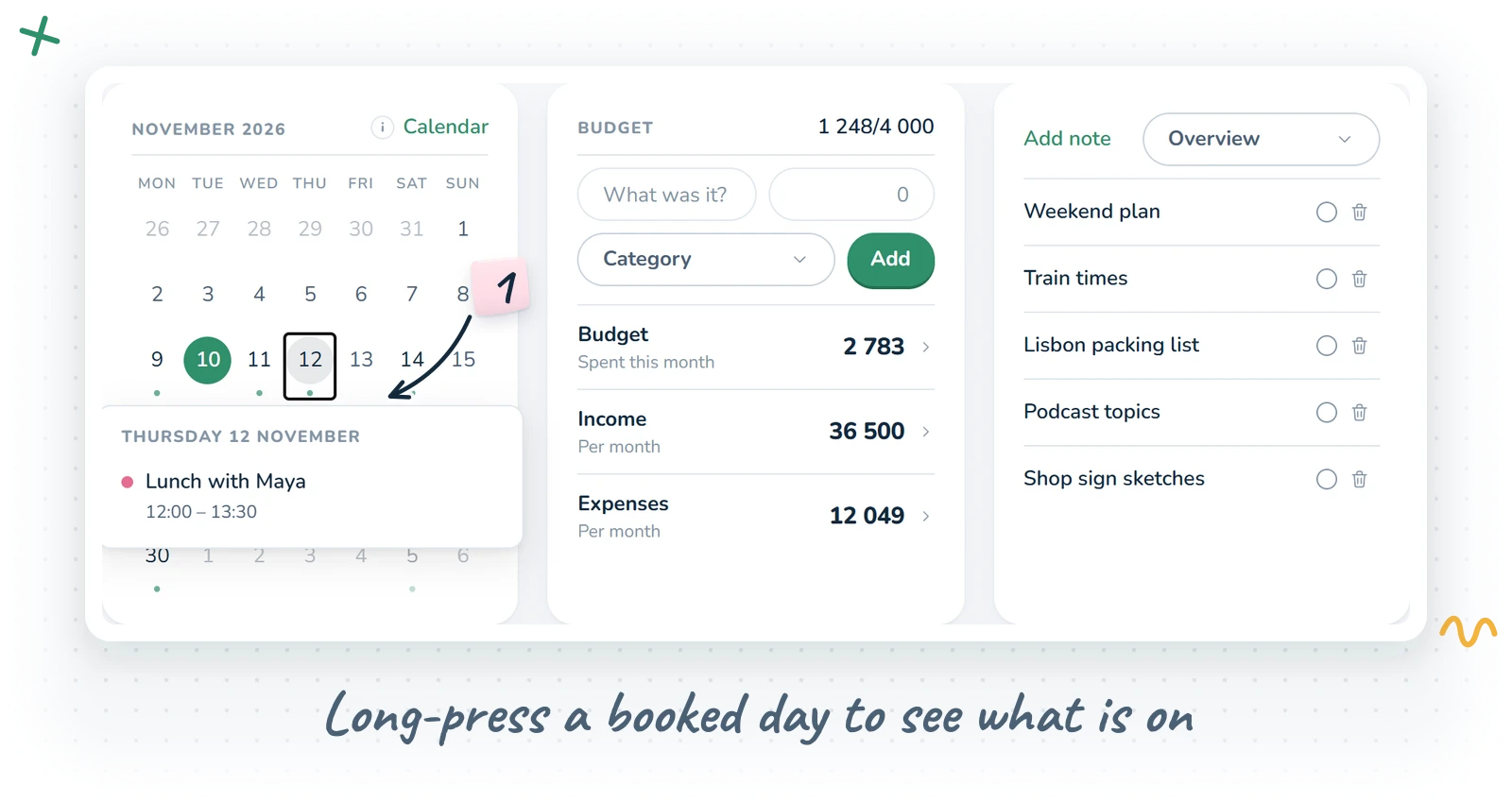
Long-press a booked day to see what is on
Press and hold a day that has a dot for about half a second and a small popup opens with that day's events: each with its colour, its title, when it happens, and the location and description if there are any. Long lists scroll inside the popup. On a phone it centres itself on the screen; on a bigger screen it opens under the day. Tap an event to open it on the Calendar page for editing.
Inside that popup you can also right-click an event to delete it. OScar asks first, and for a repeating event it warns you that every occurrence goes.
And a single click?
It does nothing, on purpose. Single clicks kept fighting the double-click, so they were retired. If you prefer the keyboard, focus a day and press Enter to start a new event, or Space to see its events.
The Calendar page: the month view
The full page opens on the current month. Weeks start on Monday, today is written in green, and the selected day gets a filled green circle. Across the top you have:
- Arrows either side of the month name, to step back and forward a month at a time.
- Today, which jumps back to the current month and selects today.
- New, which fades the full event form in, in place of the month, on the selected day.
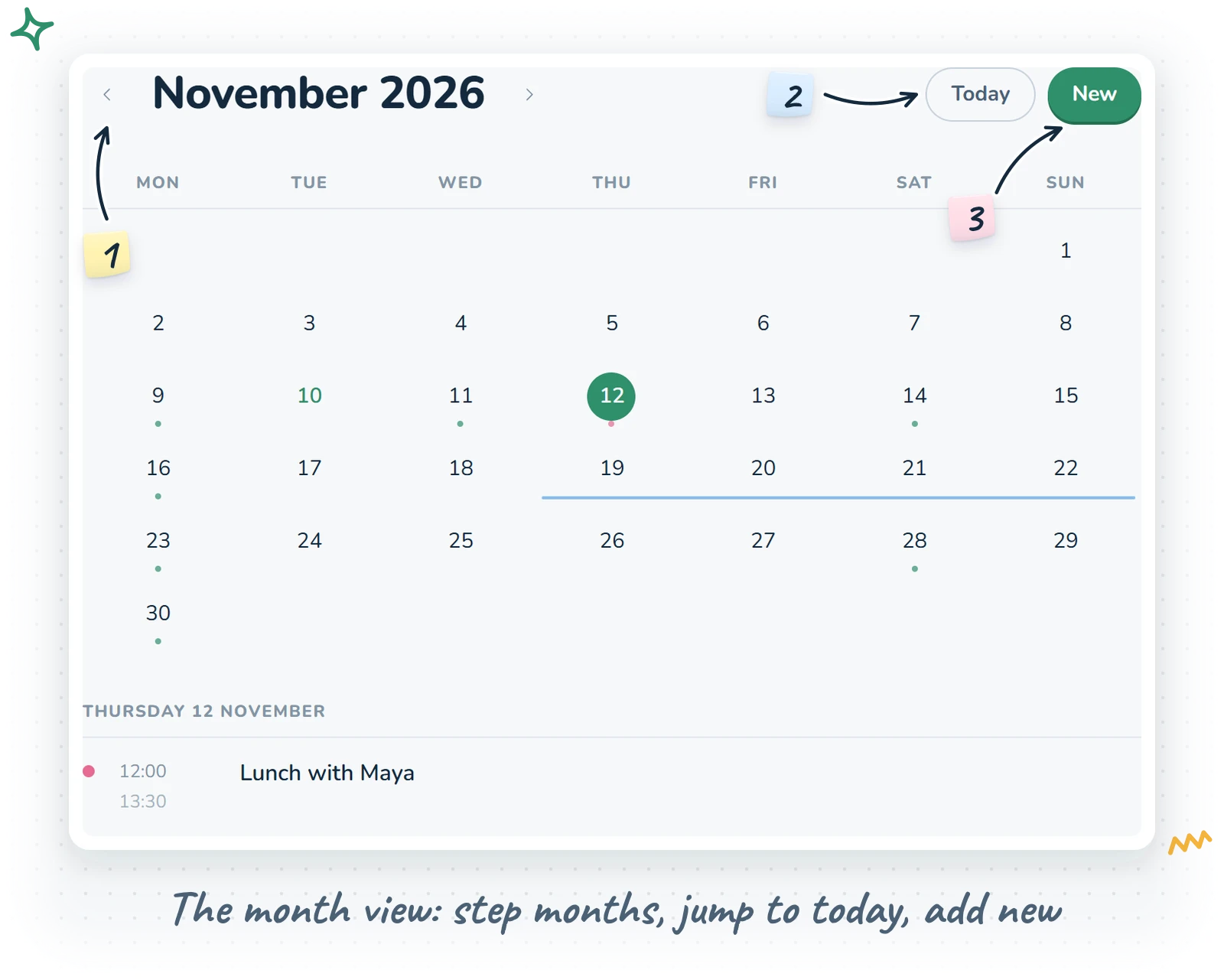
Each day with a single-day event carries a small dot in the event's colour. An event that spans several days draws a thin coloured line through all of them instead, with rounded ends on the first and the last day, so a holiday reads as one stretch rather than a row of dots.
Click a day to select it, and its events list underneath the grid: all-day things first, then the rest in time order, each with its colour, start and end time, title and location. A quiet "Nothing planned." means exactly that. Double-click a day here too and the full form appears for that day.
To remove an event from the list, right-click it and choose Delete event, or on a phone swipe the row to the left to reveal a red delete button. Both ask before anything disappears.
Creating and editing events
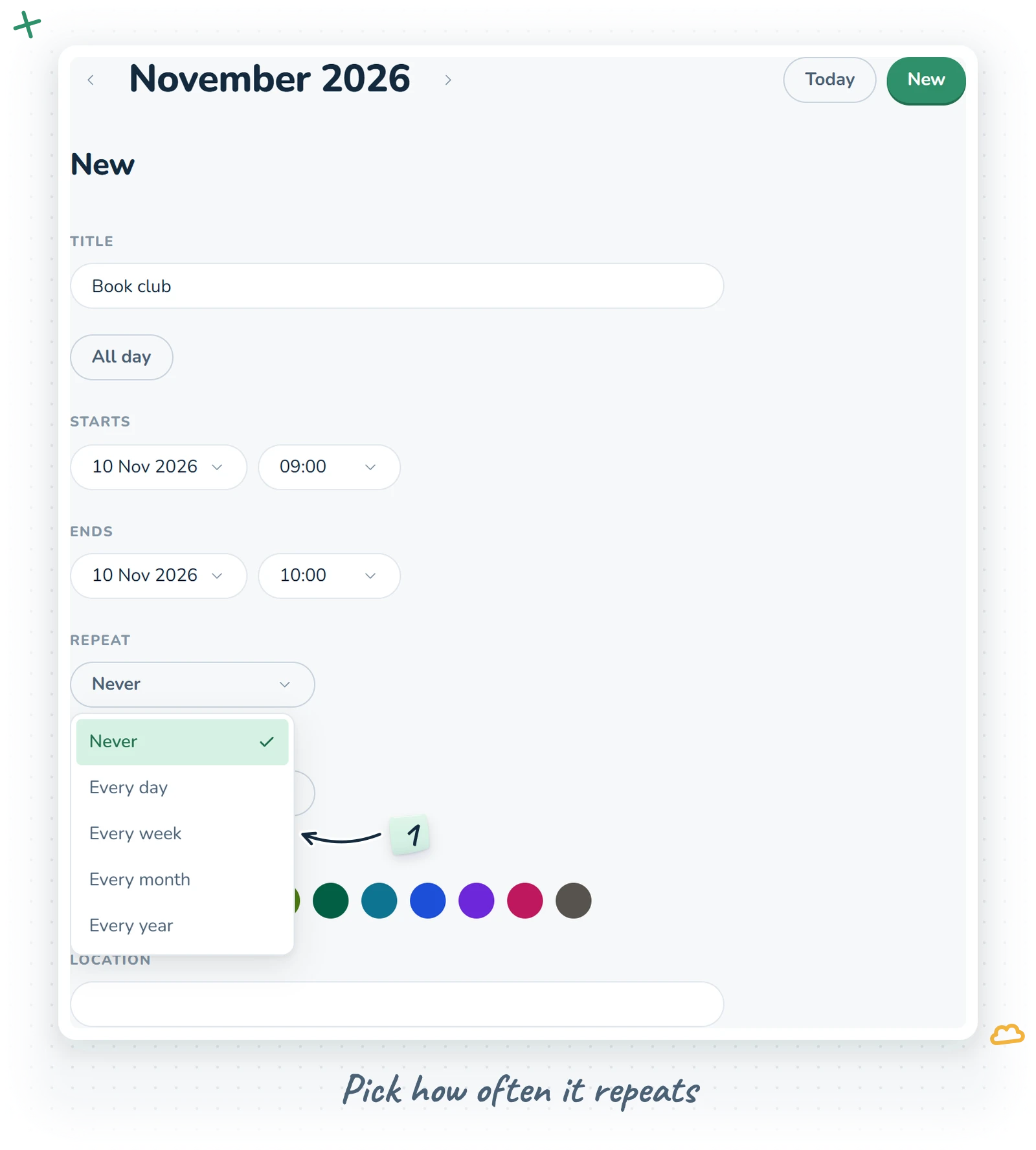
Clicking an event opens its editor; New opens an empty one. The form has every field the Calendar knows about:
- Title, required.
- All day, a toggle that hides the time pickers.
- Starts and Ends, each a date and (unless it is all-day) a time. The date pickers are small month grids and the time pickers list the day in quarter hours. Picking a start time pushes the end 90 minutes later, carrying the end date past midnight if it has to. If you move the start date past the end date, the end follows along.
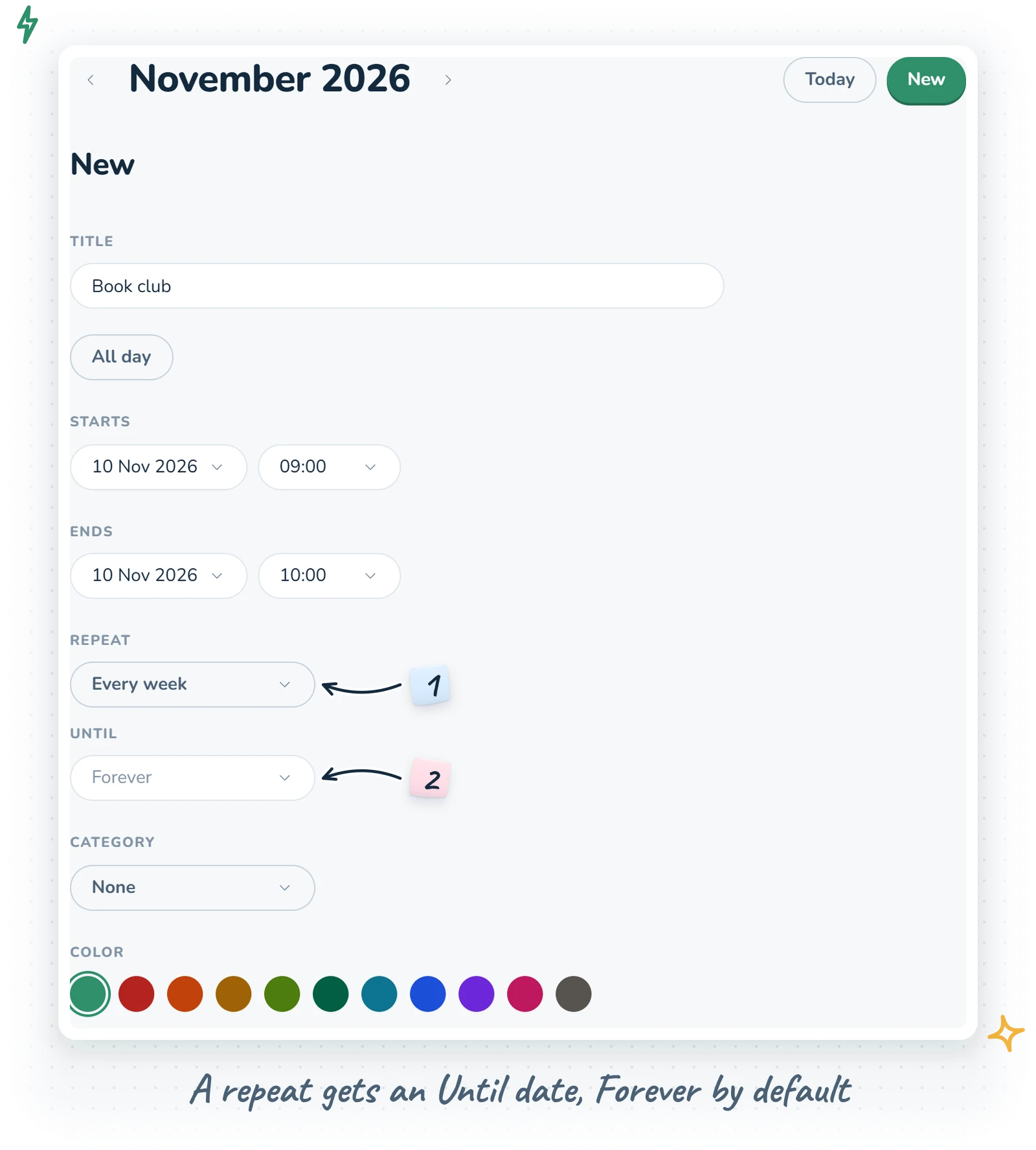
- Repeat: Never, Every day, Every week, Every month or Every year. Choose anything but Never and an Until date appears; leave it on "Forever" or pick the last day.
- Category: None, one of yours, or New category at the bottom of the list, which opens a little name field right there in the form.
- Color: the default green or one of ten preset colours. The colour shows on the dots, the lines and the day lists.
- Location and Notes, both free text.
Save, Cancel and Delete sit at the bottom. Because the editor is part of the page address, the back button (or a back-swipe on your phone) closes it and lands you on the month again.
How repeating events behave
A repeat applies to the whole series. Edit a weekly yoga class and every Tuesday changes; delete it and they all go. The dialogs say so, so nobody gets surprised. A monthly event on the 29th, 30th or 31st simply skips the months that are too short, the way an iPhone does it, rather than drifting to another date.
A couple of sensible limits keep things honest: an event cannot end before it starts, and a single event cannot stretch for longer than a year (that is what repeats are for).
Dates without time-zone drama
Calendar events are stored as plain wall-clock dates and times. "Lunch, 12:00 on the 4th" stays 12:00 on the 4th, whichever device you look at it on. For a personal calendar app that is mostly about your own days, that turns out to be exactly what you want.
Who this personal calendar app is for
If you want a shared office calendar with invitations and room bookings, this is not it. If you want to see your month at a glance, add things in two taps and get on with your day, it might be just right. The Calendar is one of the tools in the full OScar plan, alongside notes, budget, phonebook and the rest; you can see them all on the tools page.
Curious how it all fits together? Have a look at OScar, or check the plans on the pricing page (OScar is €18 a month or €172 a year). See you on Thursday. Checkout opens soon.
- calendar
- events
- planning
- home page
- productivity