The Budget guide · 5 min read
The OScar Budget: log it in one line, see the month
A tour of the Budget in OScar: the one-line quick-add on your home page, categories with monthly budgets, a six-month chart, and recurring income and expenses that add up to your monthly balance.
I have tried a lot of budgeting apps, and they all failed for the same reason: logging a coffee took longer than drinking it. So the Budget in OScar starts from the other end. It is a monthly budget tracker where the most important thing, writing down what you just bought, takes one line and one tap. Everything else (categories, budgets, charts, the monthly balance) grows out of that habit. Here is how every part of it works.
The quick-add: the whole point
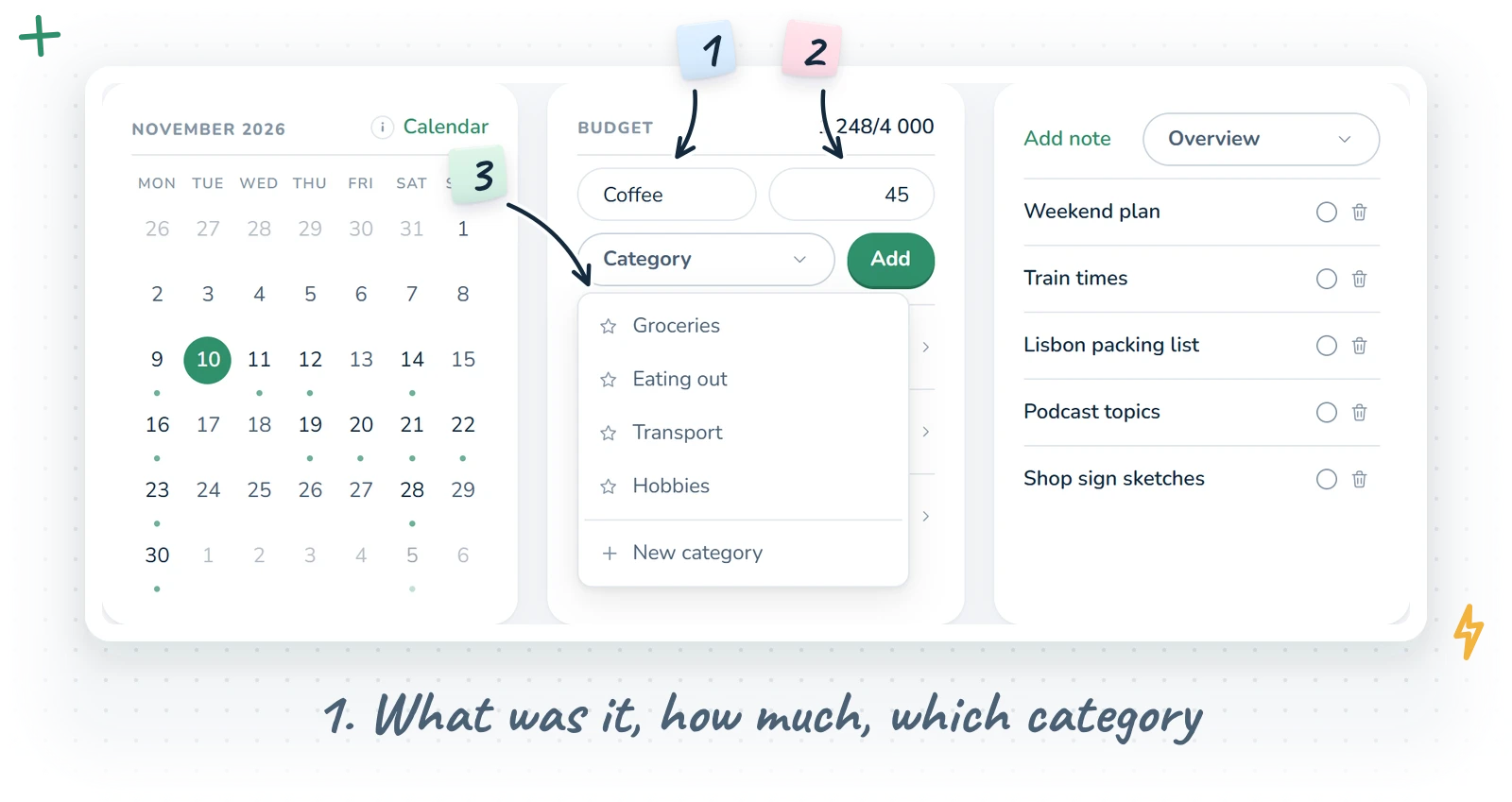
Bought something? Type what it was, type how much, pick a category, press Add. That is the quick-add, and it lives in two places: at the top of the Budget page, and in the Budget card on your OScar home page, so you never have to open the tool just to log a purchase.
- What was it? A name, optional. "Lunch", "Train ticket", "That book".
- Amount. Just the number. Commas and dots both work for decimals.
- Category. A drop-down of your categories. Favourites sit at the top, and New category at the bottom opens a name field right underneath, so you can make one on the spot.
After you add something, a small line confirms it ("Added 45 to Groceries"), the name and amount fields empty themselves, and the category stays picked, because purchases tend to come in runs. The purchase is dated today, using your device's own calendar date.
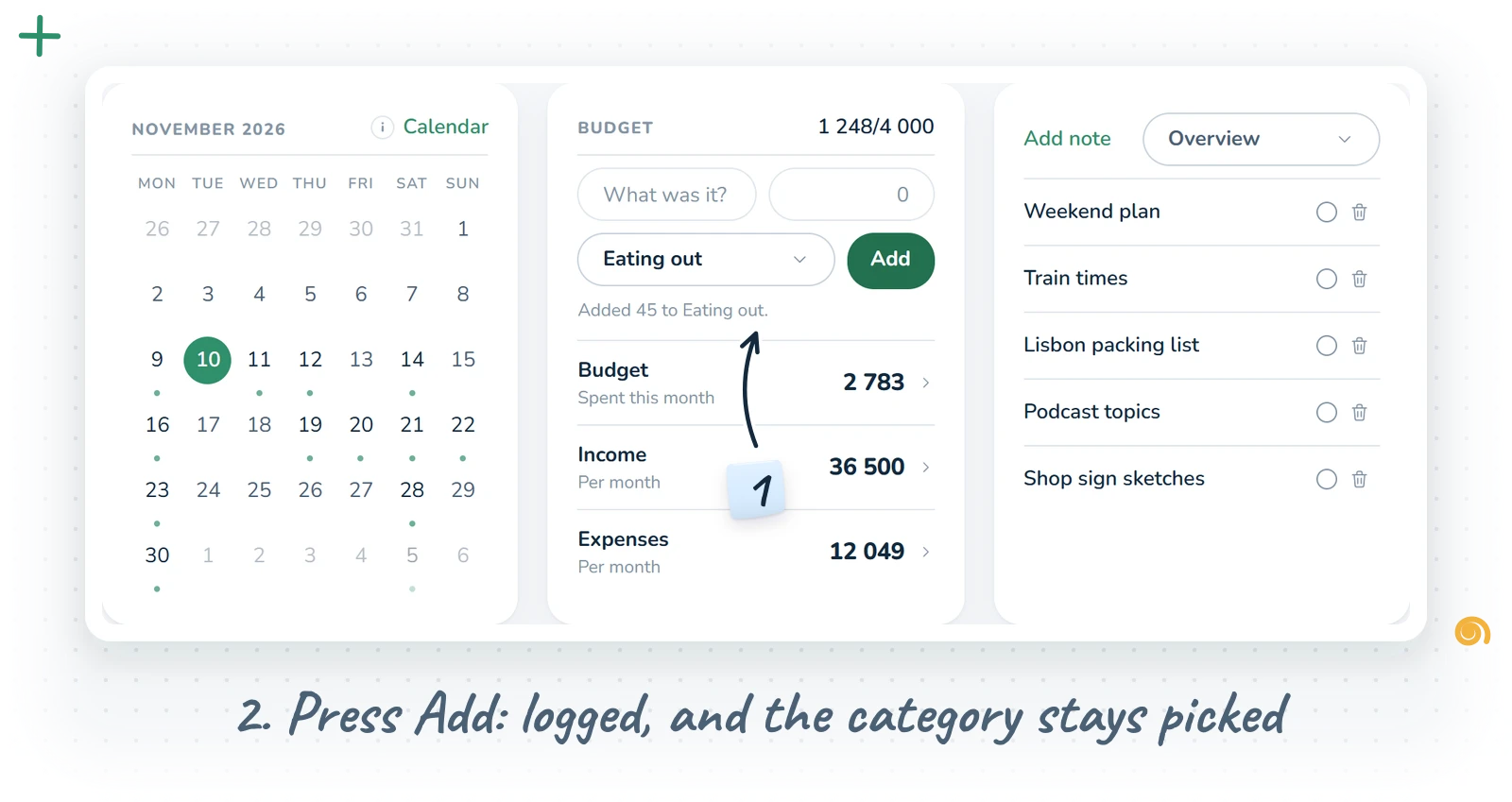
Amounts are plain numbers, formatted the Swedish way, with no currency symbol. Use whichever currency you think in; the Budget does not mind.
The Budget front page
Open the Budget tool and you see the quick-add, then three rows, each with a live number and a link into its page:
- Budget: what you have spent so far this month.
- Income: what comes in per month.
- Expenses: your fixed costs per month.
Under them, in big friendly digits, sits the Monthly balance: your monthly income minus your monthly expenses, with the plus or minus sign always spelled out. It is not "what is left in your account today"; it is what a typical month leaves over before the day-to-day spending. That number is the one I look at when deciding whether something is affordable.
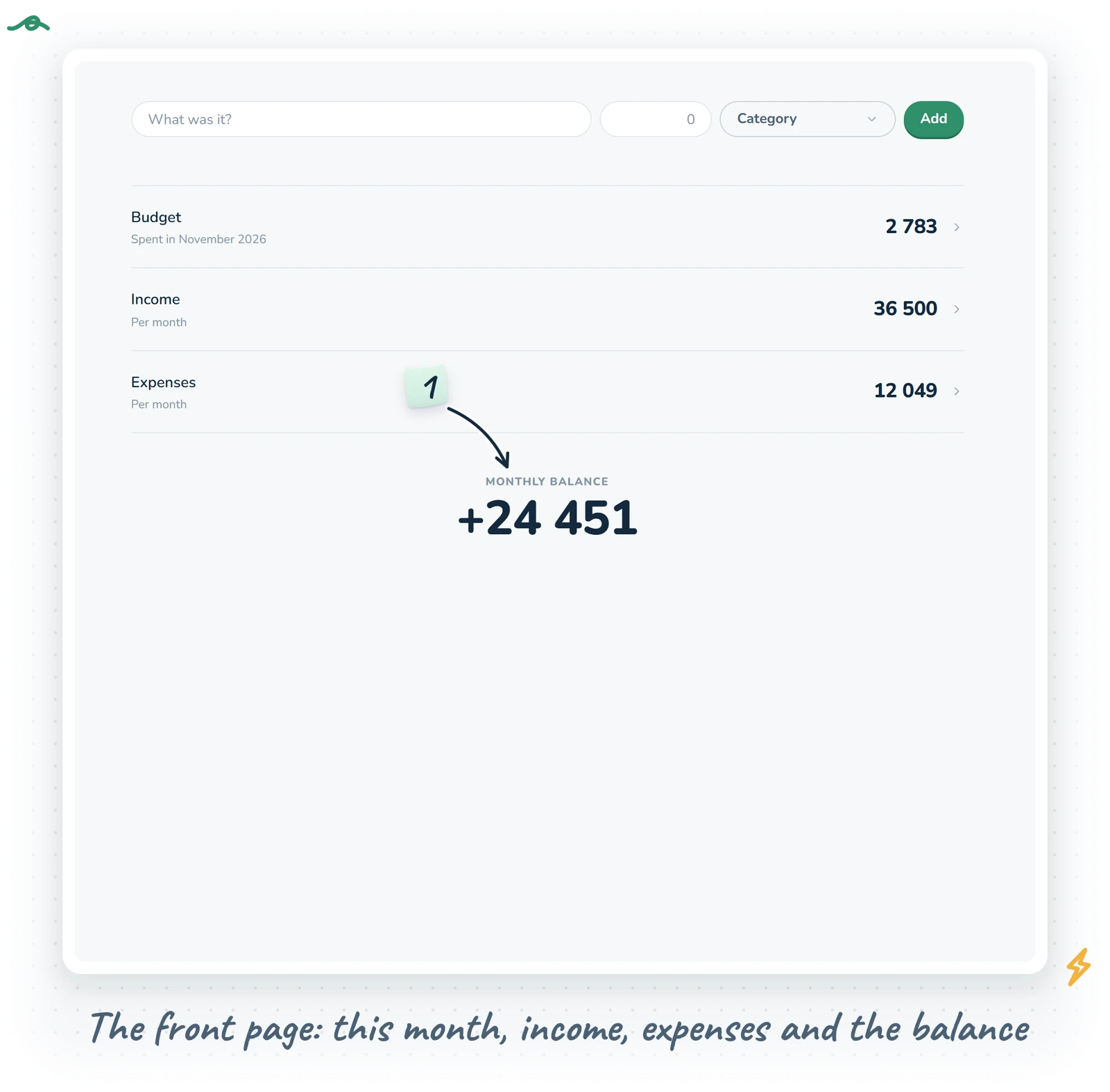
The home page card shows the same three rows under its quick-add, so the whole picture is one glance away.
Categories and monthly budgets
The Budget page (the first row) is where your categories live. At the top is a row for creating one: a name, an optional monthly budget and an optional colour, then Add. If you are starting fresh, think Groceries, Transport, Fun.
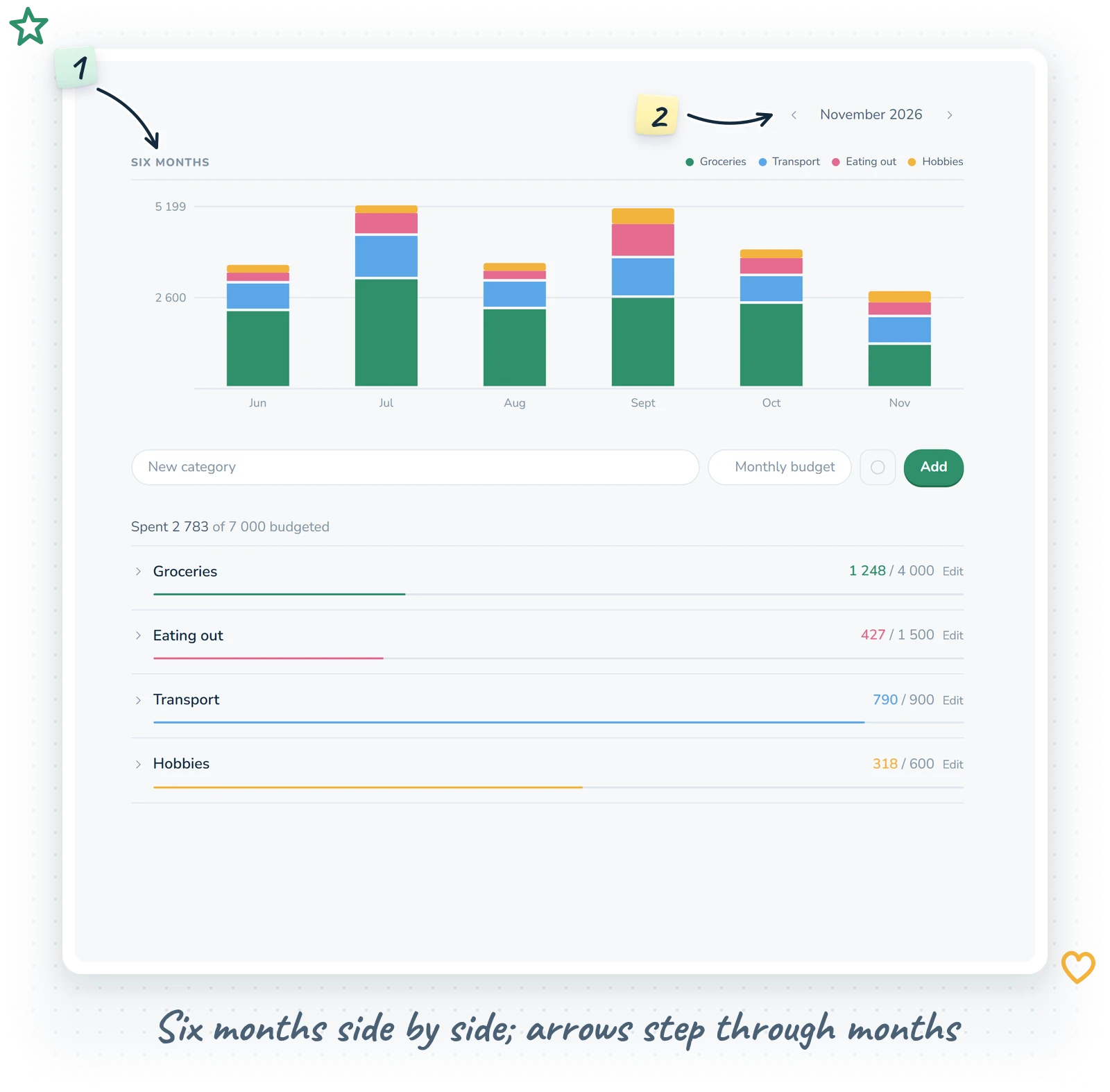
Each category is a row showing what you have spent this month, and, if it has a budget, "of" that budget next to it. A thin meter under the row fills up as the month goes on. If a category without its own colour goes over budget, its number and meter turn amber, a gentle "hey" rather than a red alarm. Above the list, a summary line reads "Spent X of Y budgeted".
Working with category rows
- Click a row to unfold it and see the month's purchases in that category: date, name and amount, each with a small trash button to delete it (OScar asks first).
- Click the category name to rename it right where it is. On a phone, long-press the name instead.
- Drag rows to put your categories in the order you like. On a phone, long-press an empty part of the row and drag.
- Edit on the right opens the category's editor.
The category editor
The editor holds the name, the Monthly budget (leave it empty for "No budget"), and a Color picked from ten presets. A colour paints the category's spent amount, its meter and its slice of the chart. Two toggles finish it off:
- Favorite puts the category at the top of the quick-add's picker. You can also star and unstar categories straight from the picker itself.
- Desk view shows this category's month numbers (spent, and budget if it has one) in the heading of the Budget card on your home page. Handy for the one category you are trying to keep an eye on.
Deleting a category deletes its purchases too. The confirmation says so plainly, and it cannot be undone, so it is worth a second look.
Purchases themselves are deliberately simple: there is no editor. If you typed the wrong amount, delete the line and add it again. Two seconds, no forms.
Six months side by side
Once you have logged something, the Budget page opens with a chart called Six months: one stacked bar per month, each split into your categories by colour, with a small legend above. Hover a bar (or tap it on a phone) to see that month's breakdown. Categories with their own colour keep it; the rest get colours from a balanced palette, and if there are many small ones, the tail bundles into a grey "Other". Even a small category keeps a visible slice, so a month never reads as one solid block.
The arrows next to the month name at the top step back and forward through months. Both the category list and the chart follow along, so you can look at what March actually looked like.
Income and Expenses: the recurring side
Day-to-day spending is only half of a budget. The other half is the stuff that happens every month whether you think about it or not, and that lives on the Income and Expenses pages.
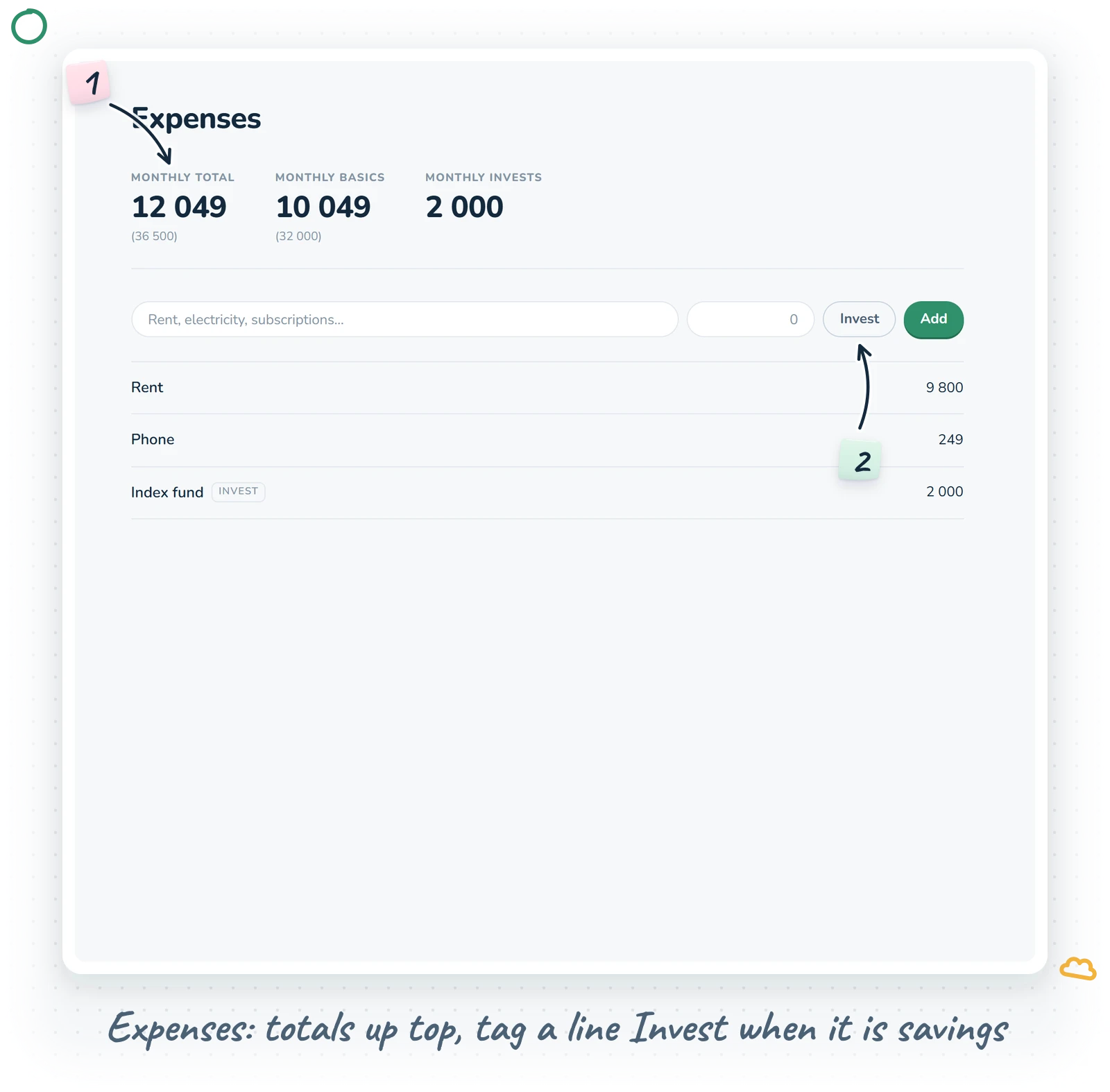
Both pages work the same way. At the top, an add row: a name ("Salary, side work..." or "Rent, electricity, subscriptions..."), an amount per month, a tag toggle and Add. Below, your list of lines, each with its amount. Click a line to open its editor (name, amount per month, tag, Save, Cancel, Delete), click or long-press the name to rename it in place, and drag lines to reorder them.
The tags
- On Income, the tag is Extra, for money that is not guaranteed: freelance work, a side gig. Untagged income counts as Monthly secure.
- On Expenses, the tag is Invest, for costs that are really savings or investments. Untagged costs count as Monthly basics.
Each page opens with three numbers: the Monthly total, the untagged part and the tagged part. The first two show the other page's matching figure beside them, so on Expenses you can see your basics right next to your secure income. That pairing answers the question "can my guaranteed money cover my guaranteed costs?" without any spreadsheet.
Where this monthly budget tracker sits in OScar
The Budget is reached from your home page: its card there is both the quick-add and the doorway into the tool. It belongs to your home project, the one you have marked "Set as home", which for most people is simply Private.
It is one of the tools included in the full OScar plan. You can browse the rest on the tools page.
Want your money and your week on the same page? Take a look at OScar, or see the plans on the pricing page. Now go log that coffee.
- budget
- money
- personal finance
- home page
- spending