The Documents guide · 9 min read
Documents in OScar: groups, folders, versions and search
Everything the Documents tool in OScar can do: uploads, groups and folders, previews, versions, search that reads inside your files, and sharing.
Documents is where the paperwork of life goes in OScar: contracts, receipts, manuals, the scanned passport, the tax return you swore you'd file properly this year. It's online file storage built around one promise: whatever you put in, you can find again in a few seconds. This post walks through every part of it, from the first upload to version history and share links.
Getting started with your online file storage
Documents lives inside a project, like every OScar tool. Open a project, press the Documents tile, and you see that project's folders and files. The word "Documents" sits in the sidebar next to the OScar logo, so the page itself starts right at the toolbar. Your home project starts with a sensible set of folders (Inbox, Personal, Home, Finance, Vehicles, Work, Business and Archive, several with subfolders like Insurance, Receipts or Tax), and other projects start with an Inbox. They're ordinary folders, so rename or delete them as you like.
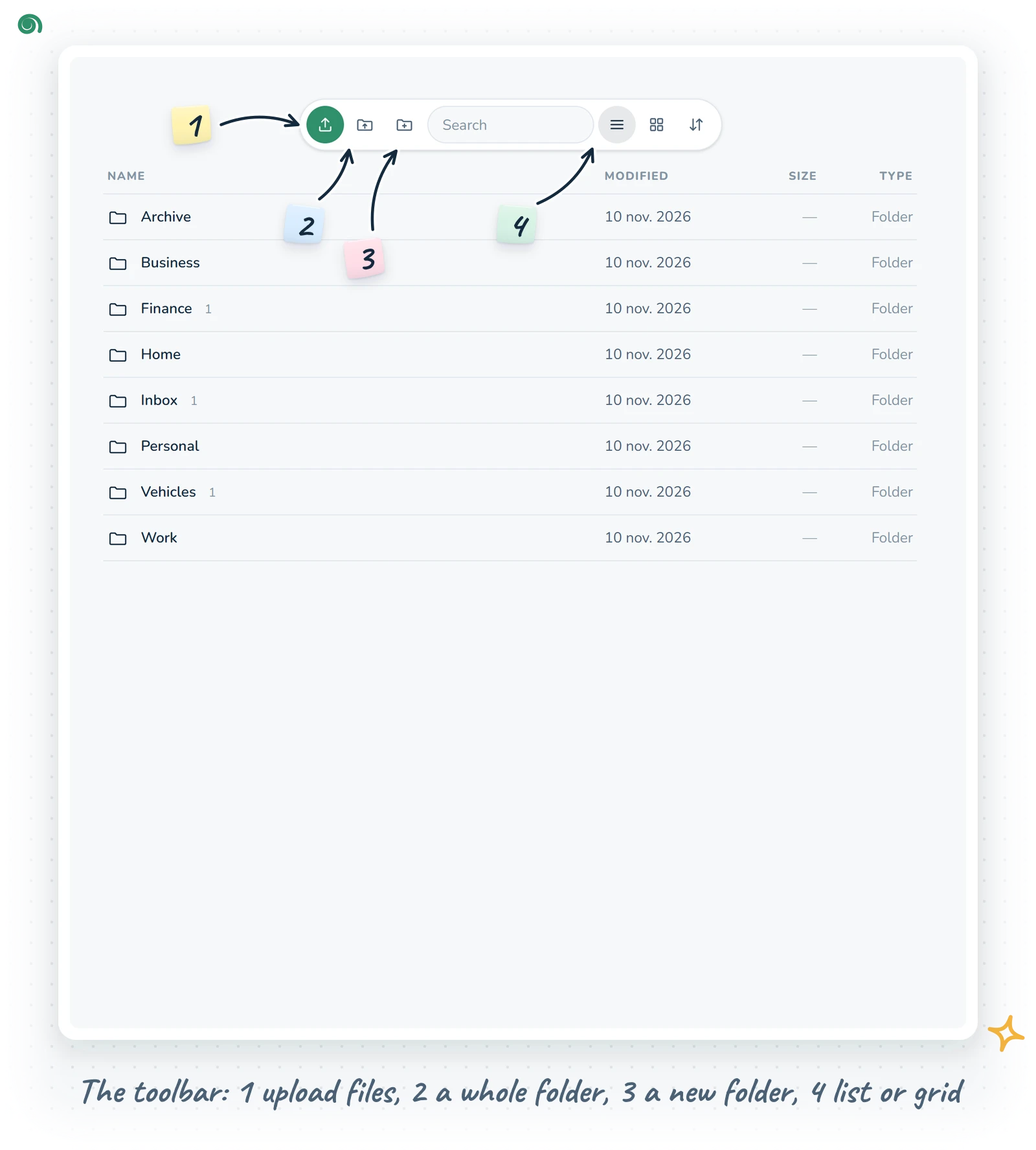
The toolbar is a small floating pill of icons at the top of the page, and it stays there while you scroll. Hover an icon to see its name. From left to right:
- Upload (the green one): pick one file or many.
- Upload folder (on a computer): pick a whole folder from your disk, and its structure comes along.
- New folder: name it and press Enter.
- A search field, then list and grid view. The view you choose is remembered on each device.
- A sort picker: by name, last modified, size or type.
- Inside a folder, a red bin last: Delete folder.
You can also just drag files from your desktop into the window. They upload into the folder you're looking at.
Uploading, without the drama
Uploads go into a little queue at the bottom of the screen, a few at a time, with a progress bar and a status per file ("checking", a percentage, "saving", "done"). Anything that fails gets a Retry link, and anything in flight can be cancelled. Big files go up in pieces, so a wobbly connection doesn't send you back to zero. Each file can be up to 300 MB.
Two clever checks run before a file lands:
- Same content: if the exact same file is already there under another name, OScar says so and asks: Skip duplicates or Keep both.
- Same name: if the folder already has a file with that name but different contents, you get Replace as new version, Keep both or Skip. Replacing keeps the old one in the file's history (more on versions below).
Your choice applies to the rest of that batch, so dropping in fifty files doesn't mean fifty questions.
Groups, folders and how they sort
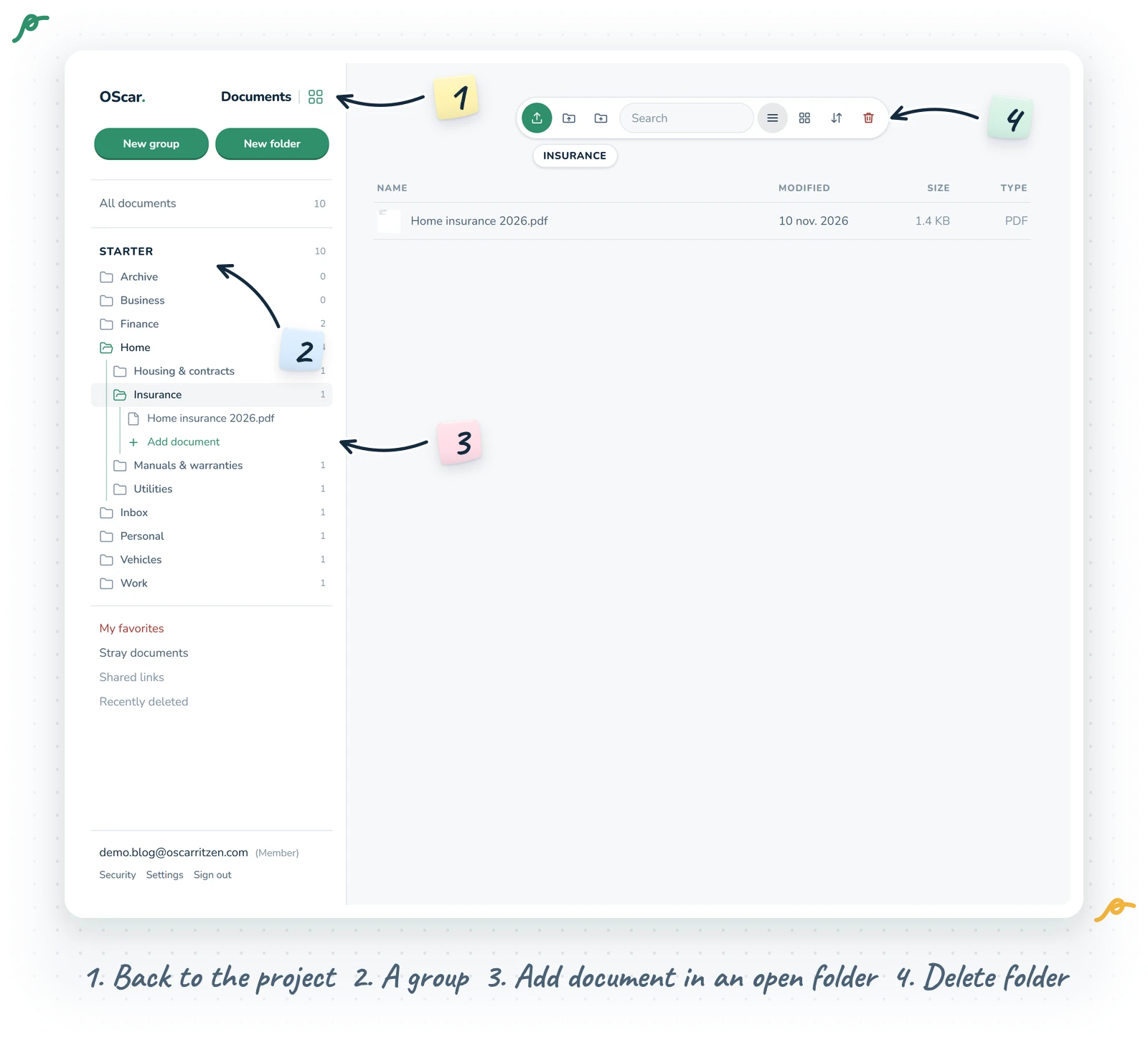
The sidebar is where the structure lives, built the same way as in Notes and Draw. At the top sit New group and New folder, then All documents with a count. Below come your groups: extra-bold capital headings with a count, closed until you click them, each holding folders. A group is a shelf for related folders ("Paperwork", "Work", "Old stuff"); your existing folders start out in one called Starter.
Click a folder and it opens in the sidebar, listing its subfolders, then its documents, with Add document last, while its page appears on the right: the toolbar with the folder's name in a small pill right under it (click the name to rename it) and the red Delete folder bin at its end (the folder goes to Recently deleted, where you can restore it), then its subfolders and files. In the sidebar a folder's little icon is the switch: grey and closed, or green and open. What an open folder holds sits one step in, under a thin guide line, and the lines turn green along the way to the folder you're in; an open document is marked in blue. Folders nest as deep as you need for sensible filing, and the sidebar keeps the whole chain open, so you always see where you are. On a phone the menu shows three levels at a time: a folder on the third level has a small arrow and opens as its own panel, with a back button and the full path on top. The sidebar remembers which folders you left open, even after a reload.
Inside a group, folders sort by name, and numbers sort the way you'd expect: "1. Taxes", "2. Home", "10. Archive" come out in that order, not 1, 10, 2. Putting a number in front of a name is the easy way to fix an order.
Right-click a group in the sidebar for New folder here, Rename and Delete group. Right-click a folder in the page's list for Open, Download as zip, Share link…, Share with people…, New subfolder, Rename, Move…, Color… and Move to trash; in the sidebar the same click gives a shorter menu with New subfolder, Add document…, Rename, Color… and Move to trash.
Moving things
Drag files or folders onto a folder row or a folder in the sidebar to move them, and drag folders and groups around the sidebar to rearrange it. Or use Move…, which opens a folder picker with a "Top level" option. If the target already has something with the same name, the newcomer becomes "Name (2)", so nothing gets overwritten.
You can also move files and whole folders to another project: open the two projects' Documents in two browser windows and drag from one into the other.
Opening, previewing and the info panel
Click a file once to select it. Double-click it (or press Enter) to open the info panel, which slides in from the right on a computer and up from the bottom on a phone. It shows a preview where one makes sense: PDFs, images, plain text, video and audio play right there. For anything else you get a friendly "No preview for this type" and a Download button.
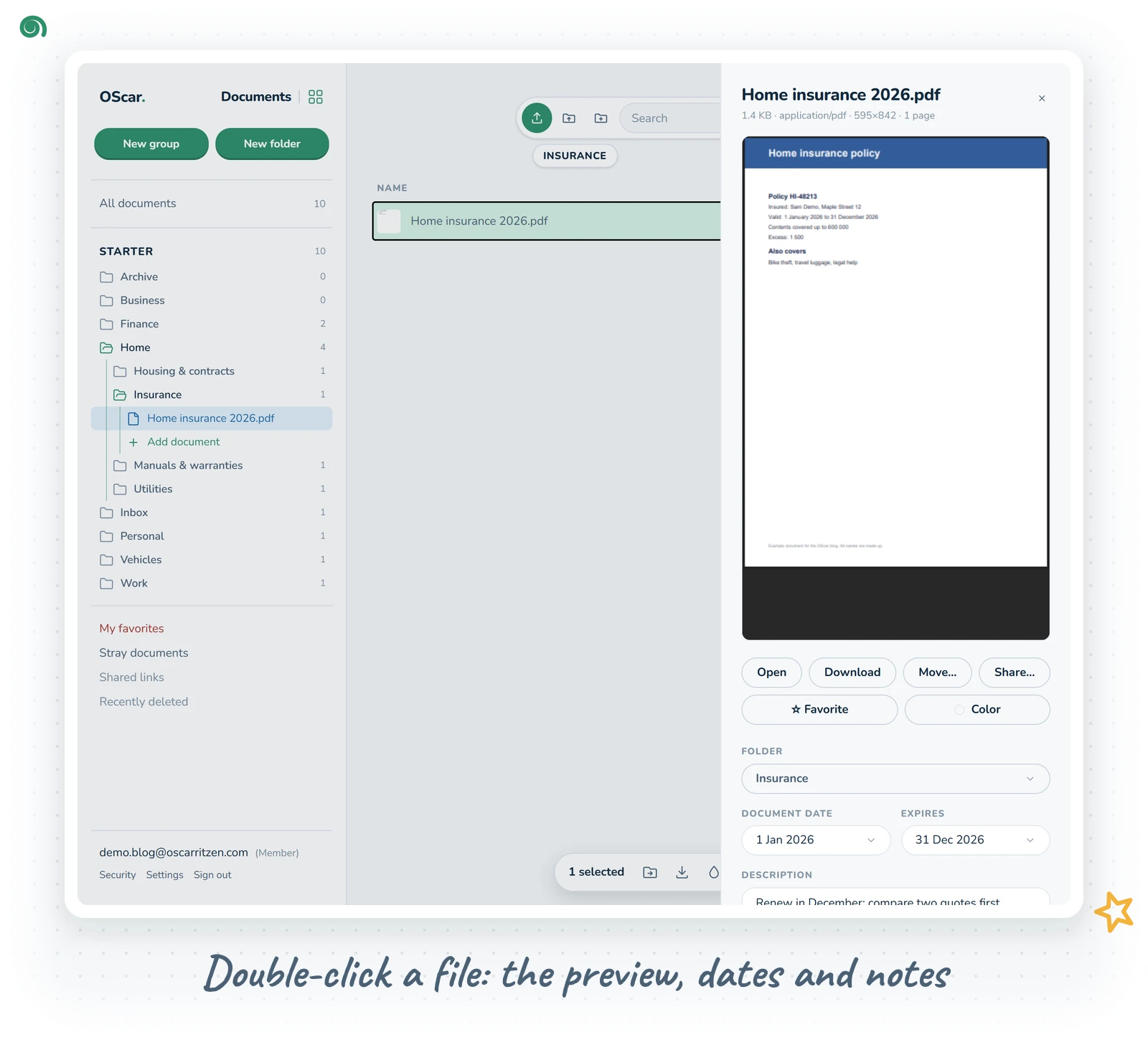
The panel is also where a file's details live:
- Open, Download, Move… and Share….
- Favorite and a colour.
- Folder: move it from a picker.
- Document date and Expires: two optional dates. The first says when the document is from, the second when it runs out.
- A Description ("Notes about this file", up to 1000 characters).
- Added and Modified dates.
- Versions, covered below.
Click the file name at the top of the panel to rename it.
Search that reads inside your files
This is my favourite part. Press Ctrl K (or Cmd K on a Mac) anywhere in Documents and a search box pops up. Matching folders and files appear as you type. Use the arrow keys and Enter to jump straight to a file in its folder, or choose See all for the full results page.
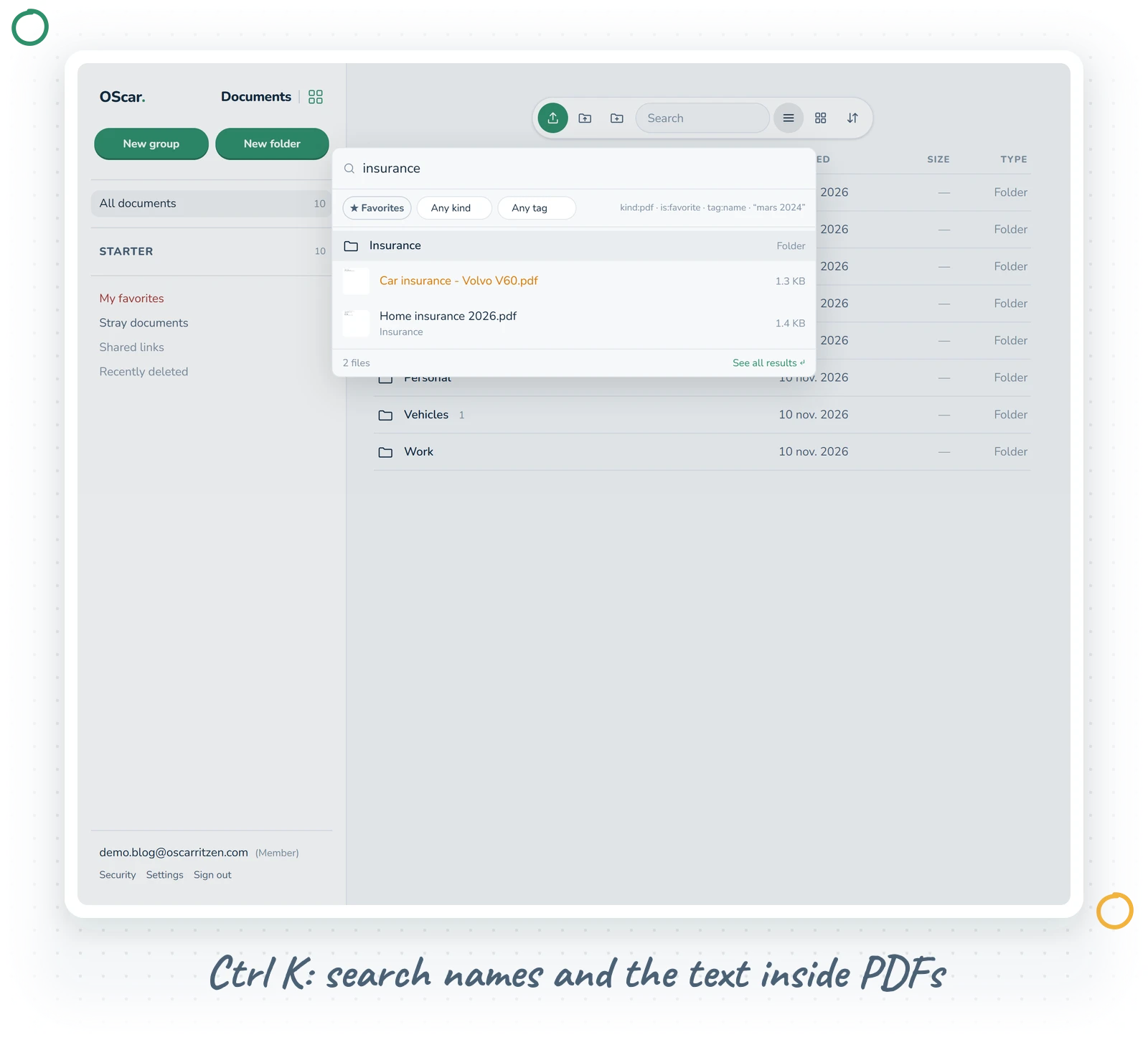
Search looks at names and descriptions, and also at the text inside your files: when you upload a PDF, its text is read so you can find it by a word on page one. For photos of documents (a receipt snapped on your phone, a scan saved as an image), the info panel has a Read text button. It reads the words in the image so search can find them too, and uses a few of your monthly AI credits.
Narrow a search with the Any kind picker (Images, PDFs, Text, Videos, Audio, Other), or type filters straight into the box:
kind:pdffor PDFs onlyis:favoritefor favorites
The search field in the toolbar searches the folder you're in, including its subfolders.
Favorites, colours and the trash
Star a file (or press F) to mark it a favorite, and give files and folders a colour you can spot from across the room. Lower down in the sidebar, below your groups, sit four more rows:
- My favorites: every file you starred, whichever folder it lives in.
- Stray documents: every document that sits in no folder at all, with a count. Upload from there and the files land right in it, ready to be dragged into a folder when you get round to it.
- Shared links: every share link you've made, with its live count.
- Recently deleted: the trash, also with a count.
Versions
When a document changes (a new draft of a contract, an updated CV), you don't need "final_v3_REAL.pdf". Open the file's info panel and press Upload new version. The new file takes over, and the old one moves into the Versions list, where each earlier version can be downloaded, restored (the current one is kept as a version, so nothing is lost) or deleted. The upload queue's "Replace as new version" does the same thing.
Selecting many files
Click to select, Shift-click for a range, Ctrl or Cmd-click to add one more. A small bar floats at the bottom with the count, Select all and Clear, and round icon buttons for move, download, colour, favorite and trash (hover one to see its name). Download hands you a single file directly, or packs several files and folders into a zip with their folder structure intact.
Press ? to see every keyboard shortcut. The handy ones: R rename, M move, F favorite, U upload, Ctrl/Cmd Shift N new folder, Delete to trash, Ctrl/Cmd A select all.
Trash, the forgiving kind
Move to trash always asks first, then sends things to Recently deleted. A trashed folder takes its contents with it and comes back whole when you Restore it. Each item shows how many days it has left: after 30 days it's deleted for good. You can also Delete forever one item, or empty the lot with the red bin icon beside the search field.
Sharing documents
There are two ways to share:
- Share with people…: pick another OScar user by email (or tap a family member's chip on the family plan). They find the file or folder under Shared with me, to view and download.
- Share link…: a link for anyone, even without an account. Pick how long it lasts (1, 7 or 30 days, always with an end date) and a gate: a password you give them separately, or an email the visitor types in before viewing, so you can see who opened it. A folder link shows that folder's own files, not its subfolders. Copy the link right away, as it's shown only once. The dialog lists the item's existing links with a Revoke button, and the Shared links view lists them all.
On your phone
- A tap opens a file. To pick several, press Select in the toolbar, tap your files, then press Done.
- Long-press and drag to move files onto a folder.
- The search icon opens the same quick search as Ctrl K.
- The info panel slides up from the bottom of the screen, with the preview and every detail in one place.
A few tips
- Drop everything into the Inbox first, then sort once a week. It's surprisingly relaxing.
- Give ID cards, insurance papers and warranties an expiry date in the info panel, so the date is one click away when you need it.
- Photograph paper receipts and press Read text, and a search for the shop name finds them later.
Wrapping up
Documents is calm file storage that sits next to your notes, photos and lists in the same project, so the lease and the moving checklist live side by side. See how it fits the rest on the OScar page or browse all the tools.
Documents is part of the OScar plan, €18 a month or €172 a year with 50 GB of storage. Peek at pricing and give your paperwork a proper home. Checkout opens soon.
- documents
- file storage
- search
- organisation
- oscar